Navigate to the My Students page and click on the New Pass button.
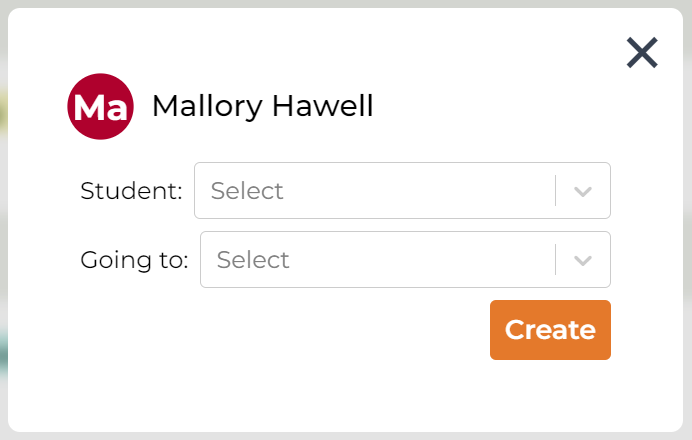
A pop up will appear with two selection boxes:
- Student, to choose the student you are creating a pass for.
- Going to, to choose the destination of the student.
You can either type in the search box or use the dropdown menus to make your selections.
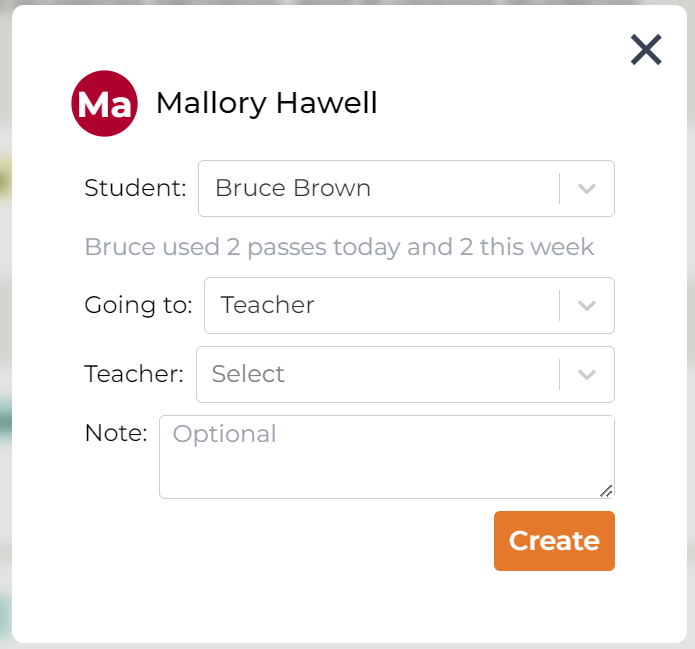
Depending on your school's settings, additional selection boxes and fields may appear. If you are sending a student to another teacher, select the teacher option. A new box will appear where you can choose the teacher.
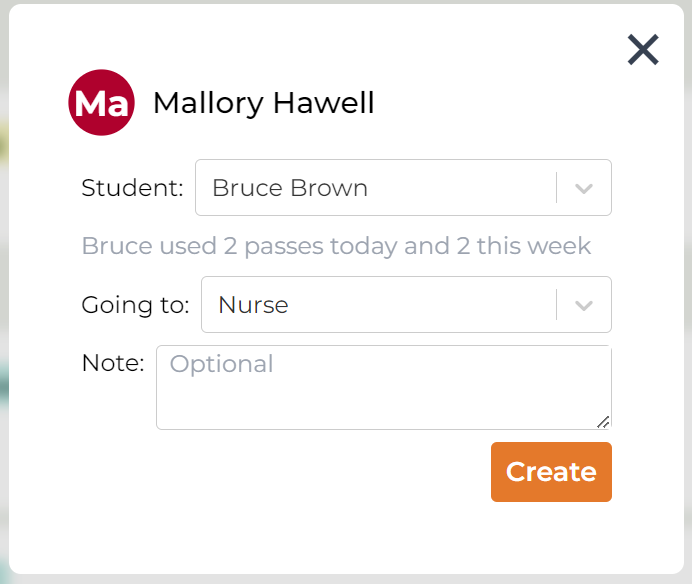
Some destinations may allow you to add an optional note to the pass. This field is not required.
If the destination you need is not listed, select the other option. This will open a text box where you can manually input the destination.
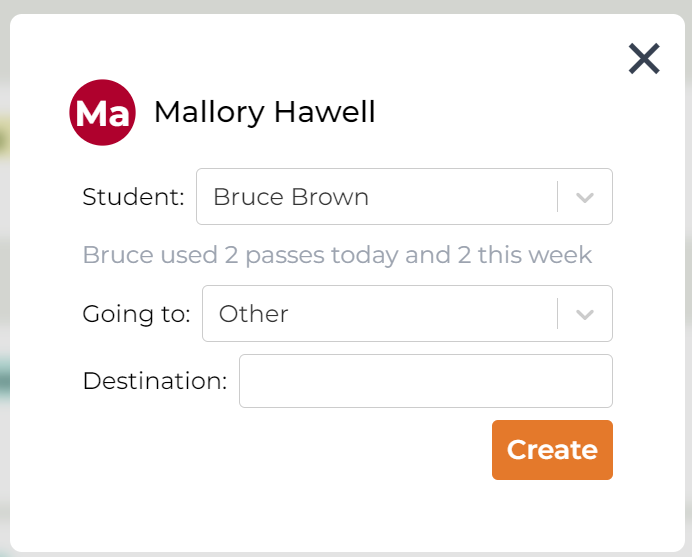
Once you have filled in all the necessary information, click the Create button located at the bottom right of the module.

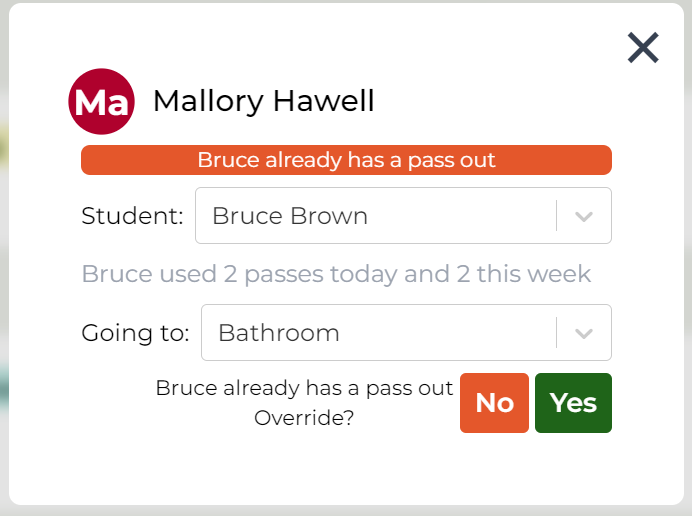
If the student already has an active pass or a bathroom buddy in the hall, you will be prompted to override the existing pass. Click Create, then Yes to confirm the override.
- Overriding an existing pass will return the student's current pass.
- Overring with a bathroom buddy will allow both students to have passes out.
Was this article helpful?
That’s Great!
Thank you for your feedback
Sorry! We couldn't be helpful
Thank you for your feedback
Feedback sent
We appreciate your effort and will try to fix the article