The One Pass Device is a valuable tool that allows teachers to set up a dedicated device for students to create passes easily.
Setting Up One Pass Device
Setting up the device is simple. For navigate to the One Device Page. You can find it under create a pass and then clicking One Pass Device.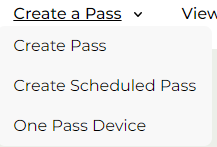
You will presented with two options. You can use the device you are currently on or use a separate device. The separate device option allows you to still use One Pass Device without having to log in. Using the current device you are on will redirect you to the One Pass Device on the device you are currently using. Click on Use This Device to select this option.
If you would like to use a separate device for it, click the generate code button. 
A code will be generated and you have five minutes before the code expires. If the code expires you can always regenerate a new one.

On the device you would like to use for One Pass Device go to OrangesPasses.com/oneDevice enter the generated code into the text box and click verify code.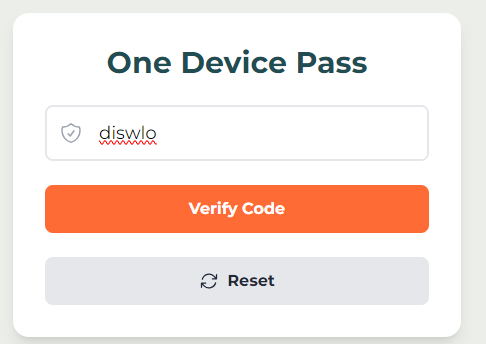
If the code is valid you will have the device set up.
If in the future you would like to switch devices to be used, walk through this process again.
Using One Pass Device
Students can create a pass by clicking on the New Pass button in the top right.

They will select who they are and there destination.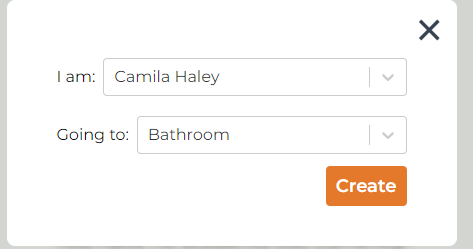
Once done they should click the create button. Creating a pass with One Device Pass automatically approve it. It will also make the pass appear on the device.

Once the student has returned they will click the returned button on the pass card.
Important Notes
Feature like limit one still work with One Device Pass.
Was this article helpful?
That’s Great!
Thank you for your feedback
Sorry! We couldn't be helpful
Thank you for your feedback
Feedback sent
We appreciate your effort and will try to fix the article