The Substitute Teachers page allows admins to manage substitute teachers by adding, deactivating, or reactivating them.
Creating a Substitute Teacher
-
Click the New Substitute Button: A pop-up will appear.

-
Enter Details: Fill in the following fields:
-
First Name: Enter the substitute’s first name.

-
Last Name: Enter the substitute’s last name.

-
Email: Enter the substitute’s email address.

-
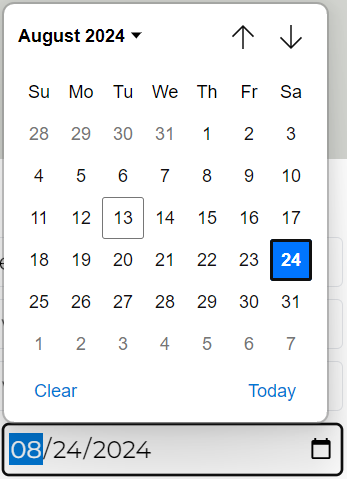
Expiration Date: Click the calendar icon to select the expiration date.
-
First Name: Enter the substitute’s first name.
-
Save: Click Save to finalize the addition.

If you decide not to create the substitute, click the X to cancel.
Extending or Shortening a Substitute’s Time
- Find the Substitute: Locate their card under the "Current Substitutes" section.
-
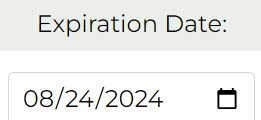
Update Expiration Date: Click the calendar icon next to the current expiration date and select a new date.
Deactivating a Substitute
- Find the Substitute: Locate their card under the "Current Substitutes" section.
-
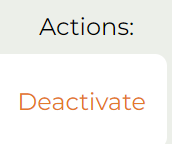
Deactivate: Click the Deactivate button to remove the substitute from your system.
Reactivating a Substitute
- Find the Substitute: Locate their card under the "Past Substitutes" section.
-
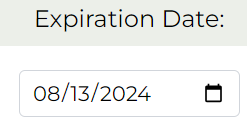
Update Expiration Date: Click the calendar icon next to their expired expiration date and select a new date to reactivate them.
Was this article helpful?
That’s Great!
Thank you for your feedback
Sorry! We couldn't be helpful
Thank you for your feedback
Feedback sent
We appreciate your effort and will try to fix the article