Newsletters work well for classroom updates, announcements, events, weekly recaps, and other messages with images or multiple sections.
Families receiving the newsletter by email will see it in the email. Families receiving a text message will receive a link to open it. ReachMyTeach translates newsletters when translation is available.
Start a Newsletter
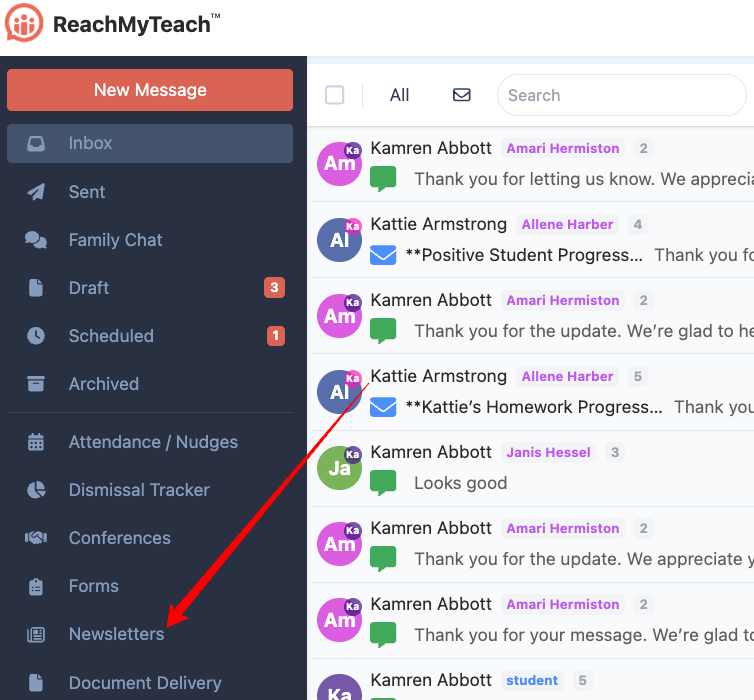
You can start from the Newsletter folder or from New Message.
From the Newsletter folder:
Click New.
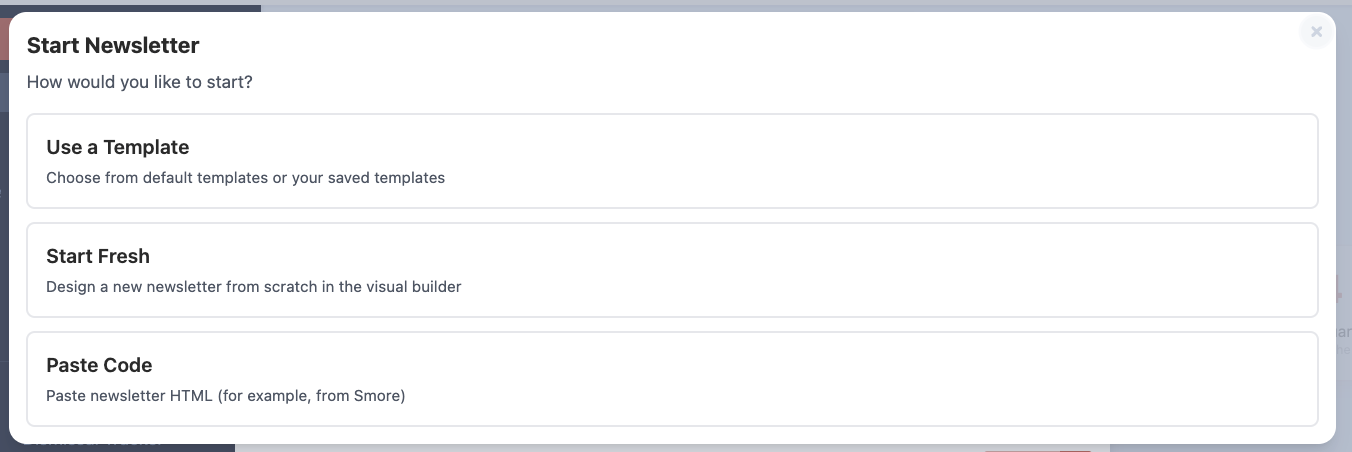
Choose how you want to begin:
Use Template: Start with a copy of an existing template.
Start Fresh: Build a new newsletter.
Paste Code: Add existing newsletter HTML.
From New Message:
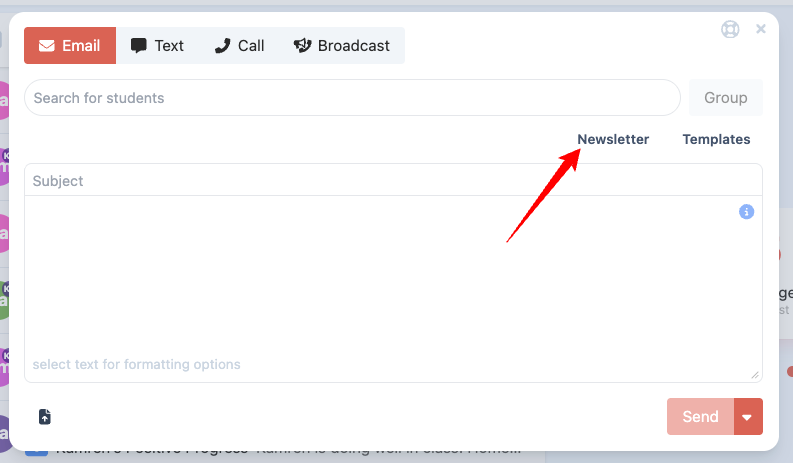
Select Use Template when you want to customize an existing template for a newsletter. This creates a copy and does not change the original template.
Build Your Newsletter
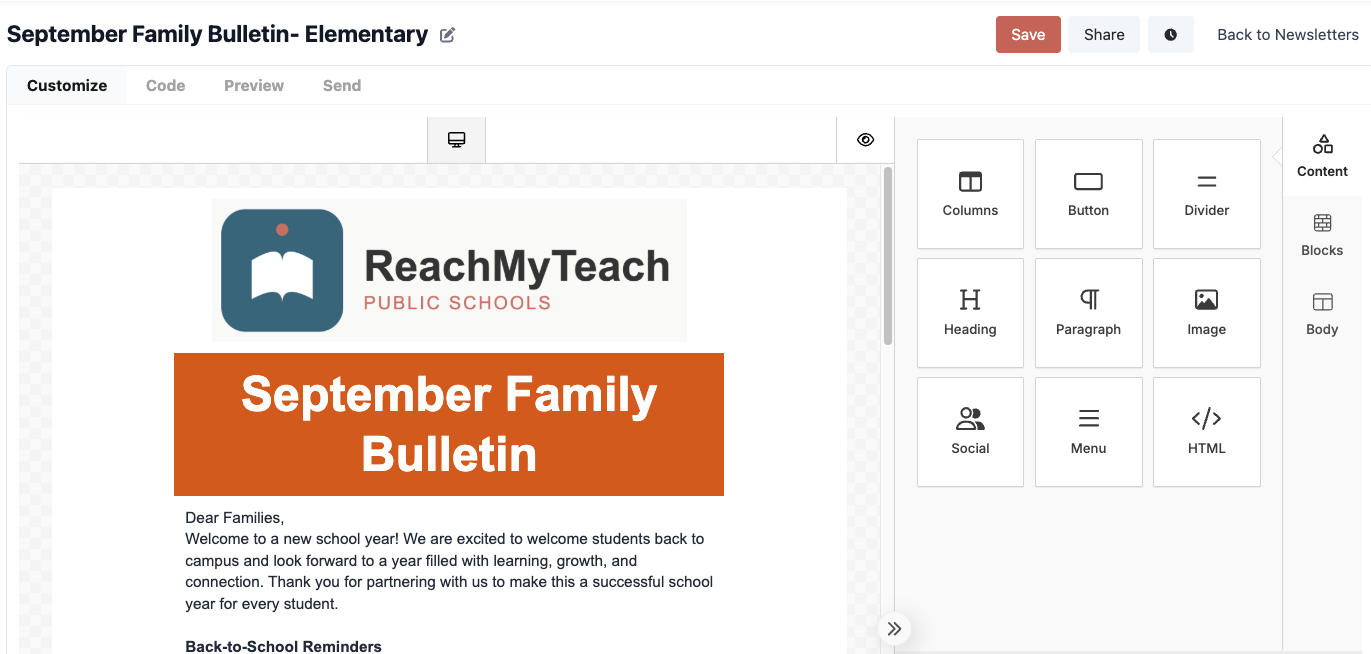
Newsletter Builder includes three tabs:
Create: Add and arrange newsletter content with a drag and drop builder
Code: Paste or edit newsletter HTML.
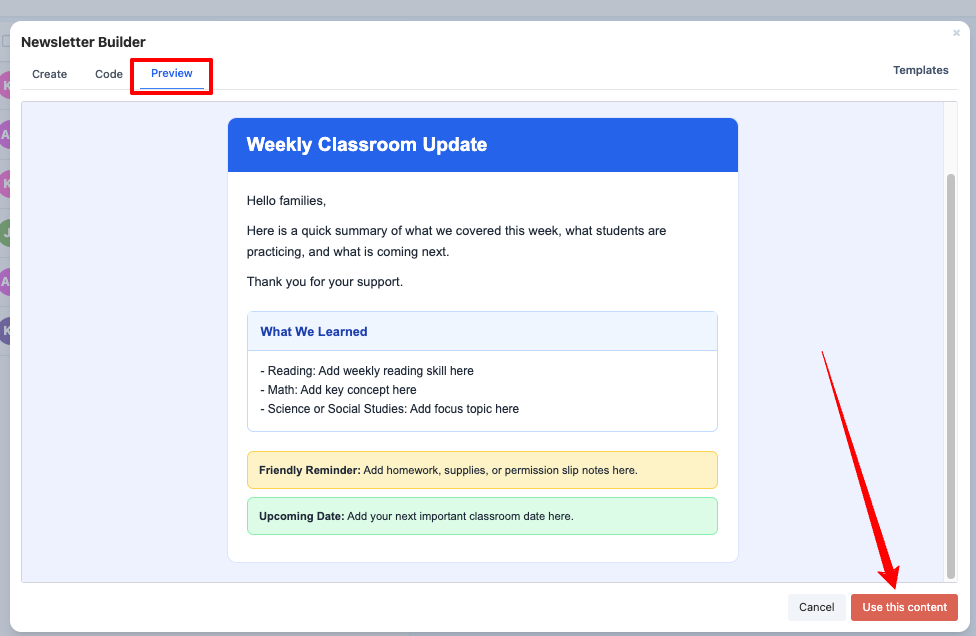
Preview: Review the finished newsletter.
When the newsletter is ready:
Preview the content and check the formatting.
Click Use this content.
Complete the message details.
Send or schedule the message.
If you want to save, edit, or share a reusable template, see Use and Manage Newsletter Templates.
Translation note: Long HTML email messages may not be translated when sent. S’more newsletters include their own translation support.
Send the Newsletter
When you create or open a newsletter from the Newsletter folder, you can send it directly from the Send tab.
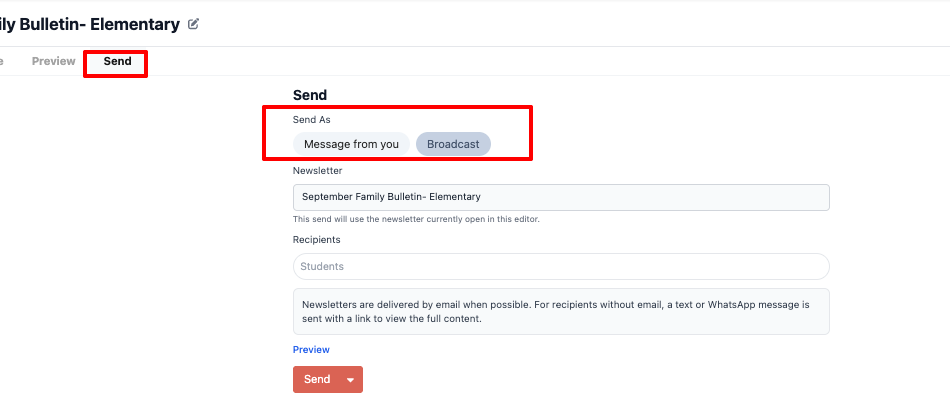
Choose how you want to send it:
- Message from you: Sends the newsletter as a regular message from you. Families can reply, and your sender signature is included.
- Broadcast: Available only if your account includes Broadcasting. Families cannot reply, and no sender signature is included.
Then:
- Confirm the newsletter shown.
- Select the recipients.
- Preview the newsletter.
- Click Send or use the arrow to schedule it.
If you create a newsletter while composing a new message, return to the message composer to finish selecting recipients and send it.
Newsletters are delivered by email when possible. Recipients without email receive a text or WhatsApp message with a link to view the full newsletter.
Share a Newsletter with Another Staff Member
Sharing allows another staff member to view and edit a specific newsletter. It does not share or change the reusable template.
The newsletter must be saved before it can be shared.
- Open the Newsletter folder.
- Find the saved newsletter you want to share.
- Click Share.
- Search for the staff member.
- Select the staff member.
- Click Share.
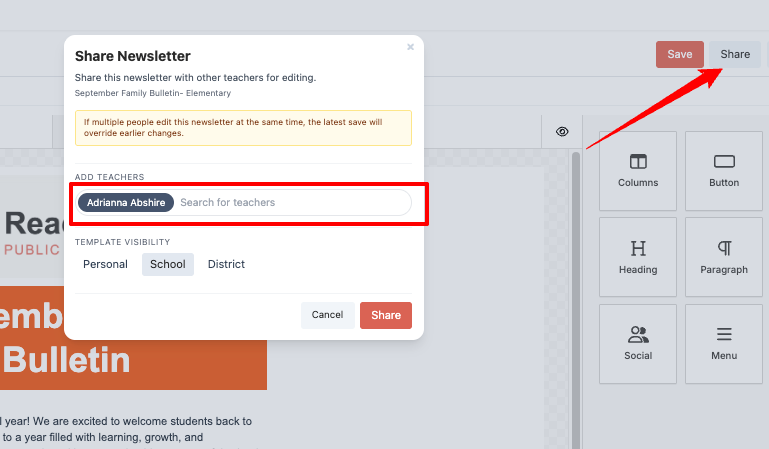
Important: If multiple people edit the newsletter at the same time, the most recent save may overwrite earlier changes. Coordinate with other editors before making updates.
Was this article helpful?
That’s Great!
Thank you for your feedback
Sorry! We couldn't be helpful
Thank you for your feedback
Feedback sent
We appreciate your effort and will try to fix the article