Sending a Broadcast: Calls, Texts, and Emails at Scale
Whether you're calling about an open house or a school closing, ReachMyTeach has you covered. The Broadcast feature is the only way to mass call, text, and email all staff and guardians. Unlike shared communications sent to teachers, Broadcast messages also send a text to staff.
Only certain users can send broadcasts Admin +, Admin, and users with "Allow Broadcast" to change users permissions learn more here.
Getting Started
You can begin a broadcast in two ways:
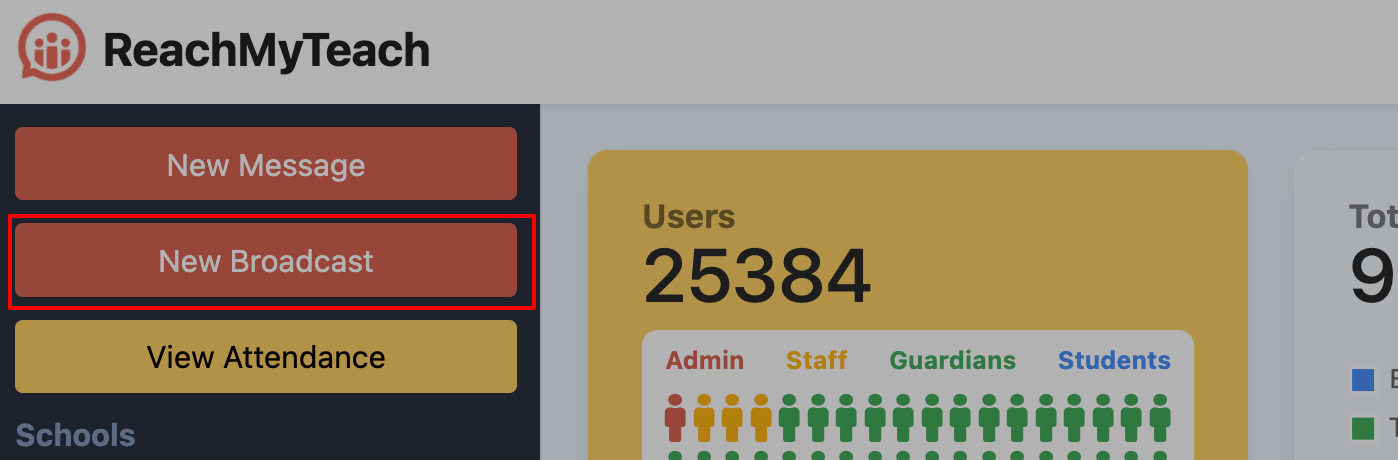
From your Dashboard, click “New Broadcast”:
Or, from your Inbox, select “New Message”:
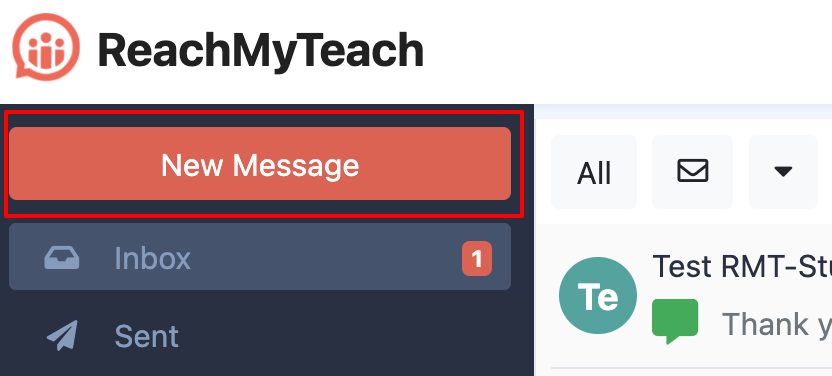
Administrators will have the ability to call their whole district and staff at the click of a button.
Creating a Broadcast
Click “Broadcast” to start your message
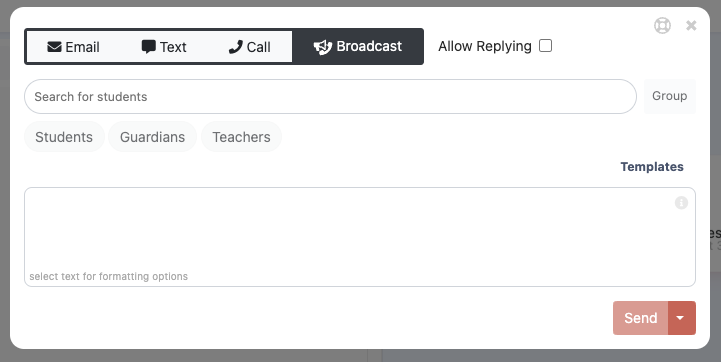
Select your message type:
? Phone (Voice Call)
? Text Message
? Email
You can choose one, two, or all three. Text and email will always send faster than phone.

If you want recipients to reply, check “Allow replying”. By default, replies are not allowed.
Choosing Your Audience
Select your district name or a specific school
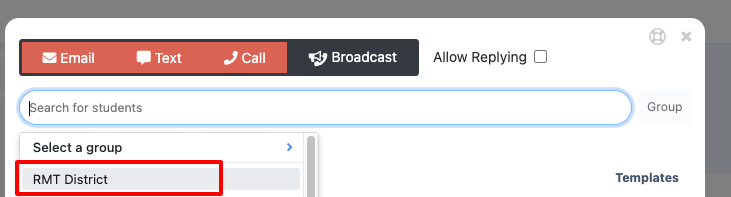
- Or use the group selector to filter by building, language, and/or grade.
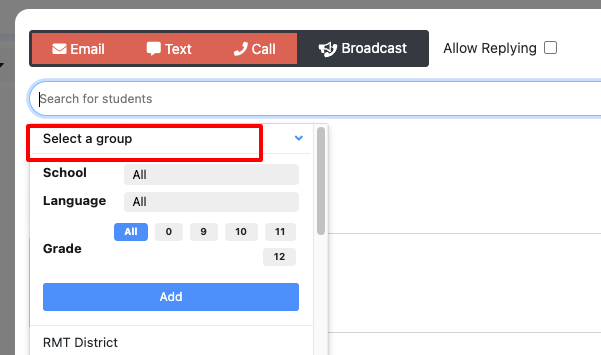
Choose recipients: Guardians, Students, and/or Teachers.
For teacher-only messages, you must still select the relevant school or grade
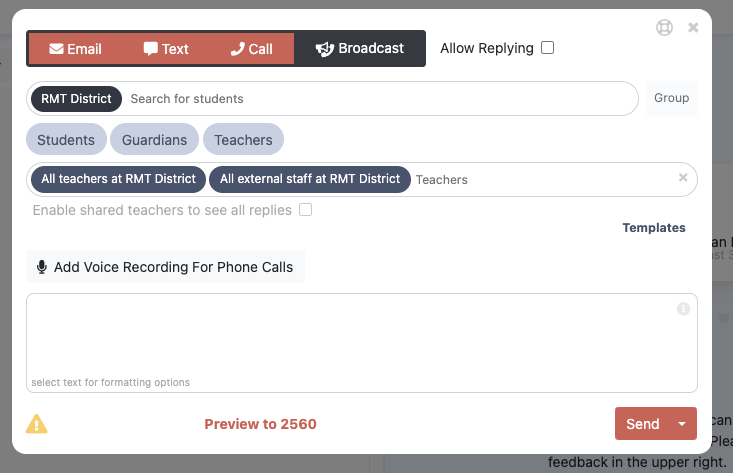
? External Staff (like bus drivers or crossing guards) will appear when messaging the whole district.
Click here to update your external staff list.
Writing or Recording Your Message
You have two options for voice messages:
Type your message for it to be delivered as a robo call (an automated voice will read it).
Record your message for recipients to hear your actual voice.
? Note: A transcription will appear automatically for recordings under a minute in length. If your recording is longer than a minute, no transcription will be generated — so we recommend typing your message first and using it as your script to ensure accuracy and support email/text delivery and translation.
✳️ Important: Regardless of whether you record a voice message or not, you must enter content in the message box.
This is because ReachMyTeach uses a waterfall method — if a recipient doesn’t have a phone number, we’ll automatically send an email or text instead, using the content you typed. This typed message is also used for translation, so families who receive your message in a different language can understand it clearly.
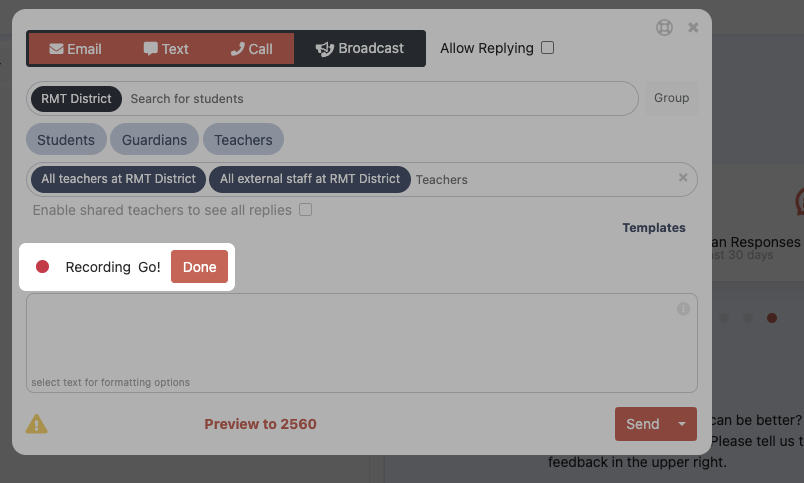
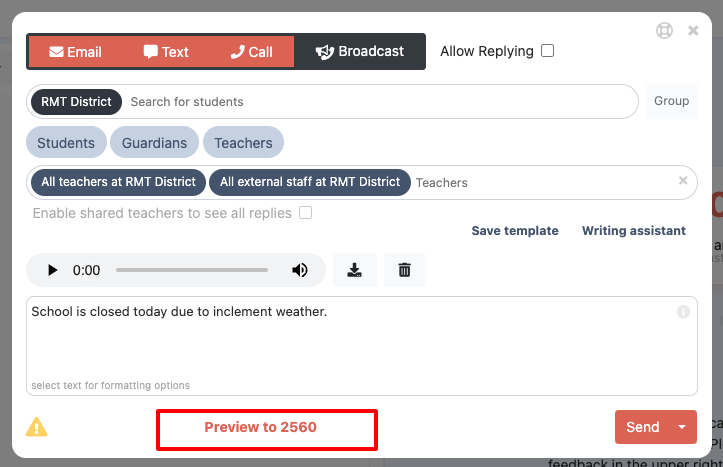
After recording, the system will transcribe your message into the content box. Please review and edit this for grammar and clarity — it becomes the body of your text/email and the source for translation.
Tip for Longer Messages
We recommend splitting long communications to ensure clarity.
Example:
- Logistics Email:
Send a separate, detailed email with logistics and next steps for something like logistics for students going to different schools due to a water main break. Initial Call/Text:
“A water main break has occurred. No school today. Please check your email for tomorrow’s plan.”
Preview and Send
Click “Preview” to review your message and confirm recipients.
Click “Send” or use the dropdown to save as draft or schedule for later.
You can also use templates. For help with templates or indicators like exclamation marks that flag potential delivery issues, click here.
Tracking Your Message
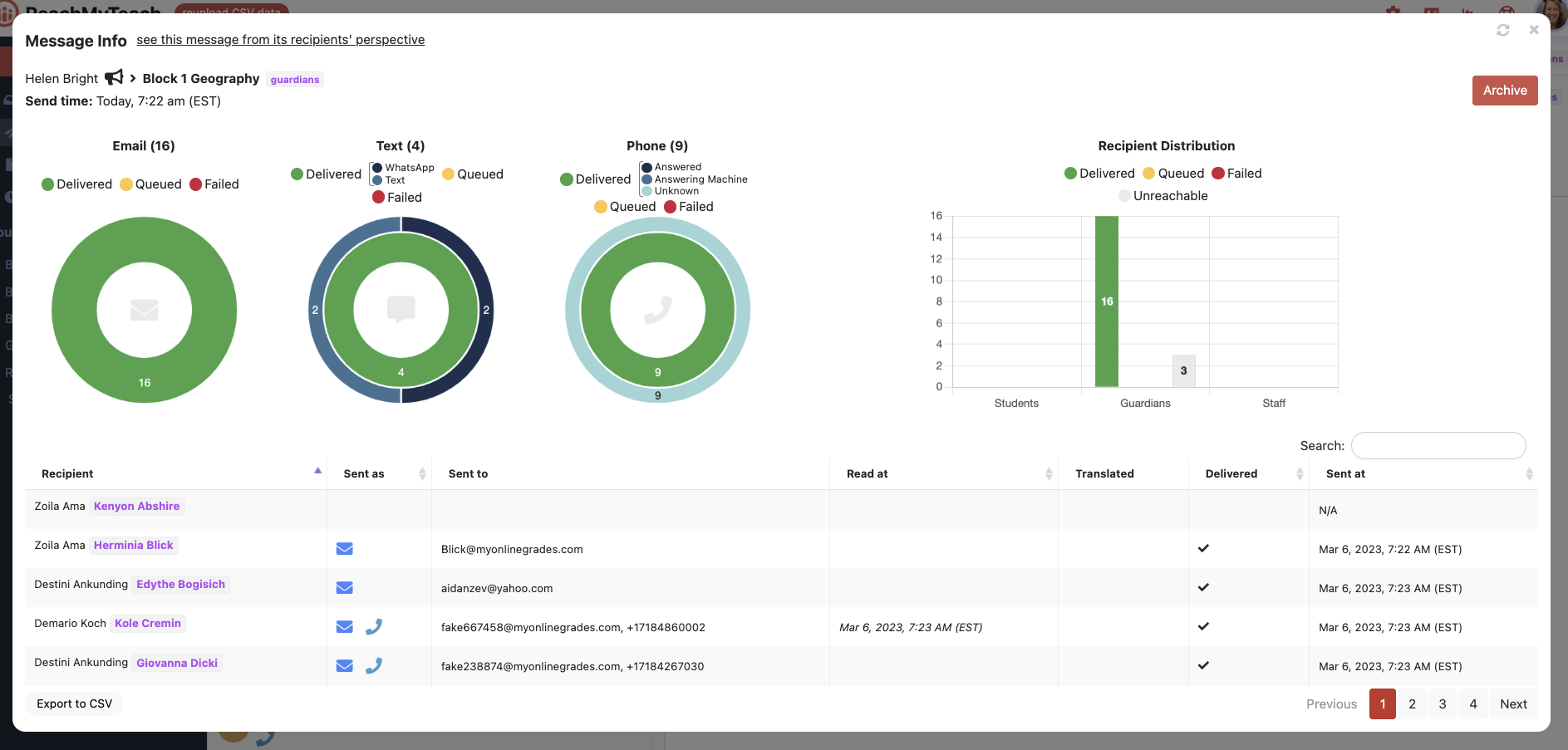
Go to your Sent folder and click the message to view delivery status.
? If a message was sent as a call even though you didn’t select phone, the system likely detected a landline number (which cannot receive texts). Landlines default to calls.
You can download message data as a CSV for your records. Learn more about message data here.
Was this article helpful?
That’s Great!
Thank you for your feedback
Sorry! We couldn't be helpful
Thank you for your feedback
Feedback sent
We appreciate your effort and will try to fix the article