
Adding or Updating Students with a CSV or Integrated Google Spreadsheet in ReachMyTeach

Modified on Thu, 25 Dec, 2025 at 10:30 AM

If your school uses a CSV file or an integrated Google Spreadsheet to manage student data—or if your SIS does not sync dynamically with ReachMyTeach—you can easily add or update students. Follow these steps:

Adding Students

Removing Students

Staff Imports


Adding Students

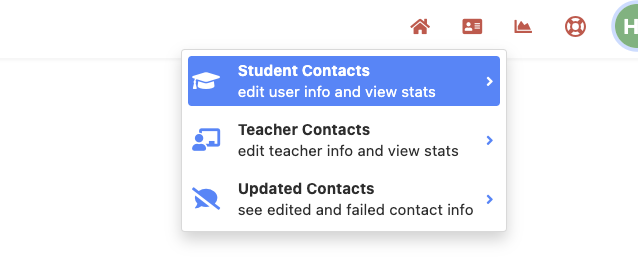
  1. Access Student Contacts

    • Navigate to the Student Contacts section from the menu in the upper right corner.
    • Screen
    •  
  2. Upload a CSV or Link a Google Spreadsheet

    • To upload students in bulk:
      • Select the Upload button from the lower left corner you must be a district admin to access.
      • Screen Shot 2024-04-04 at 8.23.35 AM.png
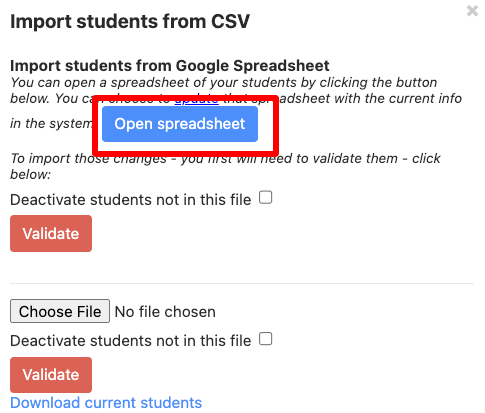
      • Choose to upload a CSV file or RECOMMENDED click Open Spreadsheet to access a dynamic Google Sheets
      • ReachMyTeach-Student-Contacts.png
      • If using Google Sheets, ensure it is integrated properly and formatted correctly.
      • For guidance on required fields, click here.
  3. Validate Your Spreadsheet

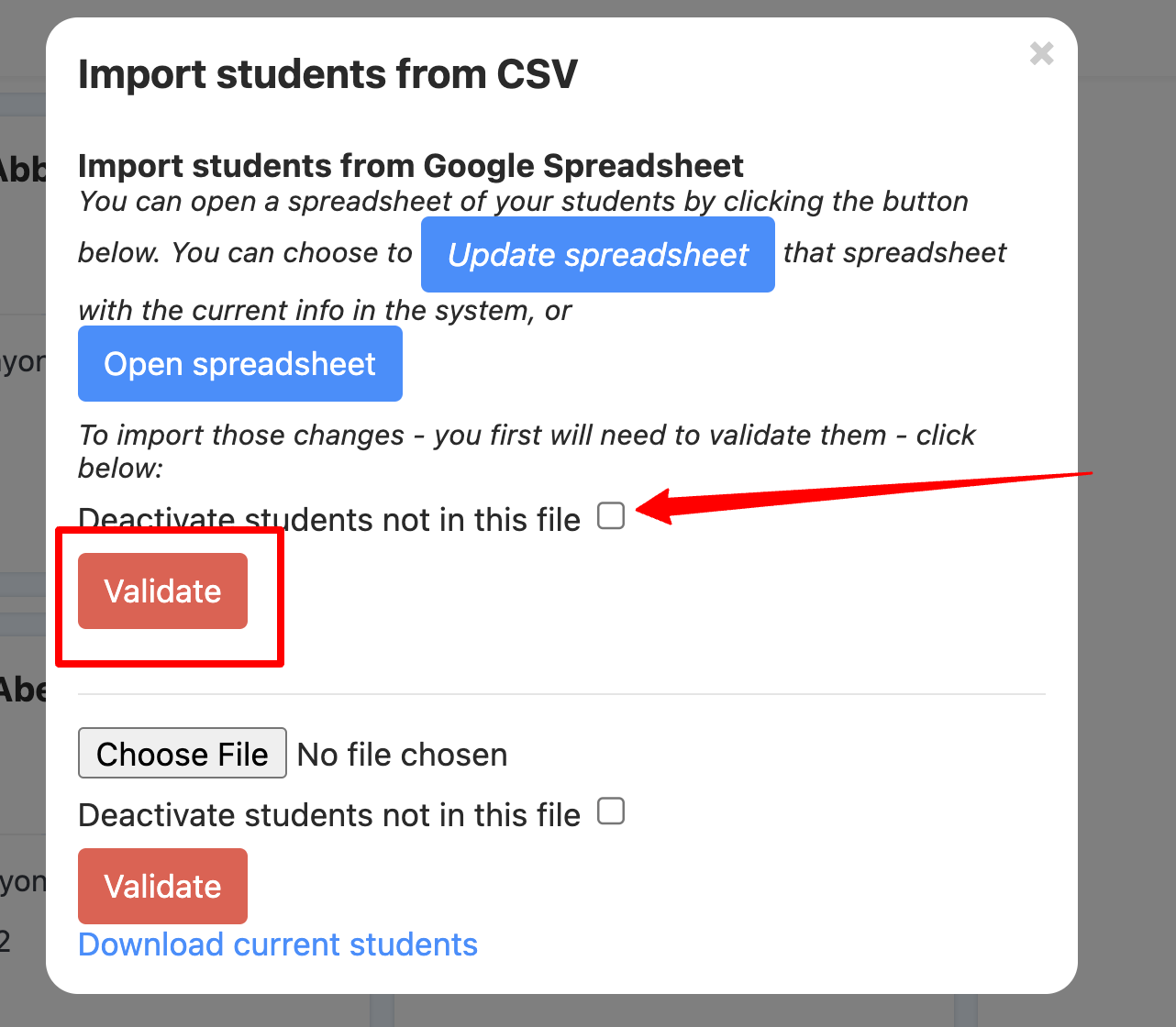
    • After completing the required fields in your Google Sheet, upload or sync the file and click Validate.
    • If you want to deactivate students not listed in the file, check the box labeled Deactivate students not in this file before validating.
      • Important: This step ensures that any students not included in your spreadsheet are deactivated in ReachMyTeach.
      • ReachMyTeach-Student-Contacts-01-06-2025_02_45_PM.png

4.Add Individual Students (Optional)

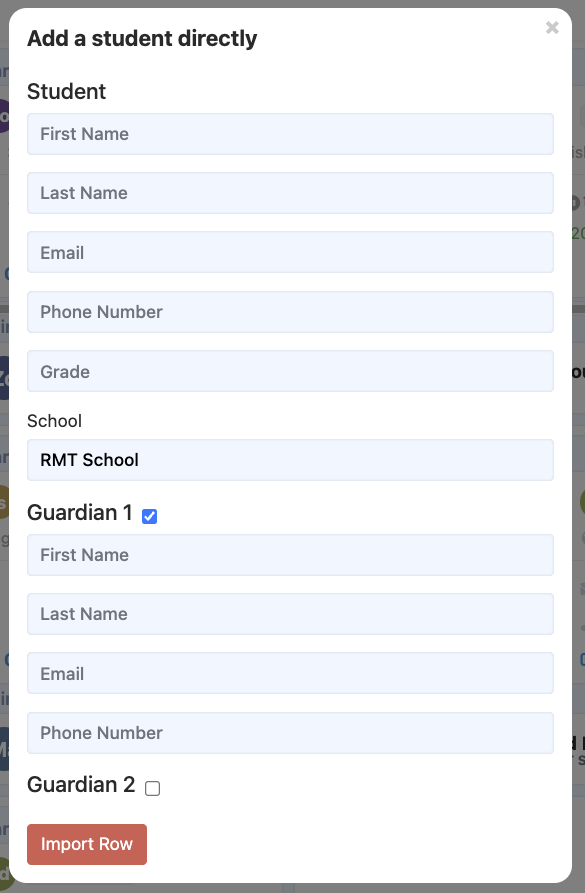
    • To add students manually, click the "+" button in the lower-left corner and enter the student details. Screen
    • Screenshot 2024-05-08 at 4.16.44 PM.png

Removing Students

  • To remove students:
    1. Delete their entries from your CSV or Google Spreadsheet.
    2. Check the Deactivate students not in this file option during validation to ensure ReachMyTeach reflects these removals.
  • ReachMyTeach-Student-Contacts-01-06-2025_02_45_PM.png

Adding External Staff with a CSV or Google Spreadsheet

  • If you need to add external staff, follow the same upload process for staff data. Learn more about adding external staff here.

Was this article helpful?

That’s Great!

Thank you for your feedback

Sorry! We couldn't be helpful

Thank you for your feedback

Let us know how can we improve this article!

Select at least one of the reasons
CAPTCHA verification is required.

Feedback sent

We appreciate your effort and will try to fix the article