Overview
Forms in ReachMyTeach make it easy for teachers to collect information from students or families — with automatic translation into their preferred language. Whether you're organizing a field trip, requesting classroom supplies, or checking in with families, Forms are a quick, paper-free way to stay connected.
Table of Contents
Adding HTML
1. Accessing Forms
If Forms are enabled in your district, you’ll see a Forms folder in the left-hand menu. Click New Form to get started.
Example: A teacher wants to know which students will attend a class picnic. She clicks “New Form” and selects a basic template for RSVPs.
-1.jpg)
2. Creating a Form
Teachers can:
Start from a blank form
Use a template
Reuse a form you’ve created before
All forms require an expiration date to be sent.
3. Choosing a Form Type
Teachers have two form type options:
| Form Type | Who Gets It | Response Collected | Example Use |
|---|---|---|---|
| Student | Students or their guardians | One response per student | Field trip permission, classroom supply request |
| Anyone with Link | Anyone with the link | Unlimited responses | Open house RSVP, interest forms for clubs (Note: translation only applies if the person is in ReachMyTeach) |
4. Building the Form
Use simple tools to create your form:
-2.jpg)
Question types: multiple choice, short answer, dropdown, signature fields
Settings sidebar lets you mark questions required, control visibility, and add logic
-3.jpg)
All questions are automatically translated for recipients in ReachMyTeach
Example: A teacher builds a quick two-question form asking if families can attend a classroom event and whether they can bring snacks.
5. Previewing and Sending
Click Preview to view the form before sending.
When you're ready, click Invite to:
Choose specific students or full classes
Select recipients (student guardians, students, or both)
Write a short message (form link is automatically included)
Choose how it will be sent (text, email, or both — ReachMyTeach ensures delivery)
-4.jpg)
Example: A teacher sends a supply donation request to all 2nd-grade guardians via text and email.
6. Invite Page Features
On the Invite page, you can:
-5.jpg)
Resend the form to anyone who hasn't filled it out yet
Resend to individuals as needed
Schedule your form for a later time
Example: A teacher sends a form asking for volunteers and uses Resend three days later to follow up with non-respondents.
7. Monitoring Responses
Once the form is sent:
Responses show up live in your dashboard
You can see who has or hasn’t responded
You can download responses to a spreadsheet if needed
Example: After collecting student interest in a book club, a teacher downloads the responses to organize groups.
-6.jpg)
8. Additional Options
You can also:
Edit the form even after it’s been sent (question text, expiration date, etc.)
Share the form with another teacher, co-teacher, or staff member
Deactivate the form once the response window has closed
-7.jpg)
Example: A homeroom teacher shares a family survey with the guidance counselor to keep track of student needs.
Adding HTML
Our survey module will allow you to add HTML content, however it will take some knowledge.
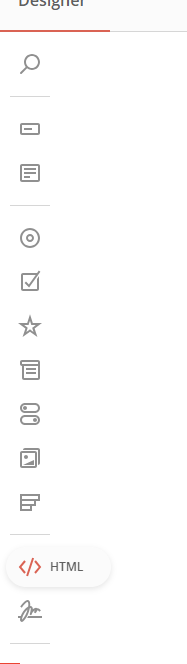
1. In your survey, click the HTML block and move it to where you want:
2. Then show panel on the right side:
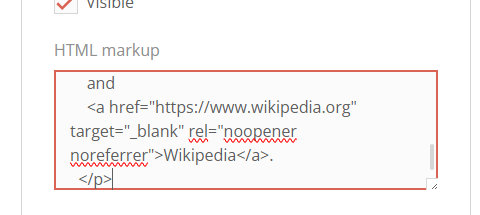
3. Now select your html block and put some html code:
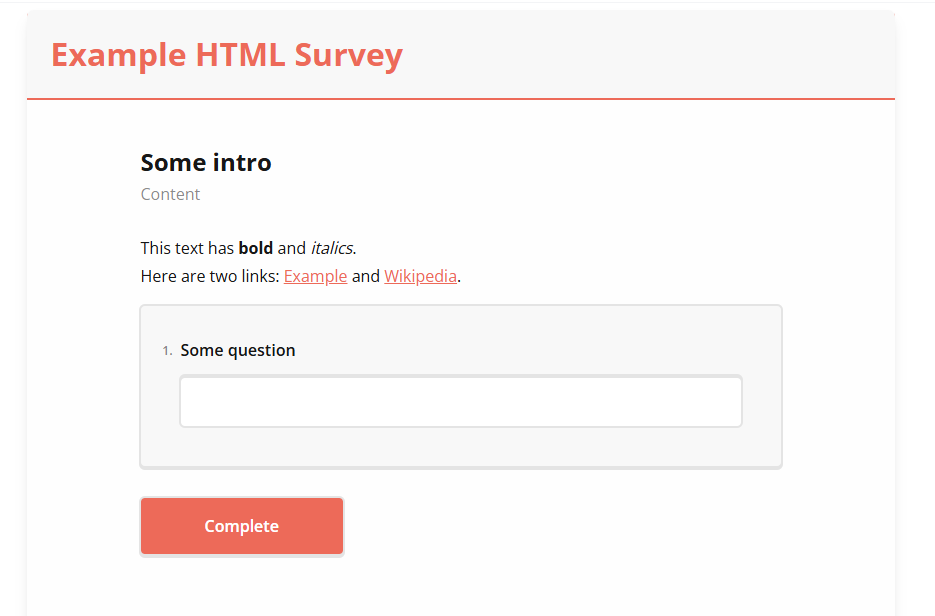
4. Now your survey should have some html content:
Was this article helpful?
That’s Great!
Thank you for your feedback
Sorry! We couldn't be helpful
Thank you for your feedback
Feedback sent
We appreciate your effort and will try to fix the article