Forms in ReachMyTeach are built for multilingual, mobile-friendly communication with students, families, and staff. They can be used for collecting permissions, sign-ups, surveys, and large-scale data like Household Economic Surveys. Forms are easy to build, send, and track, and automatically reach recipients in their preferred language.
Table of Contents
1. Accessing Forms
If your district has enabled the Forms feature, you will find it in the Forms folder on the left-hand menu of your inbox or from the admin dashboard.
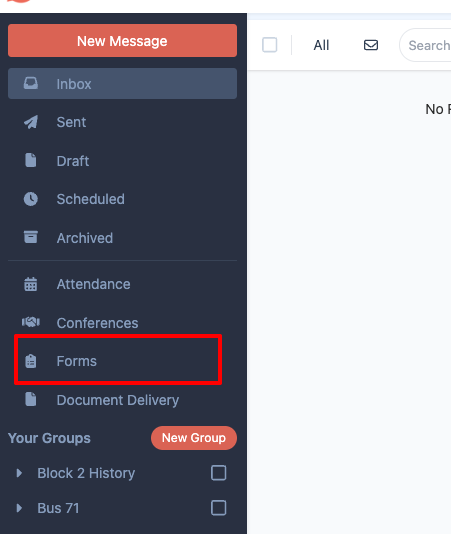
To start, click "New Form." You will be prompted to choose from:
A blank form
A prebuilt template
A form you have used previously
All forms require an expiration date before they can be sent.
2. Form Types and Delivery Options
There are four form types available. Each type controls who can respond and how the responses are tracked.
| Form Type | Who Gets It | Response Collected | Example Use |
| Student | Students or their guardians | One response per student | Collect field trip permission slips |
| Recipient | Any student, guardian, or staff member | One response per person | Staff feedback or volunteer confirmation |
| Anyone with the Link | Anyone with the link | Unlimited | Public forms for interest or enrollment. Can be shared by link. No translation for users outside ReachMyTeach, as their language is not in the system. |
| Household | One form per household/family of a student | One response per household/family | Household Economic Surveys (free/reduced lunch) |
You will also choose whether to send the form districtwide or by school.
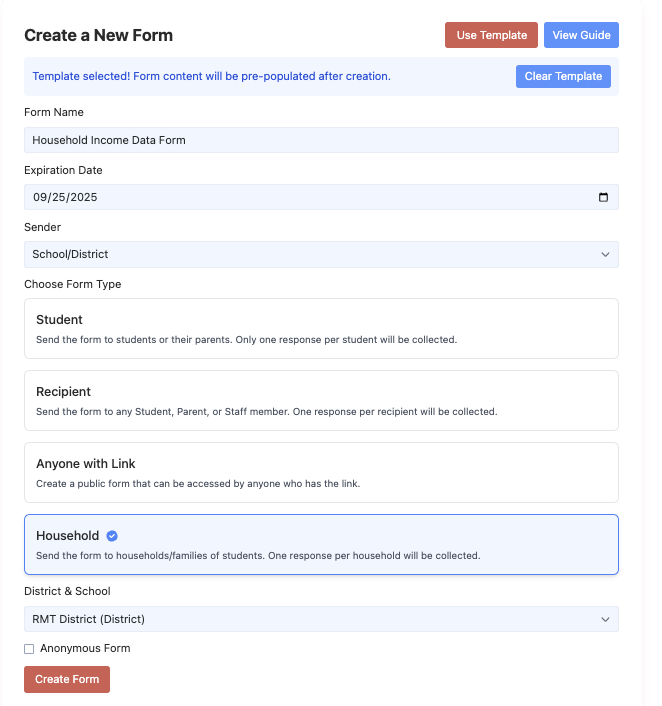
3. Audience and Privacy Settings
You can select the target audience based on your form type. This may include students, guardians, staff, or any combination.
There is also the option to make the form anonymous. This is recommended for collecting staff feedback or sensitive input.
4. Building the Form
The form builder allows you to choose from a range of question types, such as multiple choice, short answer, dropdowns, and signature fields.
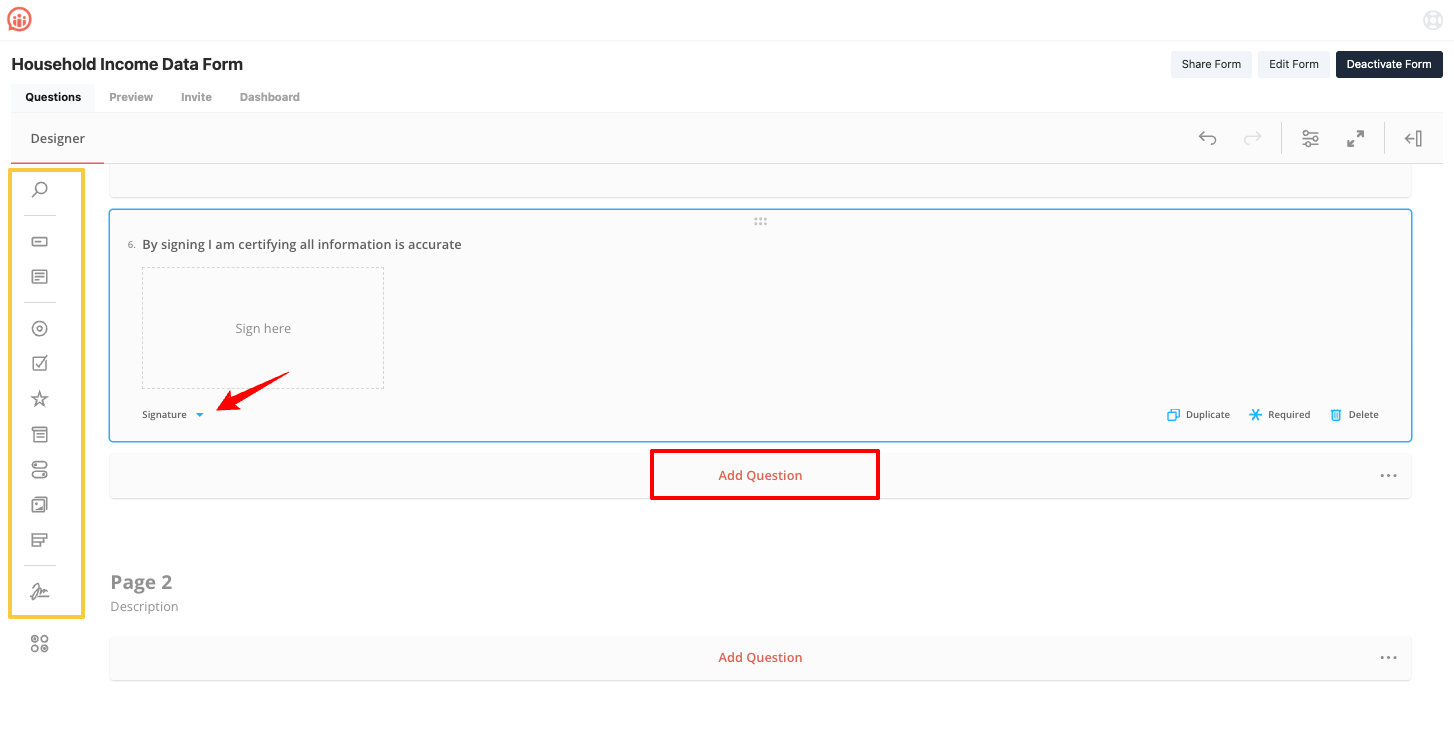
You can customize question settings in the sidebar:
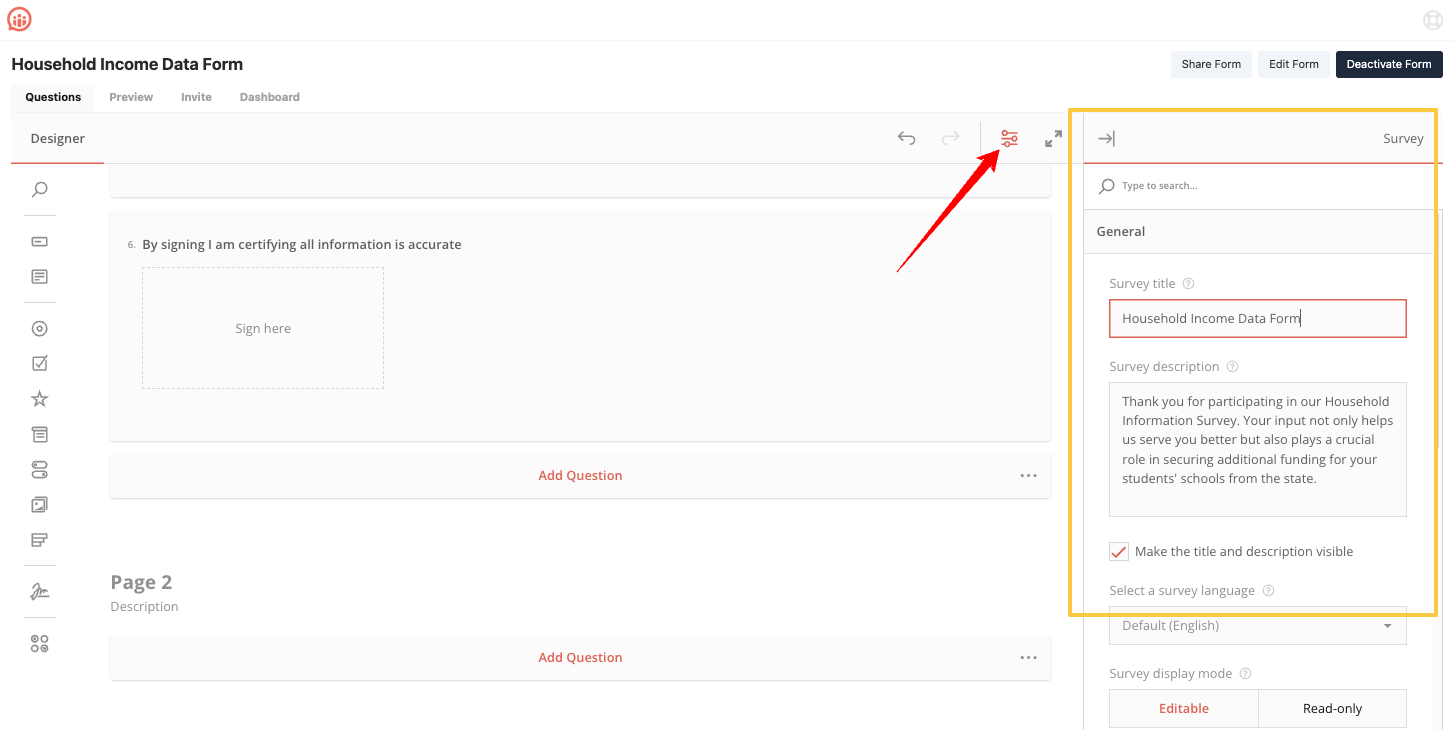
Including:
Required questions
Conditional logic
Response limits
Forms are automatically translated based on recipient preferences.
5. Invite Page Features
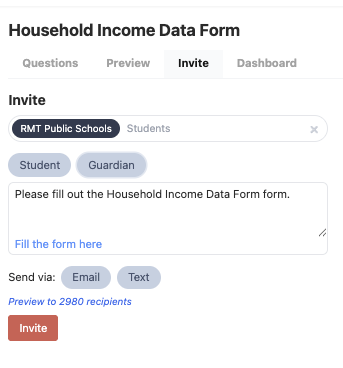
On the Invite page, you can:
Choose recipients by class, grade, school, or individual
Select the type of recipients based on form type
Draft a short intro message (form link is automatically included)
Choose to send by email, text, or both and preview the message
Use the Resend button to automatically send reminders to anyone who has not completed the form
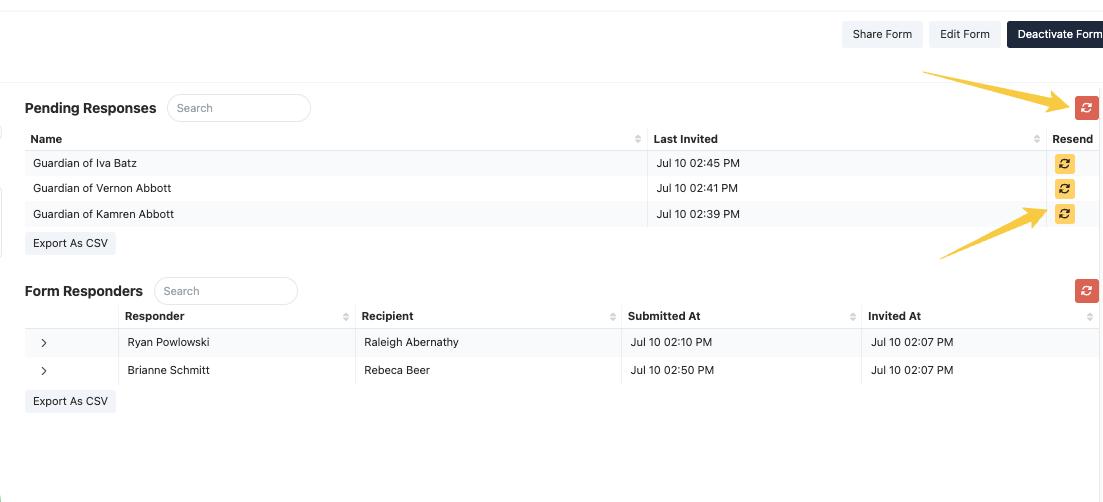
Resend can also target individuals directly
Example: An assistant principal resends a technology use form to 9th-grade guardians who haven’t submitted.
6. Monitoring Results
Once the form is sent, responses appear in real time in your dashboard.
View overall response rates
Download responses to a spreadsheet for further use
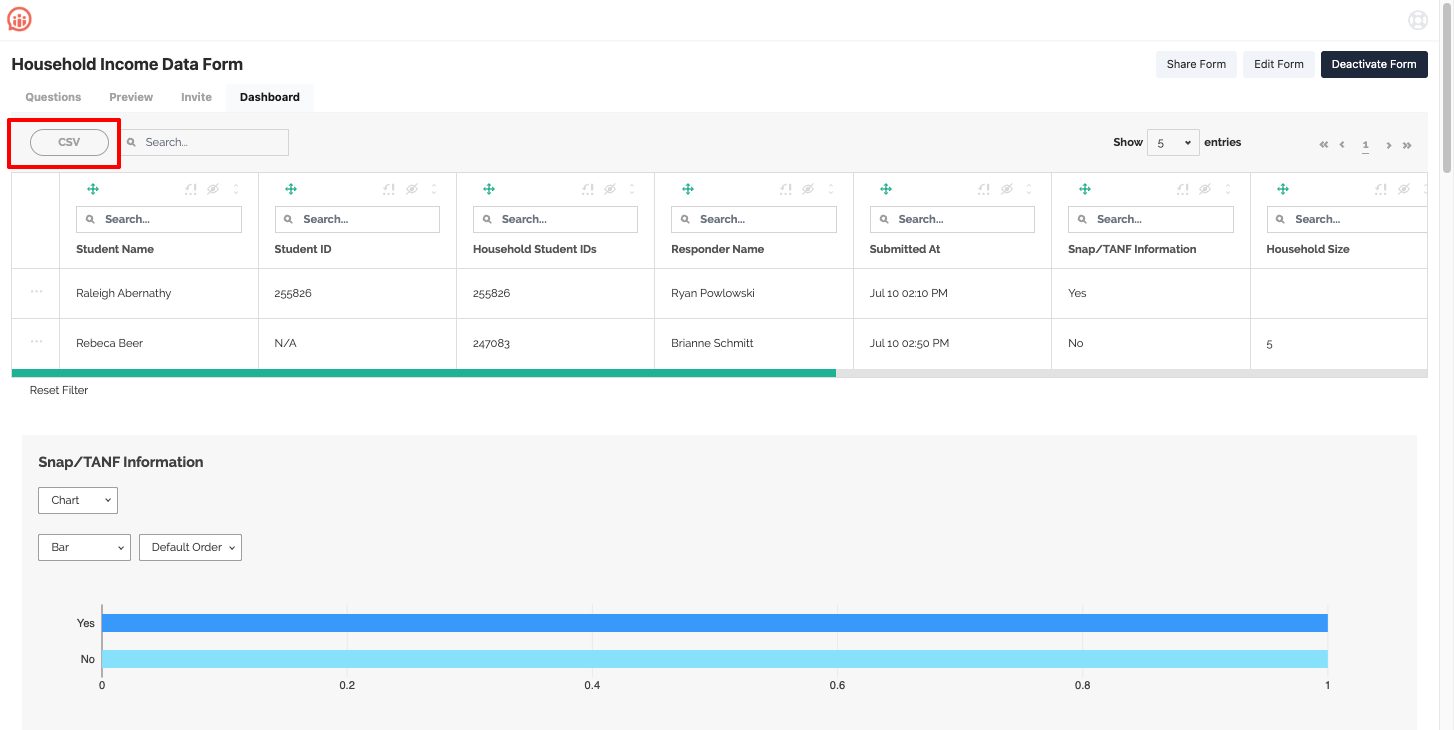
7. Additional Options
From the form dashboard, you can:
Share the form with other teachers or staff
Edit form settings at any time (including expiration date, question logic, or audience)
-
Deactivate the form to prevent further responses
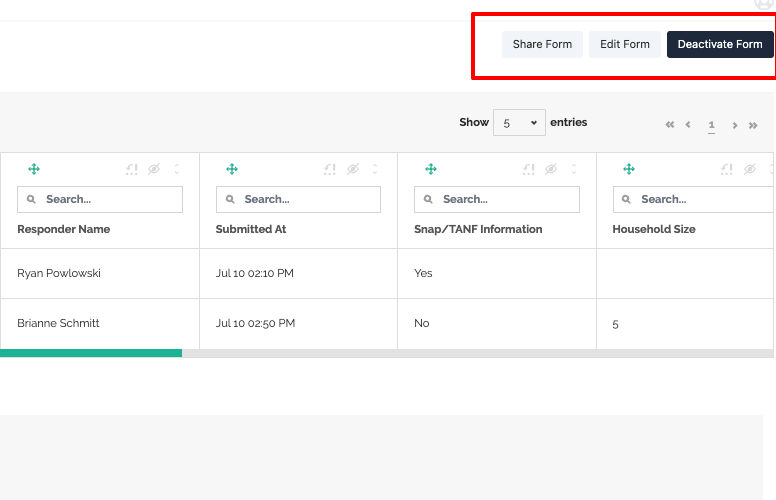
Example: The district sends out a late arrival permission slip. The principal can view the form and track which families have responded. Once the deadline passes, the district deactivates the form.
Was this article helpful?
That’s Great!
Thank you for your feedback
Sorry! We couldn't be helpful
Thank you for your feedback
Feedback sent
We appreciate your effort and will try to fix the article