If you are an Infinite Campus user, here are the steps to extract reports to then send through Document Delivery
- Go to
 (or search for Report Setup)
 - Either edit one of your reports, or create a new one
- Add report detail

-
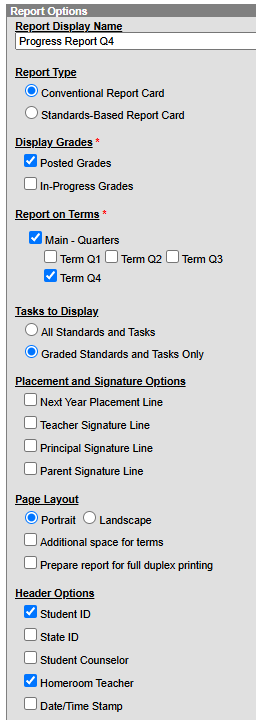
Setup your options
-
-
-
- Choose Conventional, unless you want each standard to appear
- If teachers are posting at this time, choose posted, otherwise in-progress
- Select which terms you want on the report
- Choose grades standards/tasks
- You must select Student ID (that is how we will match it per kid)
- For grading tasks, specify which ones you want on the report (or just select all)
- Other options are optional.
-
-
-
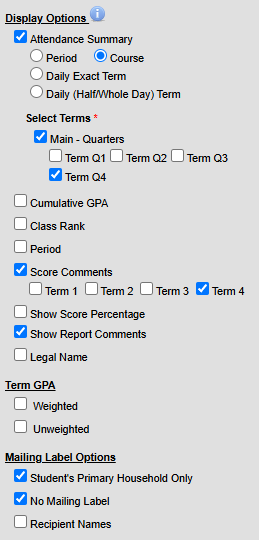
- Display options
-
-
-
- Only choose student's primary household and no mailing label
- Everything else is optional - determine if you would like attendance and comments shown.
-
-
-
- Save
- Test and/or fix and send
-
-
- Go to
 or search report card
 - Choose the report you just made and then select who (all students? 6th graders?)
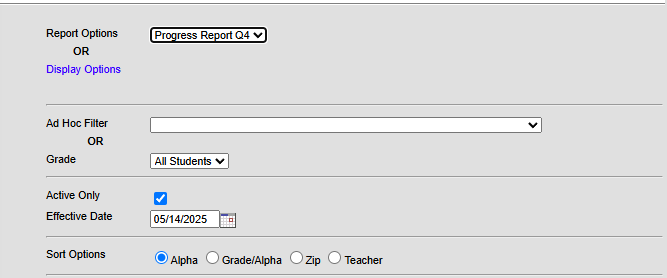
- If it is not looking like you liked - go back and edit the report.
- If it looks good, click the download button, then go to RMT and Document Delivery
- Go to
-
-
Was this article helpful?
That’s Great!
Thank you for your feedback
Sorry! We couldn't be helpful
Thank you for your feedback
Feedback sent
We appreciate your effort and will try to fix the article