ReachMyTeach's Document Delivery makes it easy to securely share documents like report cards, progress reports, or assessment results (e.g., state testing scores) with families. This guide walks through:
What You Can Upload
You can upload either of the following:
-
Multi-student PDFs: A single PDF with multiple students' documents inside (each student can have one or more pages).
-
Zip files: A .zip file containing one PDF per student.
Important:
Every student document (each page or file) must include:
-
A student ID or state ID (either visible on the page or in the filename).
-
The student’s last name on every page (required for security verification).
Step-by-Step Instructions
1. Go to the Document Delivery Folder
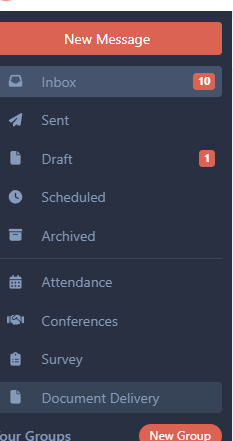
Note: This feature may need to be enabled for your district. Contact us if you don't see it.
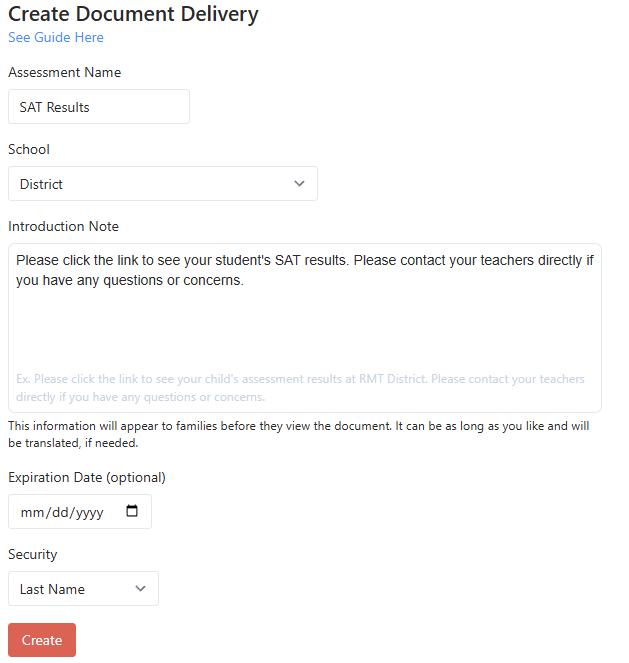
2. Click “Create New Document Delivery”
-
Note field: This is the message families will see when they view the document.
Example: “Please click the link to see your student’s SAT results. Contact your student’s teacher with any questions.” -
Expiration (optional): Choose a date after which the document will no longer be visible.
-
Security method: Choose how recipients will verify their identity:
-
Last name
-
Student number
-
Birthdate (requires uploading this info—see below)
-
3. Upload Your Files
You can upload one or more PDFs or zip files.
4. Set the Identifier
This helps the system locate the student ID or state ID.
Examples:
-
ID: <state_id>→ Looks for the text "ID:" followed by the ID number. -
%_<state_id>.pdf→ Matches any filename ending with "_<numbers>.pdf".
Use <student_id> or <state_id> placeholders so the system knows what to extract.
5. Upload Additional Student Data (if needed)
If you're using birthdate or state ID as part of your security method, upload a CSV file that includes:
(Headers must be exactly as shown above.)
6. Process and Preview
Let the system process the upload. It will:
-
Separate documents by student
-
Match IDs to names
-
Prepare for delivery
This may take a few minutes depending on the size of your upload.
7. Verify Results
-
Review how many student documents were created.
-
You can click a link to preview an individual document.
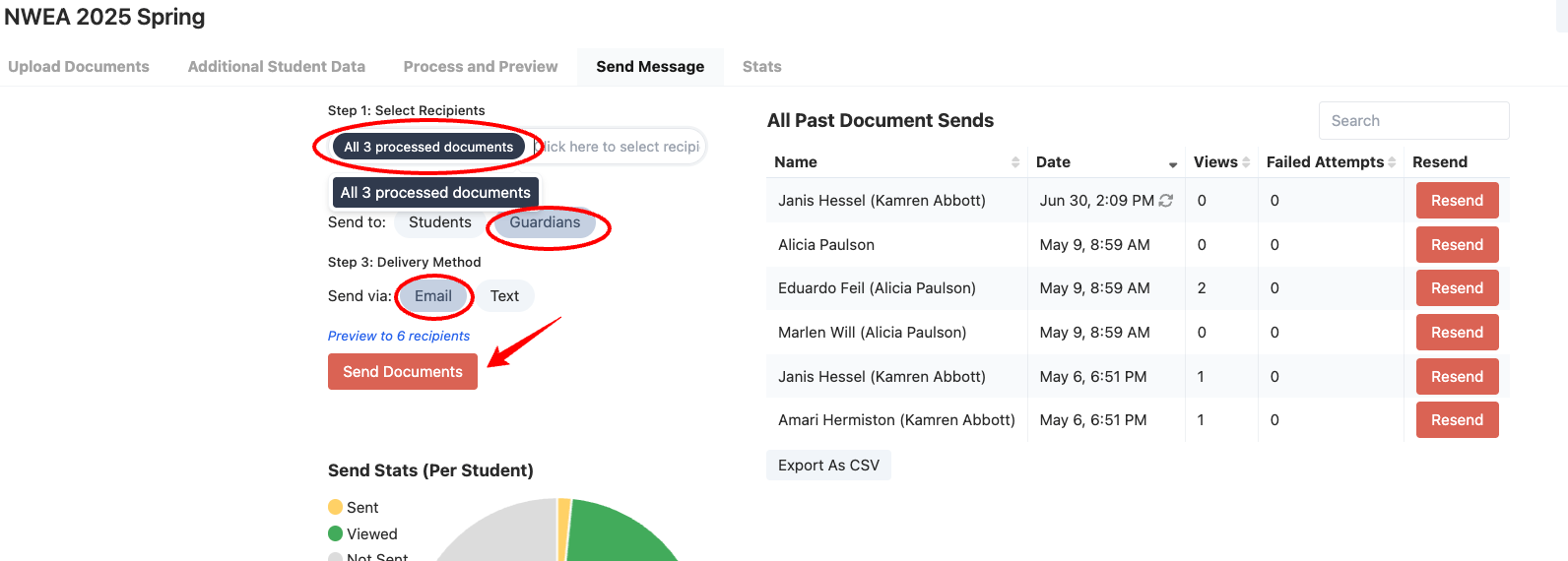
8. Send Message & Resend
Choose whether to notify:
-
All students with documents
-
Only selected students
Then choose:
-
Who will receive it (students or guardians)
-
How it will be sent (email or text)
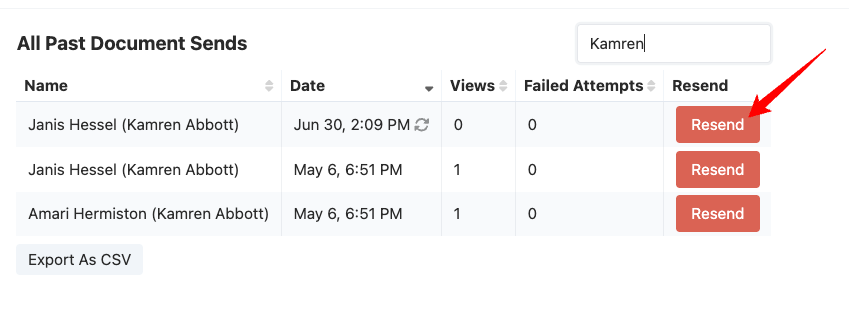
Resend documents:
To individual families at any time, even if they are not locked out. Simply search for the family and resend the document. We recommend verifying contact information before resending to ensure it reaches the correct recipient.
⚠️ Security Notes
Verification Attempts:
Families have 3 attempts to answer the security question (e.g., last name, birthdate, student ID).
If they fail, access is temporarily locked.
When Locked Out:
If there are more than 3 failed attempts, it means the family member entered incorrect security information multiple times. Before resending, double-check the contact details to make sure the document goes to the correct person.
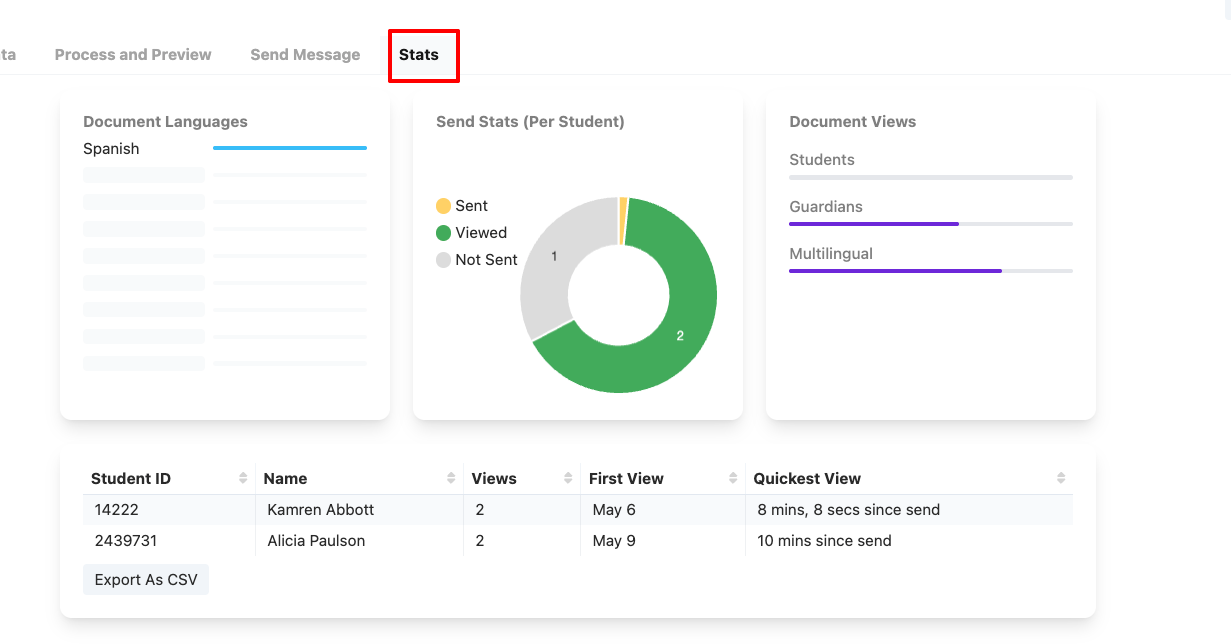
9. View Stats
You’ll see real-time stats showing how quickly families view the documents.
Was this article helpful?
That’s Great!
Thank you for your feedback
Sorry! We couldn't be helpful
Thank you for your feedback
Feedback sent
We appreciate your effort and will try to fix the article