Overview
There are several reasons why a contact may appear unreachable. The FCC requires that communications give families the option to unsubscribe, but other common causes include:
-
-
Step 1: Check Message Delivery: Read delivery icons and hover details to see what happened.
-
Step 2: Contact Unsubscribed or Number No Longer in Service: Re-enable with expressed permission or request updated info.
-
Step 3: International Numbers (Use WhatsApp): ReachMyTeach supports U.S. numbers; switch contact preference to WhatsApp for non-U.S. numbers.
-
Step 4: Messages Going to Spam: Have recipients mark schools.reachmyteach.com as Not Spam; includes Google and Microsoft instructions.
-
Step 5: Check for Blocked or Marked Spam Numbers: iPhone and Android steps to unblock and review spam lists.
-
Step 6: Carrier-Level Filtering: Verify Verizon, AT&T, and T-Mobile spam apps and mark the number as Allowed or Safe.
-
Step 7: When to Contact Support: What to capture and send so the team can resolve quickly.
-
Quick Checks Before You Start
If a message didn’t go through, try these first:
-
✅ Confirm the contact hasn’t unsubscribed (look for greyed-out contact info)
-
✅ Make sure the phone number or email is active and correct
-
✅ Ask if your messages are appearing in their Spam or Junk folder
-
✅ Have the contact confirm your number isn’t blocked on their phone or by their carrier
-
✅ Try sending a test message through another method (email or WhatsApp, if available)
Step 1: Check Message Delivery
-
Go to your Sent folder or check the message data
-
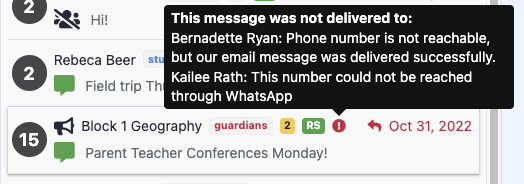
Look for the delivery status icon next to your message.
-
A **red or yellow exclamation mark (!) ** indicates an issue.
-
-
Hover over the symbol to view more details.
-
If another method was used (for example, an email instead of a text), you’ll also see confirmation of a successful send.
-
Delivery Status Legend
-
? Red (!) – Message failed (often due to an unsubscribed or inactive number)
-
? Yellow (!) – Message delayed or partially delivered
-
? No symbol – Message delivered successfully
? Tip: Learn more about interpreting message data
Step 2: Contact Unsubscribed or Number No Longer in Service
Contacts may become unreachable if they’ve unsubscribed from messages or if their phone number or email is no longer active.
Keep in mind, just because one mode of communication isn’t working doesn’t mean the family hasn’t received the message, ReachMyTeach automatically waterfalls messages through other available methods (for example, if a text fails, it will automatically send an email if that contact method is available). You can investigate further using the steps below or the contacts report.
If the Contact Unsubscribed
Contacts can unsubscribe by replying STOP (per FCC regulations) or by updating their communication preferences.
-
Click the student ID card in the upper-right corner.
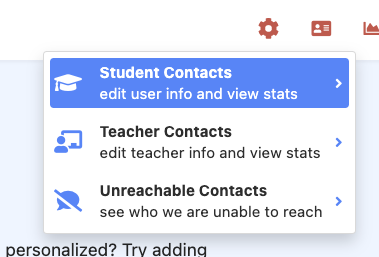
2. Select Student Contacts.
3.Search for the contact’s name.
If unsubscribed, their number or email will appear greyed out.
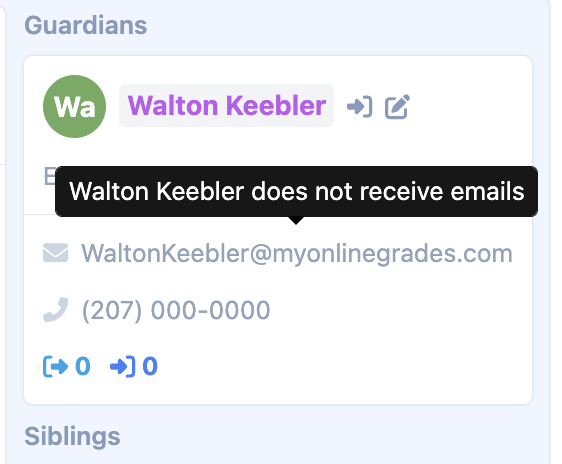
4. With permission, re-enable communication by selecting:
-
-
Send user emails
-
Send user texts
-
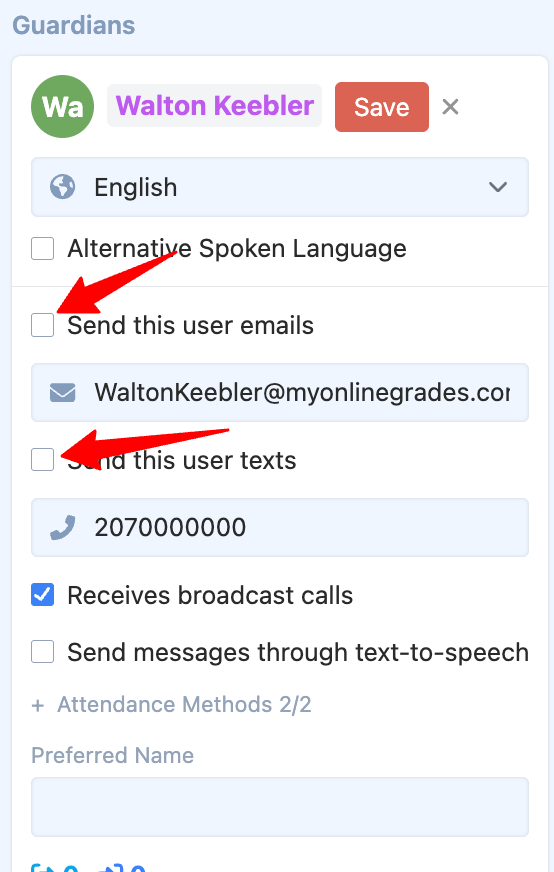
This reinstates communication for that contact.
If the Number or Email Is No Longer in Service
If a phone number or email address is inactive or disconnected:
-
It will appear in your Unreachable Contacts list.
-
You may see it marked in red with a pause icon next to it.
Common reasons this happens:
-
The contact changed carriers or got a new number.
-
The number was a temporary prepaid line that has expired.
-
The contact’s voicemail box is full or their line was disconnected for non-payment.
-
The email account was closed, deleted, or misspelled.
-
The contact’s email provider rejected messages due to a full inbox or outdated domain (for example, switching from a district to a personal account).
-
You can look it up with steps 1-4 above and it will appear in your Unreachable Contacts list.
-
You may see it marked in red with a play icon next to it.
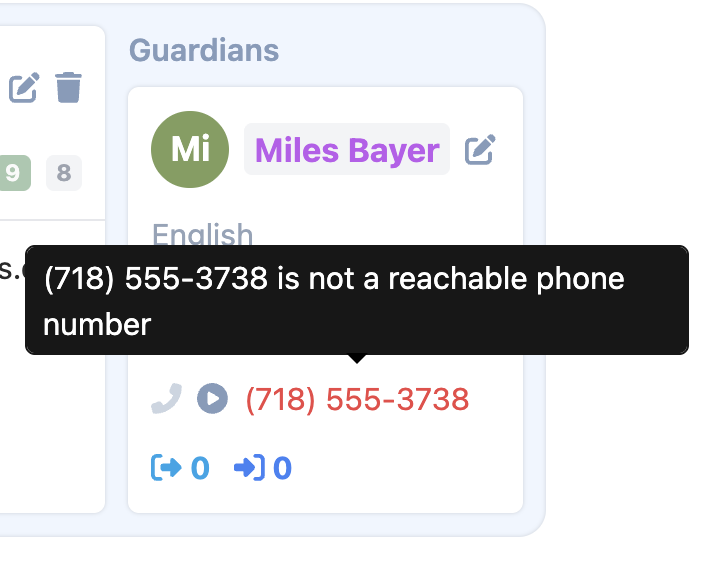
If you see a play icon, communication has been temporarily stopped.
With expressed permission from the contact, you can click the play icon to reinstate their email or phone number and resume sending messages.
When in doubt, use another available contact method (email, WhatsApp, or secondary phone number) to confirm or update their communication details.
Step 3: International Numbers
ReachMyTeach currently supports U.S. phone numbers only.
If a contact uses an international number:
-
Ask if they’re comfortable communicating through WhatsApp.
-
If so, update their communication preferences in ReachMyTeach to use WhatsApp messaging.
Step 4: Messages Going to Spam
If messages are being sent but not received, they may be landing in Spam or Junk folders.
Ask the contact to:
-
Open their email inbox.
-
Check the Spam/Junk folder.
-
Mark any emails from schools.reachmyteach.com as Not Spam.
This helps ensure future messages go directly to their inbox.
? If the contact uses a school or work email address, their IT department may need to put on an allow list the domain: @schools.reachmyteach.com
Step 5: Check for Blocked or Marked Spam Numbers
If texts aren’t being received, the contact or their carrier may have accidentally marked your number as spam.
Here’s how they can check:
On iPhone
-
Open the Phone app.
-
Tap Recents.
-
Find the school’s number and tap the (i) icon.
-
Scroll down and tap Unblock this Caller if it appears.
-
To review all blocked numbers:
-
Go to Settings > Phone > Blocked Contacts.
-
Look for the school’s number and swipe left to unblock if listed.
-
On Android
(Steps may vary slightly depending on the phone or carrier.)
-
Open the Phone app.
-
Tap the three dots (⋮) or More icon, then choose Settings.
-
Select Blocked numbers or Spam and Call Screen.
-
Review the list and unblock any school numbers.
-
Some carriers (e.g., Verizon, AT&T, T-Mobile) include built-in spam filtering:
-
Verizon: Open Verizon Call Filter → Check the Spam or Blocked tab → Mark the school’s number as Not Spam.
-
AT&T: Open ActiveArmor → Go to Blocked or Spam Calls → Unblock the number.
-
T-Mobile: Open Scam Shield → Tap History → Move the number to Allowed.
-
Step 6: Carrier-Level Filtering
Sometimes the carrier, not the phone, is the source of blocking.
Ask the contact to:
-
Open their carrier’s spam protection app (e.g., Verizon Call Filter, AT&T ActiveArmor, T-Mobile Scam Shield).
-
Review the Spam or Blocked list.
-
Mark your number as Allowed or Safe.
-
If messages still don’t appear, they can contact their carrier’s support line to remove the block.
Step 7: When to Contact Support
If the issue continues after all the above steps:
-
Take a screenshot of the error or delivery symbol.
-
Note the contact’s name, phone number, and communication method (text/email).
-
Email these details to support@reachmyteach.com with the subject line:
“Unreachable Contact Issue”
This will help the support team resolve the problem quickly.
Was this article helpful?
That’s Great!
Thank you for your feedback
Sorry! We couldn't be helpful
Thank you for your feedback
Feedback sent
We appreciate your effort and will try to fix the article