Can’t Find My ReachMyTeach Messages
As a parent or guardian, it’s possible that school messages may not always appear where you expect them. This guide will help you quickly locate your ReachMyTeach messages and ensure you continue receiving important updates from your child’s school.
Keep in mind that educators may send messages as emails or texts, depending on your contact preferences. If you have both forms of communication listed, you may receive some messages by text and others by email. To see all messages sent to you, log in to your ReachMyTeach account through your school’s communication link.
1. Check Your Email Spam or Junk Folder
Sometimes, school messages are mistakenly marked as spam by your email provider. To fix this, search for messages from @schools.reachmyteach.com and mark them as Not Spam so future messages go directly to your inbox.
Helpful links by email provider:
? Tip: If you find a message in your spam folder, open it and mark it as “Not Spam” or move it to your inbox. This helps your email provider learn to deliver future messages correctly.
2. Check Your Communication Preferences
If you’re not receiving messages, make sure your contact preferences haven’t been turned off, more information here.
-
Log in to ReachMyTeach (using your school’s communication link).
-
Go to Preferences or Settings under the gear in the upper right:
-
Verify your email address and phone number are correct.
-
Confirm that your preferred communication methods (text, email, or WhatsApp) are selected.
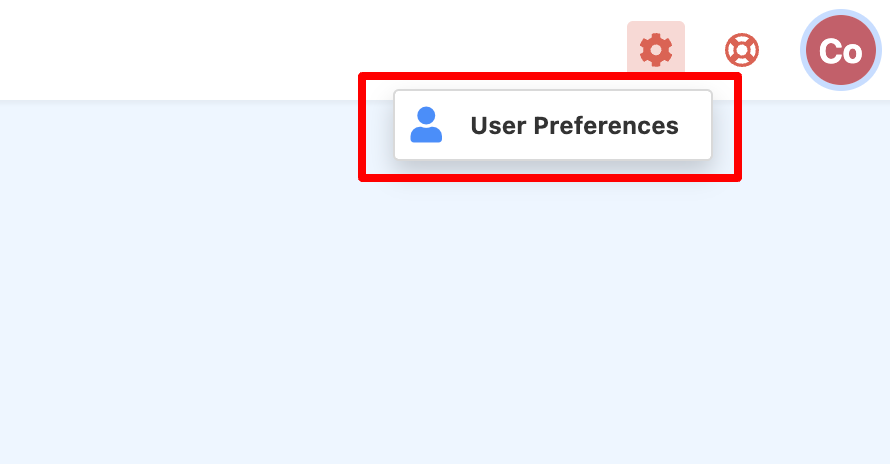
? Tip: You can choose more than one method to make sure you never miss an update.
3. Check Your Phone for Blocked or Spam-Filtered Messages
Sometimes, your phone or carrier may automatically block or flag school messages as spam. If you’re not receiving text messages, follow these quick checks:
On iPhone:
-
Open the Phone app.
-
Tap Recents and look for the school’s number.
-
Tap the (i) icon next to it and scroll down.
-
If you see Unblock this Caller, tap it.
-
You can also go to Settings > Phone > Blocked Contacts to review and remove any numbers that shouldn’t be blocked.
On Android:
(Steps may vary slightly depending on your phone model or carrier.)
-
Open the Phone app.
-
Tap the three dots (⋮) or More icon and select Settings.
-
Choose Blocked numbers or Spam and Call Screen.
-
Review the list and unblock any school numbers.
Carrier-Level Filters:
Some mobile carriers automatically filter messages they think are spam. To check:
-
Verizon: Open Verizon Call Filter and review the Spam or Blocked list.
-
AT&T: Open ActiveArmor and check Blocked or Spam Calls.
-
T-Mobile: Open Scam Shield and move school numbers from Blocked to Allowed.
If messages are still missing, contact your carrier and ask that messages from your child’s school or ReachMyTeach not be blocked.
4. Verify Your Contact Information
If you still don’t see messages after checking preferences:
-
Some schools allow families to update contact information directly in their school portal.
-
Other schools require you to email the main office or attendance contact to request an update.
Once your school updates your information, it will automatically sync with ReachMyTeach (typically within one business day).
5. Need More Help?
If you’ve checked the above and still aren’t receiving your messages:
-
Click the Help button (bottom right of your screen) to reach our support team.
-
Or email support@reachmyteach.com for additional assistance.
We’re happy to help you get reconnected with your child’s school communications.
Was this article helpful?
That’s Great!
Thank you for your feedback
Sorry! We couldn't be helpful
Thank you for your feedback
Feedback sent
We appreciate your effort and will try to fix the article