Table of Contents
Log In to ReachMyTeach
Go to www.reachmyteach.com/login.
You can log in using your email address or phone number.
Open User Preferences
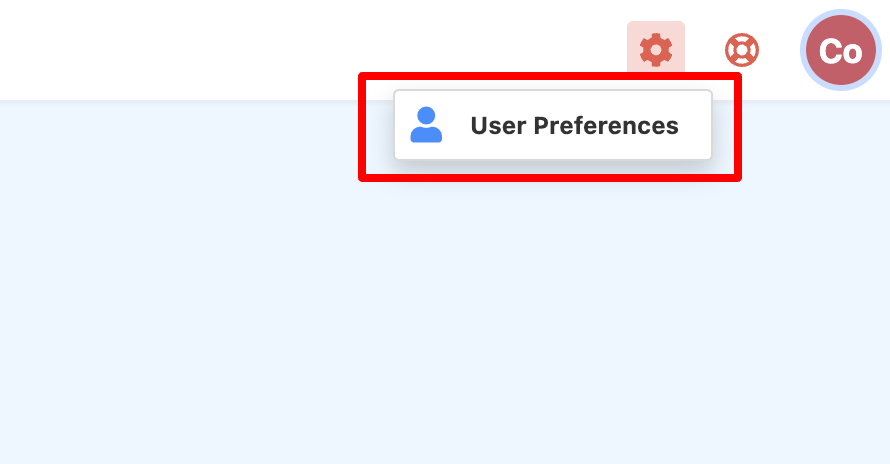
In the upper right corner of your ReachMyTeach screen, click User Preferences to manage how you receive messages.
Customize How You Receive Messages
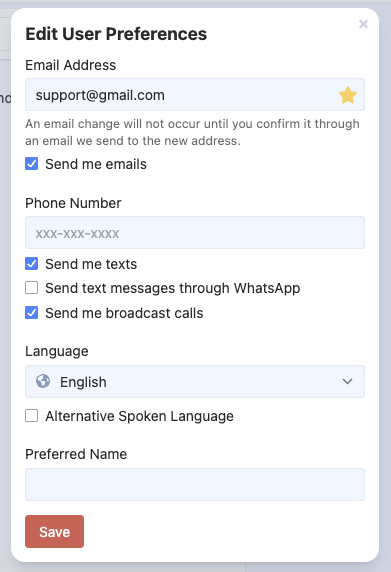
You can choose whether you’d like to get messages by email, text message, or both.
By default, your educator selects the communication method.
If you prefer not to receive messages through one method, you can uncheck:
-
“Send me emails”
-
“Send me texts”
‼️ Important: Changing these settings may affect how you receive school closures, safety alerts, health updates, and grades information.
We recommend keeping both email and text options enabled to make sure you don’t miss important updates.
What happens when you change your settings:
-
If you uncheck “send me emails”, all messages (even those sent as emails) will come as texts.
-
If you uncheck “send me texts”, all messages (even those sent as texts) will come as emails.
-
If you choose to receive texts through WhatsApp, you’ll receive texts only in WhatsApp, not through multiple channels.
- If you uncheck “send me broadcast calls”, you will not receive crucial voice calls from your district, such as school closure alerts or emergency updates.
Update Your Email or Phone Number
If you change your email address, you’ll receive a confirmation email at the new address.
The change will only take effect after you confirm it using the link in that email.
If you update your phone number, messages and broadcast calls will begin going to your new number as soon as you save your settings.
Update Your Language Settings
You can select your preferred language for messages and your family portal.
-
This setting changes both your communication language and the language used on your ReachMyTeach family portal.
-
Your school or organization manages the list of available languages.
-
If you choose an "Alternative Spoken Language", this will be the language used for interpreter calls.
-
If your written and spoken languages are the same, your spoken language will default to your language choice.
-
Set Your Preferred Name
You can customize the name you’d like to appear on communications.
This helps ensure that messages are addressed the way you prefer.
Manage Attendance Notifications
If your school uses attendance alerts, you’ll receive them by both email and text.
Most schools also allow you to excuse absences directly from these messages.
If you’d like to receive attendance notifications through only one method, you can adjust this in your preferences:
-
By default, both email and text are turned on.
-
If you turn both off, you will not receive attendance notifications.
⚠️ We strongly recommend keeping at least one option enabled so you don’t miss important information about your child’s attendance and safety.
Was this article helpful?
That’s Great!
Thank you for your feedback
Sorry! We couldn't be helpful
Thank you for your feedback
Feedback sent
We appreciate your effort and will try to fix the article