Message data helps you confirm that your communication reached families. You can see:
- Whether a message was delivered
- Whether it was translated
- Which delivery method was used (email, text message, WhatsApp, or phone call)
- How the message appeared to recipients
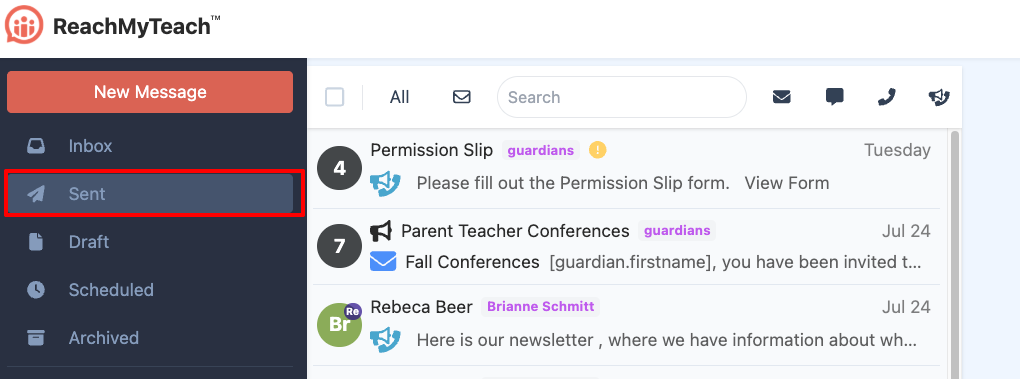
Step 1: Locate the Message
Find the message you'd like to review. If you don't see it right away, check your Sent folder.
Step 2: Select the Message
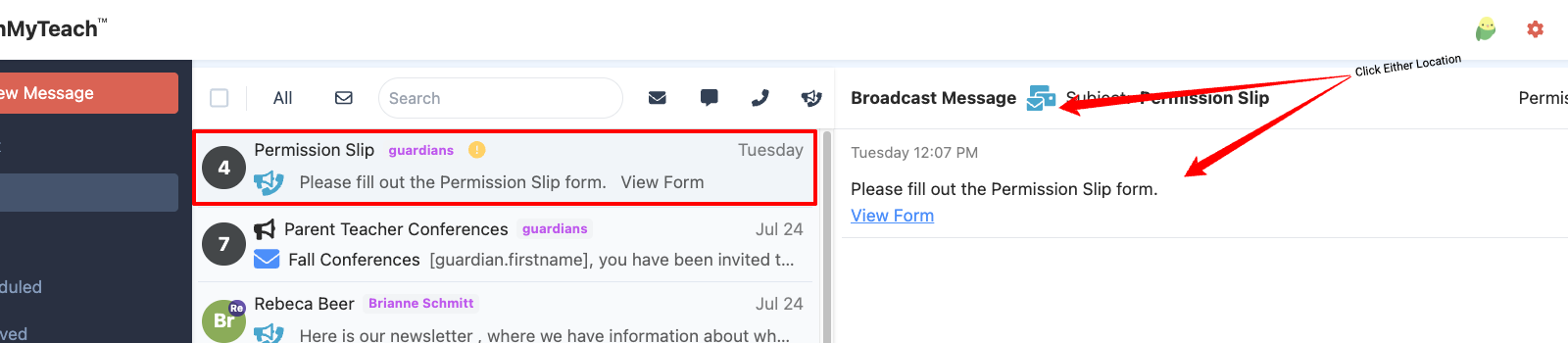
Click on the message or the icon of an email, text, or group message. The message itself will highlight in a darker shade of red or grey.
Step 3: View Message Data
After selecting the message, the message data will appear.
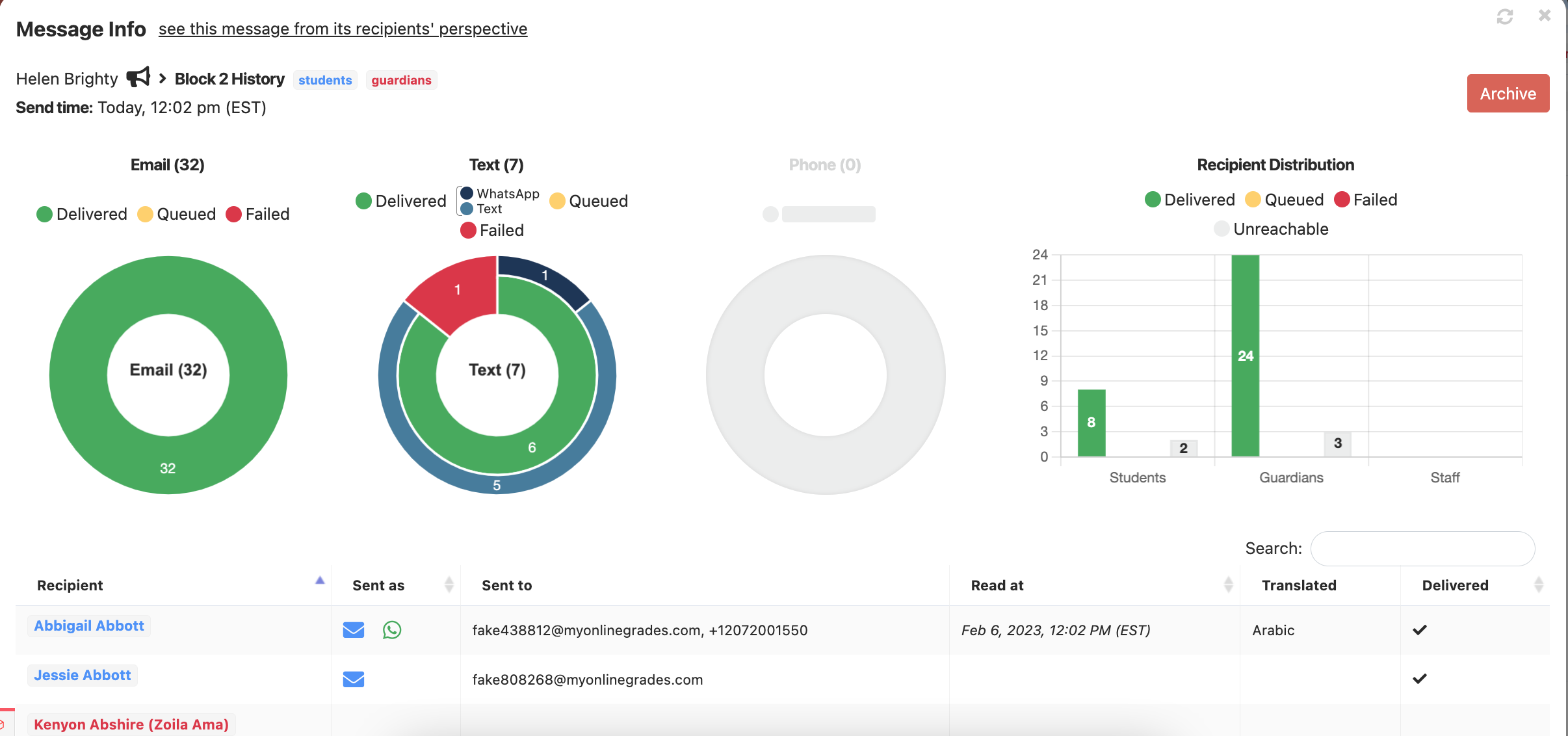
From this view, you can:
- Use the graphs to filter delivery results
- Search for a specific contact
- Review delivery status and communication method
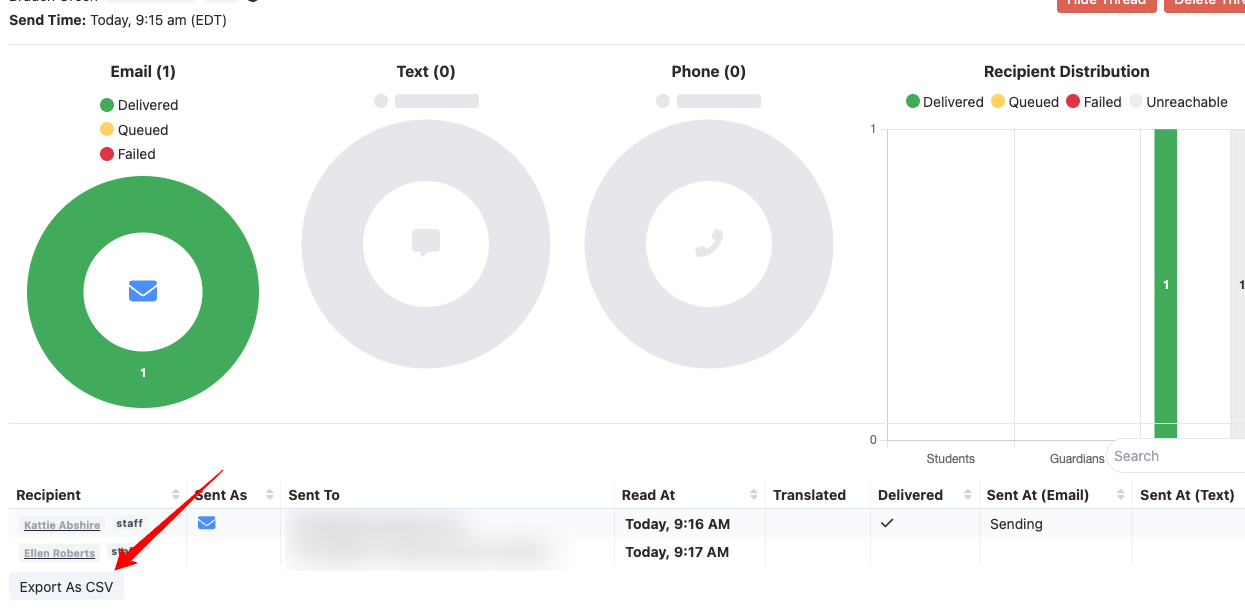
- Export the data as a CSV file using the Export to CSV button in the lower-left corner
Understanding Delivery Statuses
Read At means we can confirm that the recipient interacted with the message, such as opening an email, clicking a link, or viewing additional information.
Delivered At is often the most reliable indicator that a message reached the recipient. Many phone carriers do not provide information about when a text message is opened, so a message may not show a Read At status even if the recipient has seen it.
- Italicized timestamps indicate our best estimate of when the message was acknowledged.
- Bold timestamps indicate confirmed activity, such as the recipient clicking a link, selecting Read More, or visiting our site through the message.
Step 4: See the Recipient’s View
To see exactly what a recipient received:
- Search for the recipient using the search bar, or
- Select See this message from its recipient's perspective under the Sent As column
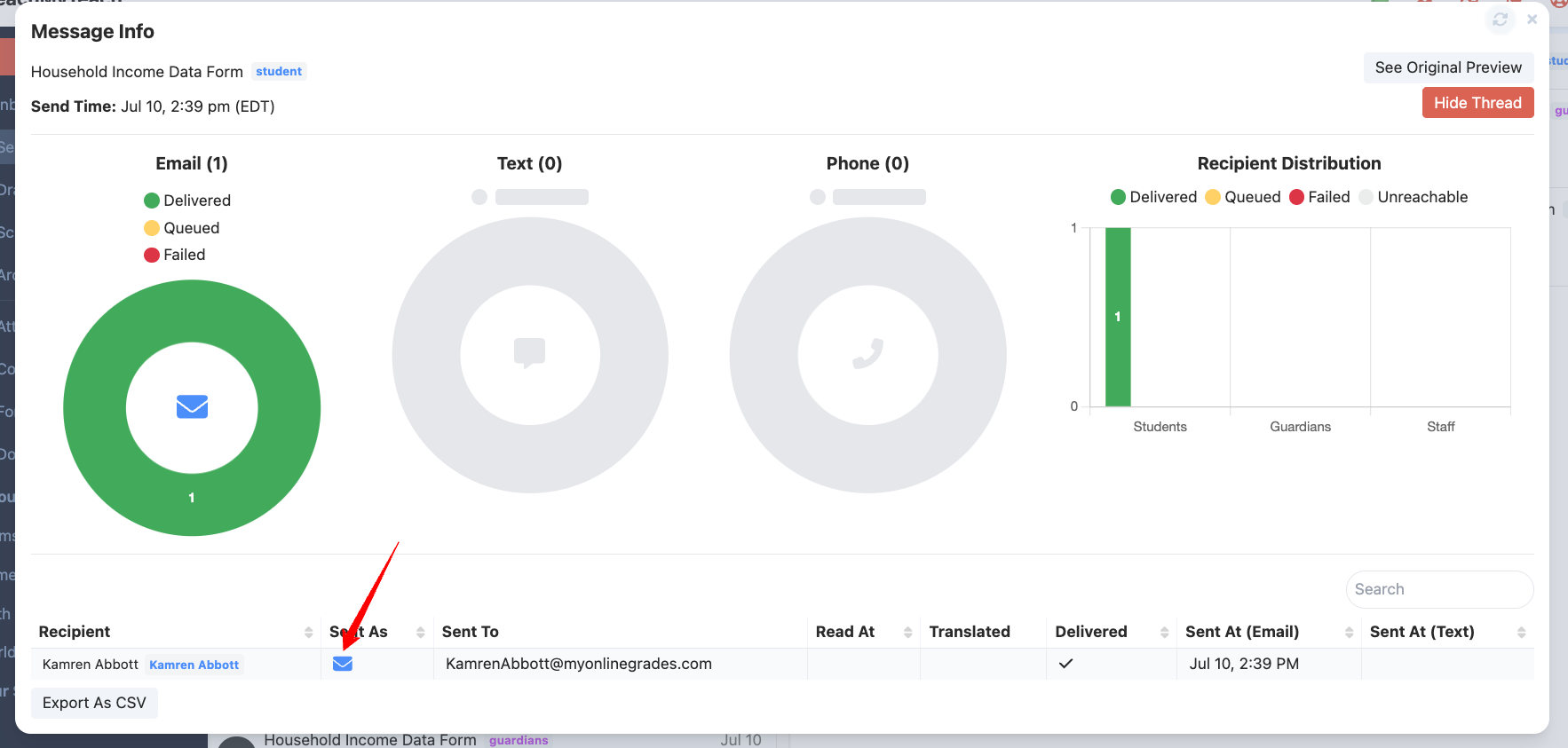
This will show you the recipient’s experience of the message.
Step 5: Check Translations
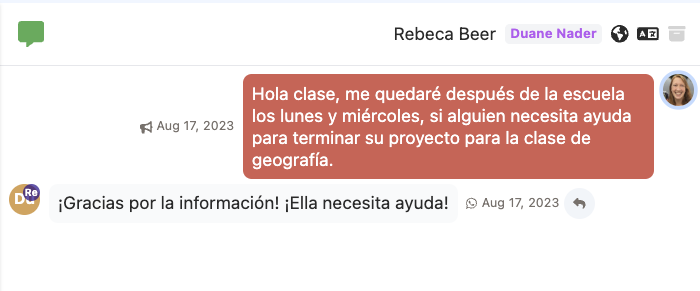
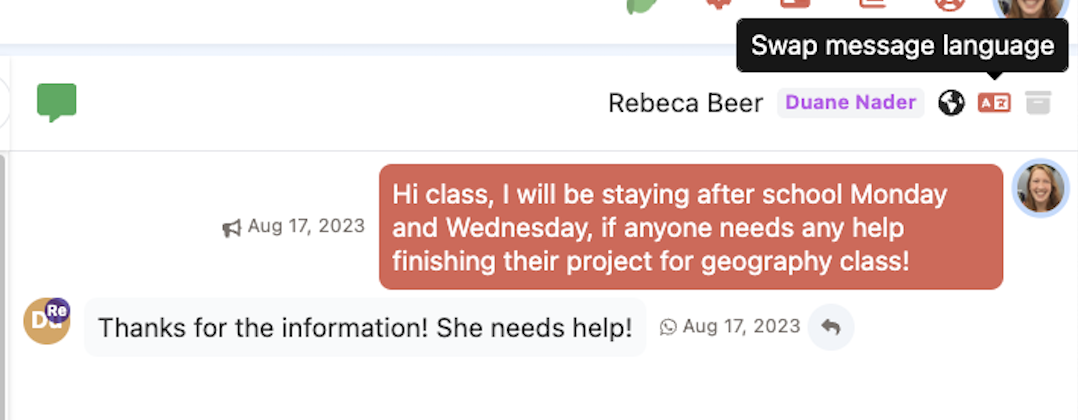
If a message you received was translated from another language to you, you can view the original content.
From your inbox click the Translate button to switch between the translation and the original message.
If an attachment was added look at the message data and click the link to view the attachment be sure it is for an family that required translation. Need additional help around translation?

Step 1: Locate the Message
Find the message you'd like to review. If you don't see it right away, check your Sent folder.
Was this article helpful?
That’s Great!
Thank you for your feedback
Sorry! We couldn't be helpful
Thank you for your feedback
Feedback sent
We appreciate your effort and will try to fix the article