The My Statistics page contains a list of all the passes a student has created.
In addition to the table on the page, students can view the number of passes they have created and their average time out within the selected time period.

Table
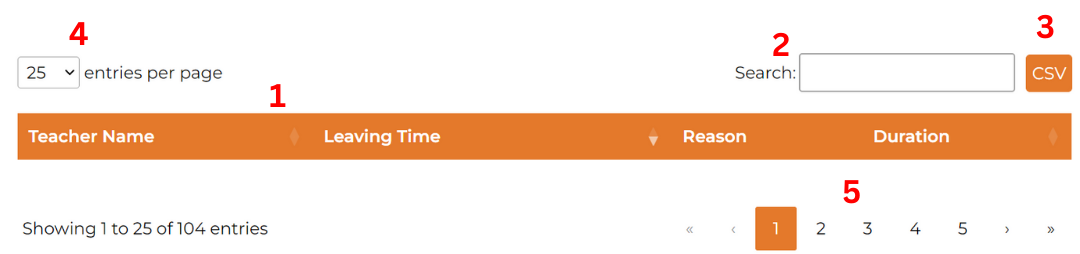
The table organizes and displays all student passes. The columns includes teacher name, leaving time, reason, and duration.
Features:
- Sorting: Click on the table headers to sort alphabetically by teacher name, leaving time, or duration.
- Search: Use the search bar to find specific teachers, leaving times, reasons, or duration.
- CSV: Click the CSV button to download the current list of all passes with in the time frame given by the date selectors.
- Entries per Page: By default, 25 passes are shown per page. You can adjust this to display 10, 25, 50, or 100 passes per page.
-
Change Page: If not all the passes you need to view are visible on the current table, you can navigate through different pages using the controls at the bottom:
-
Double Arrow: Click to jump to the first or last page.

-
Single Arrow: Click to move forward or backward one page at a time.

-
Page Number: Click on a specific page number to jump directly to that page.

- Highlighted Number: Shows the page you are currently on.
-
Double Arrow: Click to jump to the first or last page.
Was this article helpful?
That’s Great!
Thank you for your feedback
Sorry! We couldn't be helpful
Thank you for your feedback
Feedback sent
We appreciate your effort and will try to fix the article