Overview
This article explains how to grant staff access to students at another school (e.g., high school staff messaging middle school students).
Common Use Case
- High school staff communicating with incoming 8th graders
- Middle school staff communicating with 6th graders from elementary schools
Method 1: Create and Share a Student Group (District-Level)
This method allows the district to create a group of students and share it with staff at another school.
Steps
1. Create the student group
You can do this in one of two ways:
- Option A: Upload a spreadsheet
- Prepare a spreadsheet with the list of students (e.g., 8th graders)
- Upload the spreadsheet to create the group
- Option B: Select students manually
- Go to New Message
- Select the desired students
- Create a group from the selection
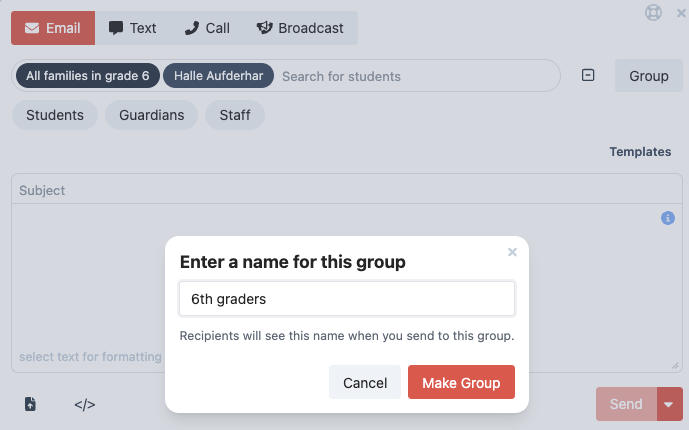
2. Share the group with staff
- Share the group with the specific staff members who need access
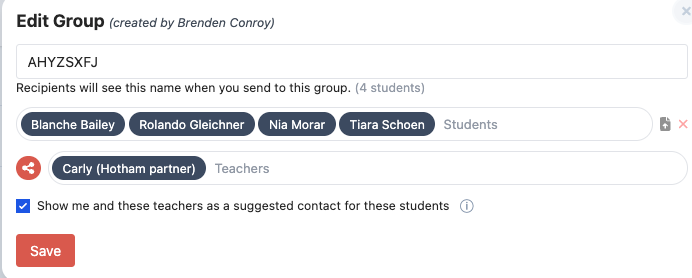
3. Result
- Staff can message the group
- Students remain enrolled at their original school
Pros
- Centralized district control
- Easy to manage access
- Group can be updated as needed
Cons
- Requires district administrator involvement
- Additional step to share the group
Method 2: Add School Enrollment for Staff (Recommended)
This method gives a staff member access to another school by adding them as enrolled at that school.
Steps
1. Go to Staff Contacts
- Locate the staff member
2. Add school enrollment
- Open the staff member’s contact
- Select Add School Enrollments
- Add the additional school
3. Result
- Staff can access all students at that school
- Access can be temporary or permanent
Pros
- Quick and easy to implement
- No group creation required
- Can be done at the school level
Cons
- Provides access to all students (not just a subset)
- Enrollment must be removed when no longer needed
Recommendation
Use Method 2 (Add School Enrollment) in most cases—it is faster and easier.
Use Method 1 (Student Groups) when:
- You need to limit access to specific students (e.g., only 8th graders)
- You want district-level control
- Multiple staff need access to the same specific group
Was this article helpful?
That’s Great!
Thank you for your feedback
Sorry! We couldn't be helpful
Thank you for your feedback
Feedback sent
We appreciate your effort and will try to fix the article