Administrators can update a staff member’s permissions to control which students and families they can reach, which tools they can use, and how they receive messages.
Important: Only users with A+ access can grant or remove Admin permissions or assign access to additional schools.
Update a Staff Member’s Permissions
Open the Student ID Card and select Teacher Contacts.
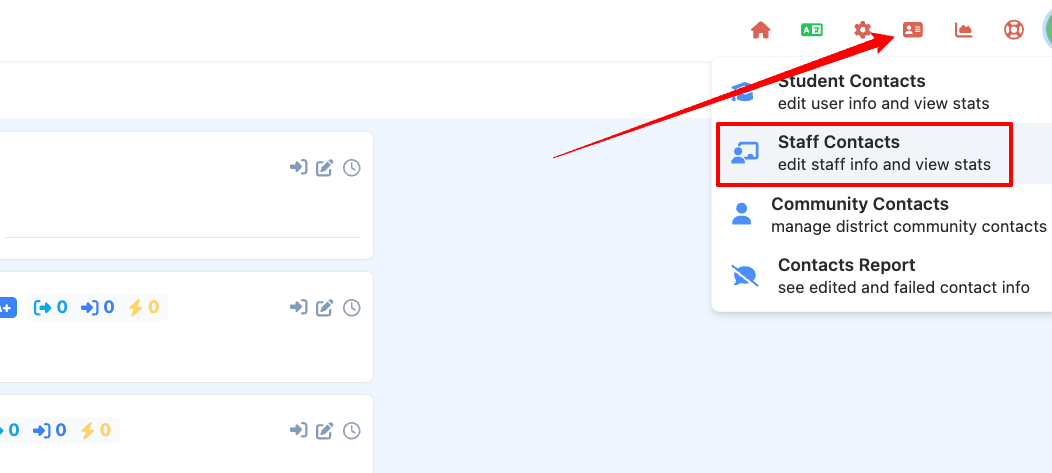
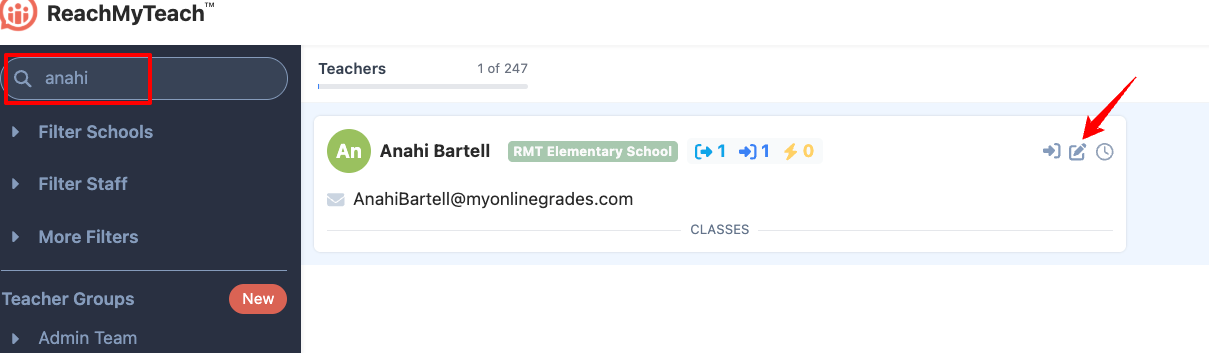
Search for the staff member.
Select the pen and paper icon beside their name.
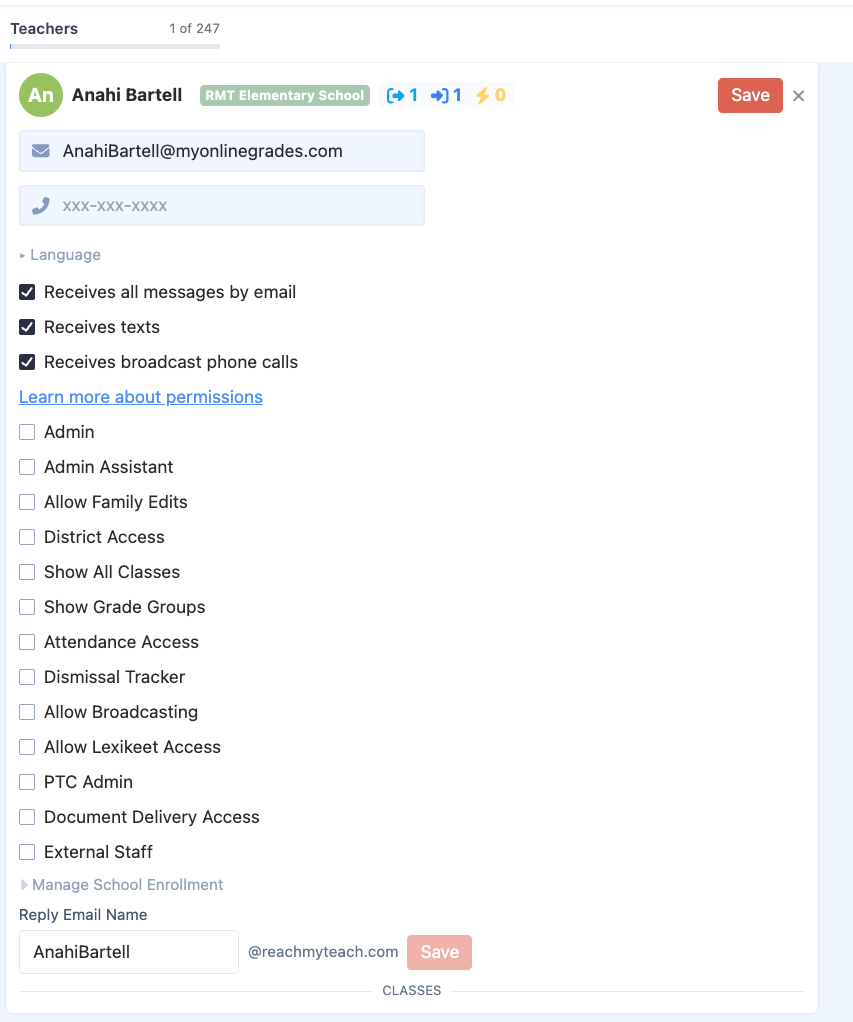
Check the permissions they need and select Save.
Which Students and Families Can They Access?
| Permission | What it does |
|---|---|
| District Access | Gives the staff member access across the district rather than limiting them to one school. They may also need Show All Classes or Show Grade Groups, depending on whom they need to contact. |
| Show All Classes | Gives access to all classes at their assigned school. With District Access, this applies across the district. |
| Show Grade Groups | Lets them find and communicate with students and families by grade level. With District Access, this applies across the district. |
| Manage School Enrollment | Lets an A+ administrator add specific schools to a staff member’s access without changing their SIS assignment. The staff member has the same permissions at the added schools as at their current school. |
For example, an A+ administrator could add a middle school to a high school counselor’s access so the counselor can contact incoming ninth-grade students.
Who Can Edit Family Information?
Allow Family Edits lets a staff member update family contact information and preferences in ReachMyTeach. This includes email addresses, phone numbers, written and spoken languages, preferred names, and attendance preferences where available. WE RECOMMEND MAKING ADJUSTMENTS IN YOUR SIS PRIMARILY, and they will sync nightly.
Changes made in ReachMyTeach take priority over the nightly SIS sync. Consider which staff members are responsible for maintaining family information before enabling this permission.
Staff without Allow Family Edits can still update WhatsApp and text-to-speech preferences, since those settings do not come from the SIS.
Administrative Roles
Admin
Admin gives a staff member administrative visibility throughout their assigned school or district. An Admin can use the administrative dashboard and search for students or staff to review communications.
This access includes communications protected by FERPA. Assign it only to staff who need to review communications across the school or district. Only an A+ administrator can grant or remove Admin access.
Admin Assistant
Admin Assistant gives front office staff access to common administrative tools without the communication oversight provided by Admin. It includes:
Show All Classes and Show Grade Groups
Attendance Access and Attendance Emails
Dismissal Tracker
Broadcasting
PTC Admin
Document Delivery Access
Admin Assistant also allows front office staff to see Family Chat. If they need to help monitor or support Family Chat, enable Admin Assistant.
External Staff
External Staff is for someone who needs to receive school or district communications but should not communicate directly with students, families, or staff through ReachMyTeach. Examples include bus drivers, crossing guards, and community partners who receive closure or emergency announcements.
Select the appropriate email, text, and broadcast phone call settings for each External Staff recipient.
Feature Permissions
| Permission | What it does |
|---|---|
| Attendance Access | Lets the staff member view attendance information and reports for their assigned schools. |
| Attendance Emails | Sends the staff member messages families send to the school’s attendance address and the end-of-day attendance report. This permission may be managed separately from the checkboxes shown in Teacher Contacts. |
| Dismissal Tracker | Lets the staff member view the Dismissal Tracker and edit student dismissal plans at their assigned schools. |
| Allow Broadcasting | Lets the staff member send broadcasts to groups they can access, such as schoolwide announcements or emergency messages. |
| Allow Lexikeet Access | Lets the staff member schedule an interpreter or place an on-demand interpreted call when the district has an active interpreter services contract. |
| PTC Admin | Lets the staff member set up and manage Parent-Teacher Conferences. |
| Document Delivery Access | Lets the staff member send secure documents to families through Document Delivery. |
How Does the Staff Member Receive Messages?
These settings control delivery to the staff member. They do not expand the students or families the person can access.
| Setting | What it does |
|---|---|
| Receives all messages by email | Sends their ReachMyTeach messages to their email inbox. |
| Receives texts | Allows them to receive eligible messages by text. |
| Receives broadcast phone calls | Allows them to receive school or district broadcast calls. |
| Reply Email Name | Sets the first part of their ReachMyTeach reply-to email address. ReachMyTeach creates this from the SIS import, but an administrator can correct it if needed. |
Keep staff phone numbers accurate so they can receive emergency and staff broadcasts. Their phone numbers are not shared with families.
Common Setups
| Staff member | Suggested permissions |
|---|---|
| Principal or assistant principal who reviews building communications | Admin, Show All Classes, Show Grade Groups, and any feature permissions needed |
| Front office staff member | Admin Assistant |
| Attendance staff member | Attendance Access, Attendance Emails, and the class or grade access needed for their work |
| Librarian or instructional coach working across classrooms | Show All Classes and, if needed, Show Grade Groups |
| District specialist working across buildings | District Access, the class or grade access needed, and any relevant feature permissions |
| Counselor contacting students at another school | Manage School Enrollment for that school, assigned by an A+ administrator |
| Bus driver, crossing guard, or community partner receiving announcements | External Staff and the appropriate notification settings |
Staff members can also manage some of their own settings, including email integration preferences and out-of-office notifications.
Was this article helpful?
That’s Great!
Thank you for your feedback
Sorry! We couldn't be helpful
Thank you for your feedback
Feedback sent
We appreciate your effort and will try to fix the article