Changes do not automatically move between the integrated Google spreadsheet and ReachMyTeach.
1. Before Editing the Spreadsheet
Reminder on how to access google spreadsheet
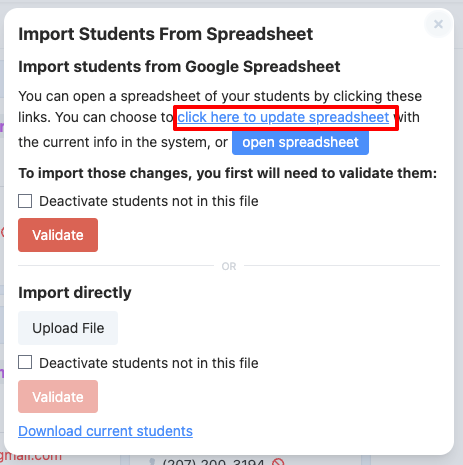
Have staff made changes to student or guardian information directly in ReachMyTeach?
- Yes or you are not sure: Select Click here to update spreadsheet. This updates the spreadsheet with the current information from ReachMyTeach before you begin editing IT WILL OVERRIDE ANY WORK YOU'VE DONE IN THE SHEET.
- No: Select Open spreadsheet and make your changes.
2. After Editing the Spreadsheet
Changes made in the spreadsheet will not appear in ReachMyTeach until you validate and import them.
- Return to ReachMyTeach.
- Select Validate to review your proposed changes.
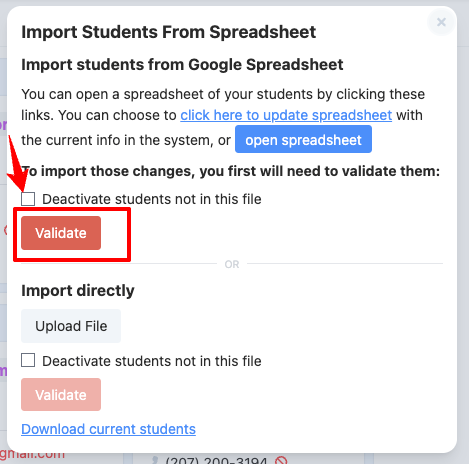
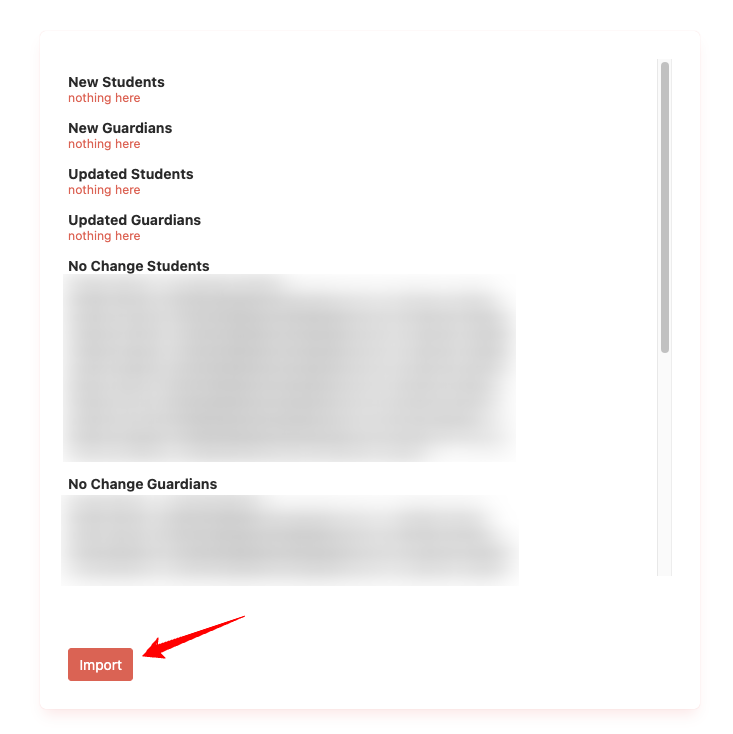
- Confirm that the changes are correct.
- Select Import to apply them in ReachMyTeach.
3. Deactivating Students
If you removed students from the spreadsheet and want them deactivated in ReachMyTeach, select Deactivate students not in this file checkbox before selecting Validate.
Only select this option when the spreadsheet contains the complete list of students who should remain active. Any active student who is not listed in the spreadsheet will be deactivated.
Quick Reminder
- Changes made in ReachMyTeach: Update the spreadsheet
- Changes made in the spreadsheet: Validate and Import
- Students removed from a complete spreadsheet: Select Deactivate students not in this file
Was this article helpful?
That’s Great!
Thank you for your feedback
Sorry! We couldn't be helpful
Thank you for your feedback
Feedback sent
We appreciate your effort and will try to fix the article