Excluding Classes, Teacher Set up for Admin Send Conferences
Modified on Thu, 25 Dec, 2025 at 10:28 AM
When inviting families to a conference as an administrator, each family is automatically invited to meet with the teacher of every class their student is enrolled in. Sometimes, not every class should be included in conferences. The Exclude Classes option allows you to remove specific classes from the invitation process.
How to Exclude Classes
While setting up your conference, you will click Submit and it will bring you here, you can also access this section any time from your admin dashboard.
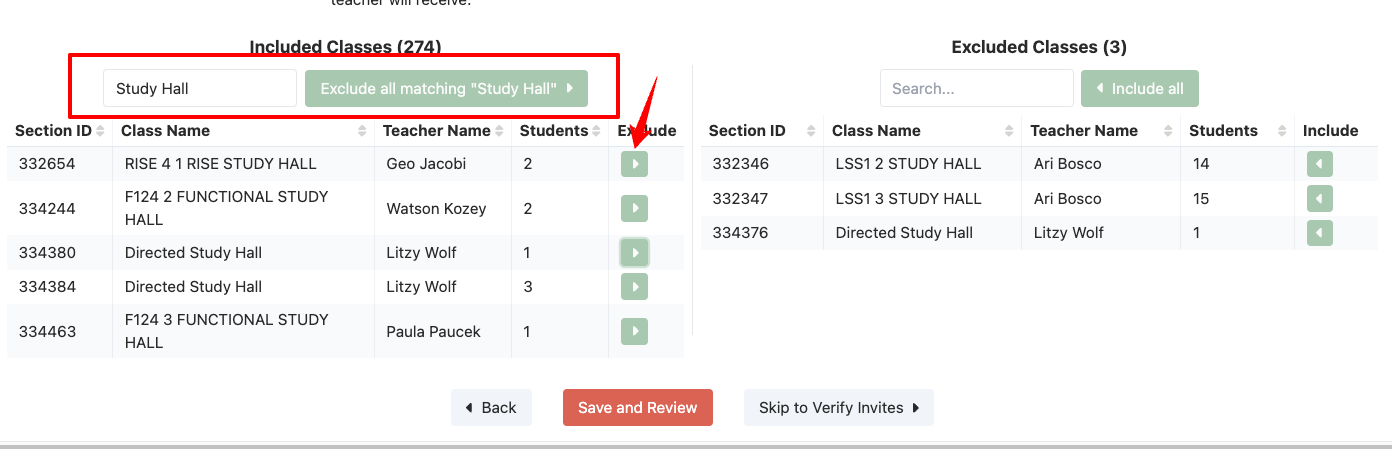
Review the list of classes associated with your students.
Select and/or search any classes you want to exclude.
Examples of when to exclude classes
Study Hall/Advisory: Families typically don’t need to meet with staff supervising these.
Teacher Leave: A teacher may be on maternity or medical leave and unavailable for conferences.
Non-Academic Classes: Certain elective or special assignments may not require a family meeting.
Reviewing Invites
After selecting which classes to exclude:
You’ll move to the Review Step, where you can confirm the total number of invites each family and teacher will receive.
This ensures families are only scheduled for relevant conferences and teachers aren’t assigned meetings unnecessarily.
Review Teacher Locations
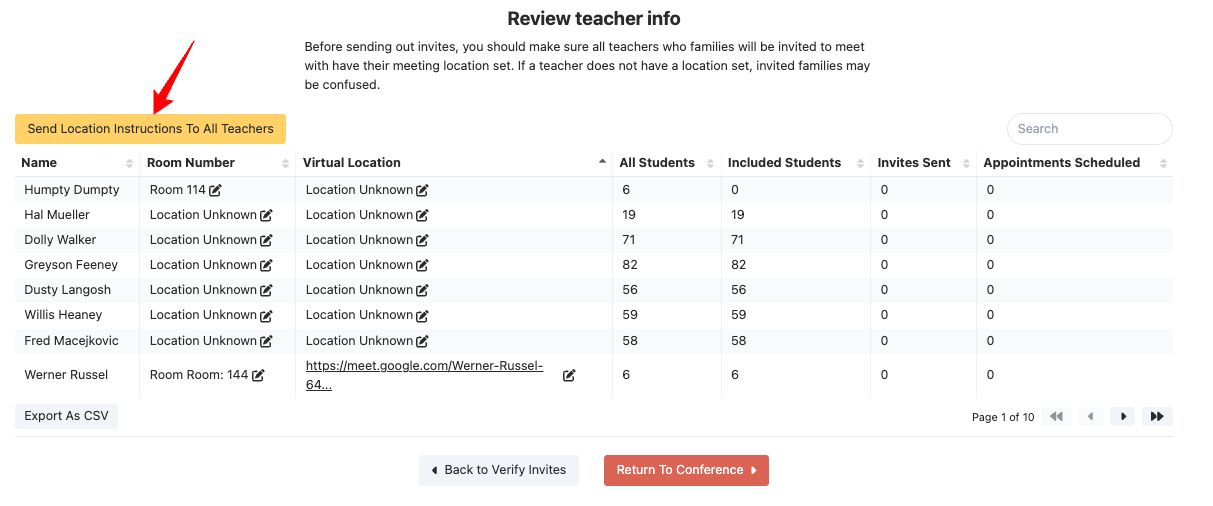
Before sending out invites, it’s important to ensure all teachers who families will be invited to meet with have their meeting location set. If a teacher does not have a location entered, families may be confused about where or how to join their appointment.
Setting Teacher Locations
In-Person Conferences: Teachers should enter their room number so families know exactly where to go.
Virtual Conferences:
We strongly recommend connecting Google Calendar. This automatically creates a Google Meet link for each conference.
Even if you are not hosting virtual conferences, Google Calendar is helpful because it also sends a calendar invite to families and gives teachers another point of reference.
If Google Calendar is not connected, teachers can manually include a link for Zoom or another virtual platform.
Sending Teacher Instructions
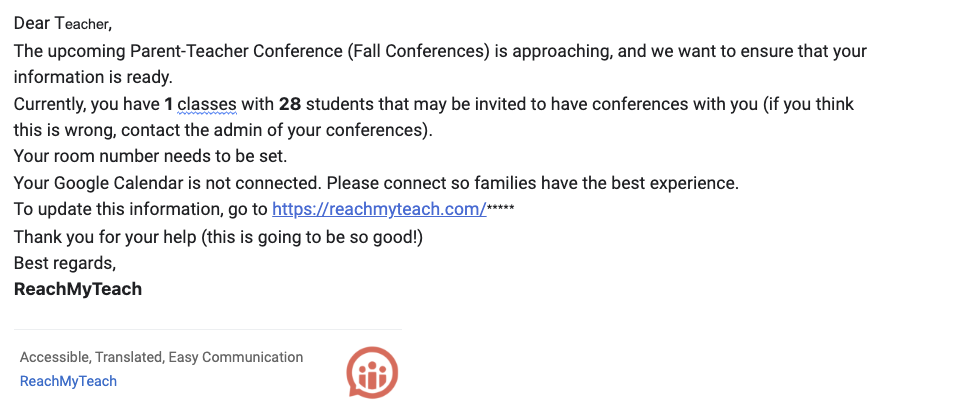
As an administrator, you can send setup instructions to teachers directly from this step. This ensures everyone knows how to add their location or virtual link before invitations go out.
Example Teacher Instructions
Was this article helpful?
That’s Great!
Thank you for your feedback
Sorry! We couldn't be helpful
Thank you for your feedback
Feedback sent
We appreciate your effort and will try to fix the article