There are two options for creating and managing conferences in ReachMyTeach:
-
Teacher Sends Invite: Teachers create conferences and send invitations to their own classes. Best for homeroom-style meetings, student-led conferences, or grade-level teams, generally used in Elementary and lower middle school grades.
-
Admin Sends Invite: Administrators create a single conference for the whole school (or grade) and send one message inviting families to sign up. Best when families need to meet with multiple teachers on a student’s schedule, generally used for middle and high school
Note: Only administrators or PTC administrators can create conferences at the school level. This is a paid feature, and some schools may not have it enabled.
Teacher Sends Invite
When teachers are responsible for creating and sending invitations:
-
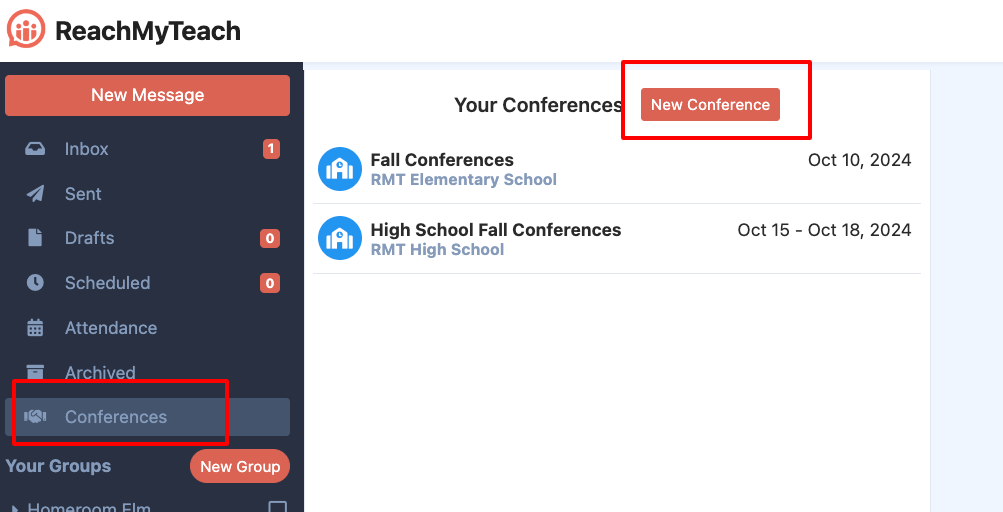
Go to the Conference section and click New Conference.
-
Complete the form in this order:
-
Conference Name: e.g., Fall Conferences
-
School: Select your school
-
Multilingual: Choose from
-
No – no interpreters available
-
Lexikeet – auto-schedule interpreters through Lexikeet (if subscribed)
-
District Interpreters – Enter the number of available district interpreters by language. The system automatically creates one slot per language. Each slot allows one family at a time to sign up in that language.
If you actually have two or more Spanish interpreters who can work at the same time, click Add District Interpreters and add the number of Spanish interpreters you have available.
This tells the system to create more simultaneous slots for that language so multiple families can sign up for the same time block.
For example: If you select 3 Spanish interpreters, the system will automatically allow three Spanish-speaking families to book during the same time block — one per interpreter. 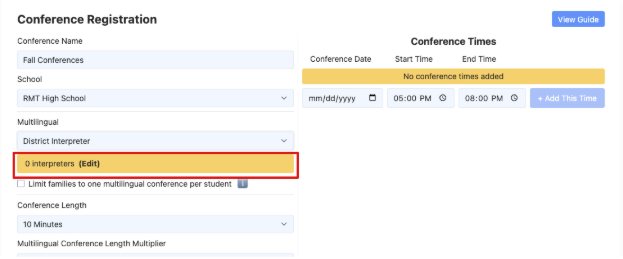
-
Multilingual Settings
-
One Appointment for Multilingual Families: Ensures multilingual families only sign up for a single appointment, useful when a multilingual teacher coordinates across subjects.
-
Multilingual Conference Length Multiplier: Extends appointment length for multilingual families. For example, if regular appointments are 20 minutes, a 2x multiplier would make multilingual appointments 40 minutes to allow time for interpretation.
-
Conference Length: e.g., 10 minutes per family
-
Time Between Appointments: e.g., 0 minutes
-
Type: Choose In-Person, Virtual, or Family’s Choice
-
In-Person: Families can only sign up for on-site conferences.
-
Virtual: All conferences will be virtual. Teachers connect their Google Calendar, and Google Meet links are automatically created.
-
Family’s Choice: Families choose whether to meet in person or virtually at sign-up.
-
-
Who Invites Families?: Select Teachers send invites
-
Teachers View All Appointments: By default, teachers can see “other appointments” only for students on their roster. Checking this option gives full transparency, allowing all teachers, teams, and floating staff to search any student to see when their appointment is scheduled.
- Adding Times: Add blocks of time for the conference. For example, you can create two sections in one day, such as 11:00am–2:00pm and 4:00–6:00pm on the same day, leaving 2:00–4:00pm free for a dinner break. You can also add multiple days. Teachers will have the ability to mark themselves unavailable if they have conflicts or need to join other conferences.
-
- Click Submit.
Once the conference is made and live:
-
Teachers can go in and send invitations to their students or classes, here are resources for getting staff started.
-
Front office staff can assist with managing conferences if needed (some staff may need to be elevated to PTC Admin to do this).
- Family resources can be shared with how to guides and translated videos.
Note
Families usually sign up quickly once conferences are available.
You can track conference data under your All Appointments page. Learn more in the guide on [Admin View of Conferences].
Families automatically get appointment reminders by email and text: one reminder the day before, and another one hour before their meeting.
Admin Sends Invite
When administrators set up conferences:
-
Go to the Conference section and click New Conference.
-
Complete the form in this order:
-
Conference Name: e.g., Fall Conferences
-
School: Select your school
-
Multilingual: Choose from
-
No – no interpreters available
-
Lexikeet – auto-schedule interpreters through Lexikeet (if subscribed)
-
District Interpreters – Enter the number of available district interpreters by language. The system automatically creates one slot per language. Each slot allows one family at a time to sign up in that language.
If you actually have two or more Spanish interpreters who can work at the same time, click Add District Interpreters and add the number of Spanish interpreters you have available.
This tells the system to create more simultaneous slots for that language so multiple families can sign up for the same time block.
For example: If you select 3 Spanish interpreters, the system will automatically allow three Spanish-speaking families to book during the same time block — one per interpreter.
-
Multilingual Settings
-
One Appointment for Multilingual Families: Ensures multilingual families only sign up for one appointment, especially useful if a multilingual teacher is coordinating.
-
Multilingual Conference Length Multiplier: Adjusts the length of multilingual appointments. For example, if English-speaking appointments are 20 minutes, a 2x multiplier creates 40-minute blocks, helping ensure enough time for interpretation.
-
Conference Length: e.g., 8 minutes per family
-
Time Between Appointments: e.g., 2 minutes to move from room to room
-
Type: Choose In-Person, Virtual, or Family’s Choice
-
In-Person: Families can only sign up for on-site conferences.
-
Virtual: All conferences will be virtual. Teachers connect their Google Calendar, and Google Meet links are automatically created.
-
Family’s Choice: Families choose whether to meet in person or virtually at sign-up.
-
-
Who Invites Families?: Select Admin sends invites
-
Teachers View All Appointments: By default, teachers only see appointments for students on their roster. Checking this option allows all staff, including teams and floating teachers, to search for any student’s schedule, providing full transparency of conference times.
- Adding Times: Add blocks of time for the conference. For example, you can create two sections in one day, such as 11:00am–2:00pm and 4:00–6:00pm on the same day, leaving 2:00–4:00pm free for a dinner break. You can also add multiple days. Teachers will have the ability to mark themselves unavailable if they have conflicts or need to join other conferences.
-
- Click Submit. You will be brought to the next page to exclude classes, learn more here, and send instructions to teachers, once you click through Administrators then send a single message to all families (by grade or school) inviting them to sign up and meet with each of the student’s teachers.
Once the conference is made and live:
-
Teachers can go in and send invitations to their students or classes, here are resources for getting staff started.
-
Front office staff can assist with managing conferences if needed (some staff may need to be elevated to PTC Admin to do this).
- Family resources can be shared with how to guides and translated videos.
Note
Families usually sign up quickly once conferences are available.
You can track conference data under your All Appointments page. Learn more in the guide on [Admin View of Conferences].
Families automatically get appointment reminders by email and text: one reminder the day before, and another one hour before their meeting.
Was this article helpful?
That’s Great!
Thank you for your feedback
Sorry! We couldn't be helpful
Thank you for your feedback
Feedback sent
We appreciate your effort and will try to fix the article