This guide is designed to walk teachers through the setup process for parent-teacher conferences where teachers are responsible for sending invites to families. Follow these steps to create, manage, and track conference invitations and appointments efficiently.
Step 1: Understanding Parent Invitations
- Immediate Notifications: Once you send an invitation, parents receive a text and an email inviting them to schedule a conference.
- Scheduling Link: Parents click the scheduling link to select a convenient time, bringing them directly to your sign-up page.
- Reminders: Families will receive automated reminders:
- One day before the conference
- One hour before the conference begins
- Note: Only one conference per student is allowed for separated/divided families. For additional arrangements, families should reach out directly to the educator. See more on parent view here.
Step 2: Logging In and Accessing Conferences
- Go to ReachMyTeach.com and sign in using your Google or Outlook account.
- Navigate to the "Conferences" folder on the left side and click the conference you’ll manage.
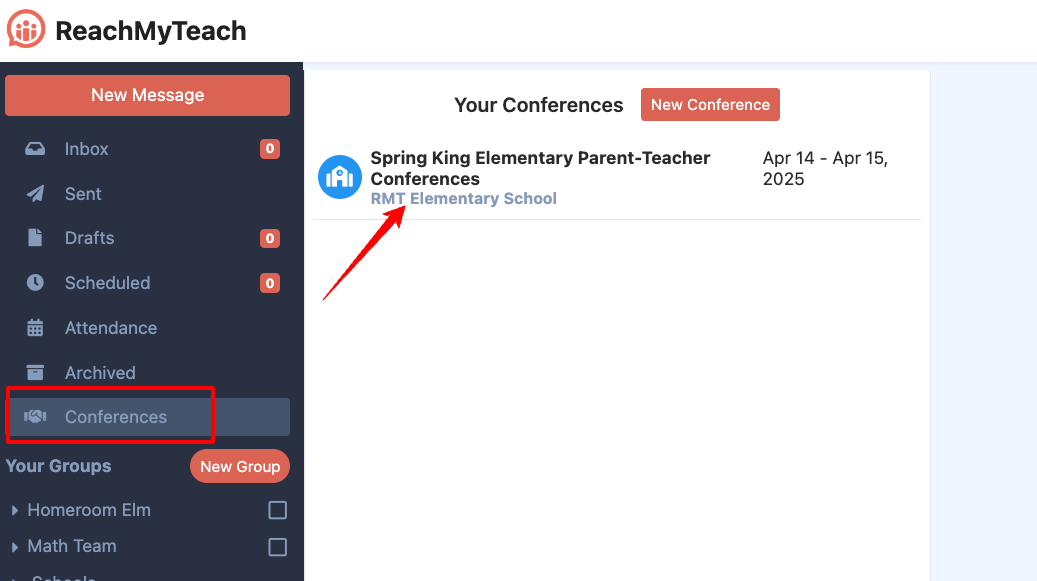
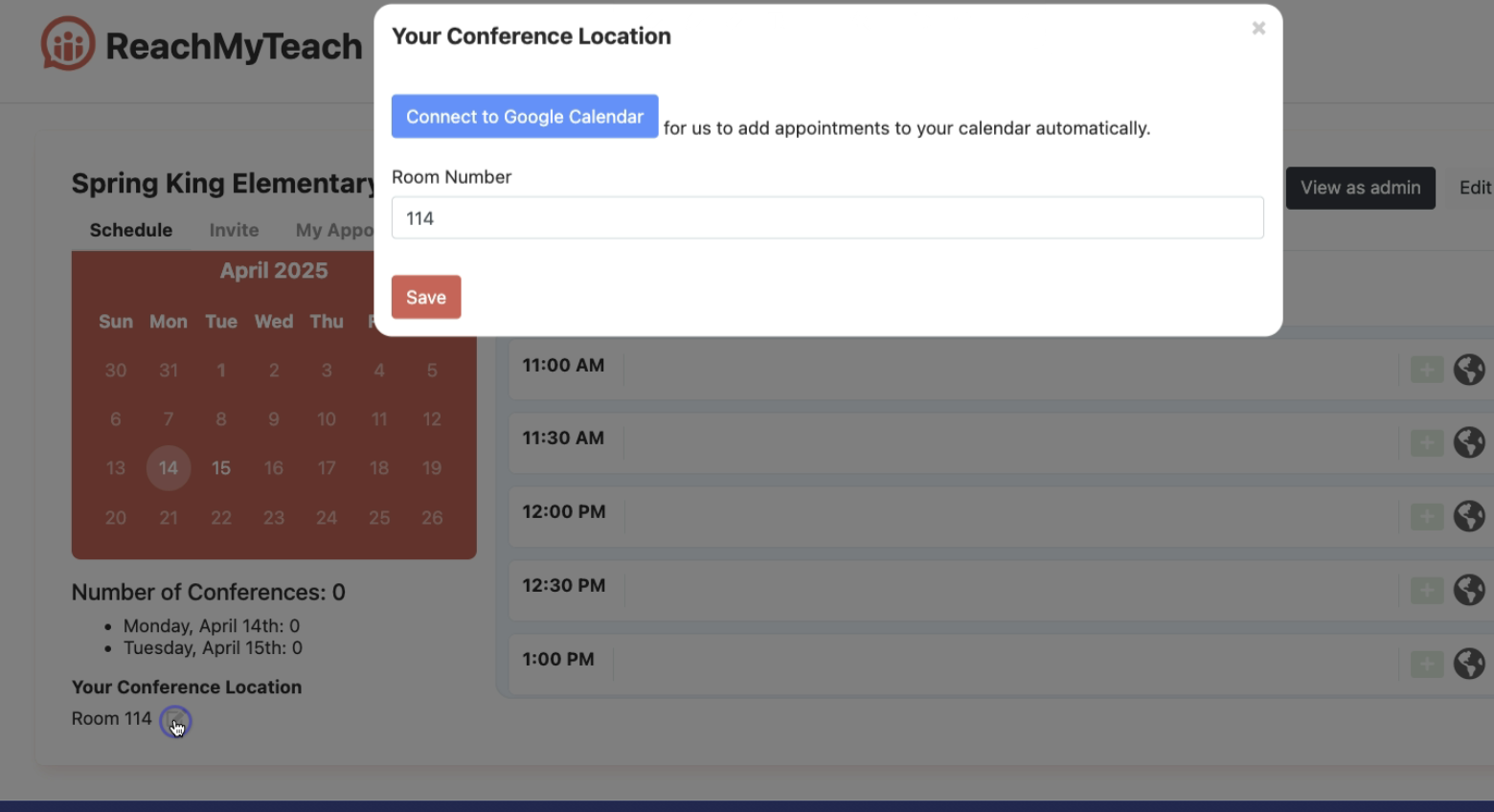
Step 3: Connecting Your Calendar and Room Details
- Connect Google Calendar: This integration allows you to:
- Track scheduled conferences on your calendar.
- Set the meeting room number for in-person conferences, if you are in multiple rooms please indicate that.
- Save these settings to ensure your calendar reflects conference appointments.
Step 4: Blocking Unavailable Times
In the "Parent-Teacher Conference" section:
- Use the clock icon to mark times when you’re unavailable. Block off times if:
- You’re already engaged
- You need a break, such as for lunch or dinner
- Multiple Days: Use the calendar to apply these settings across multiple days as needed.
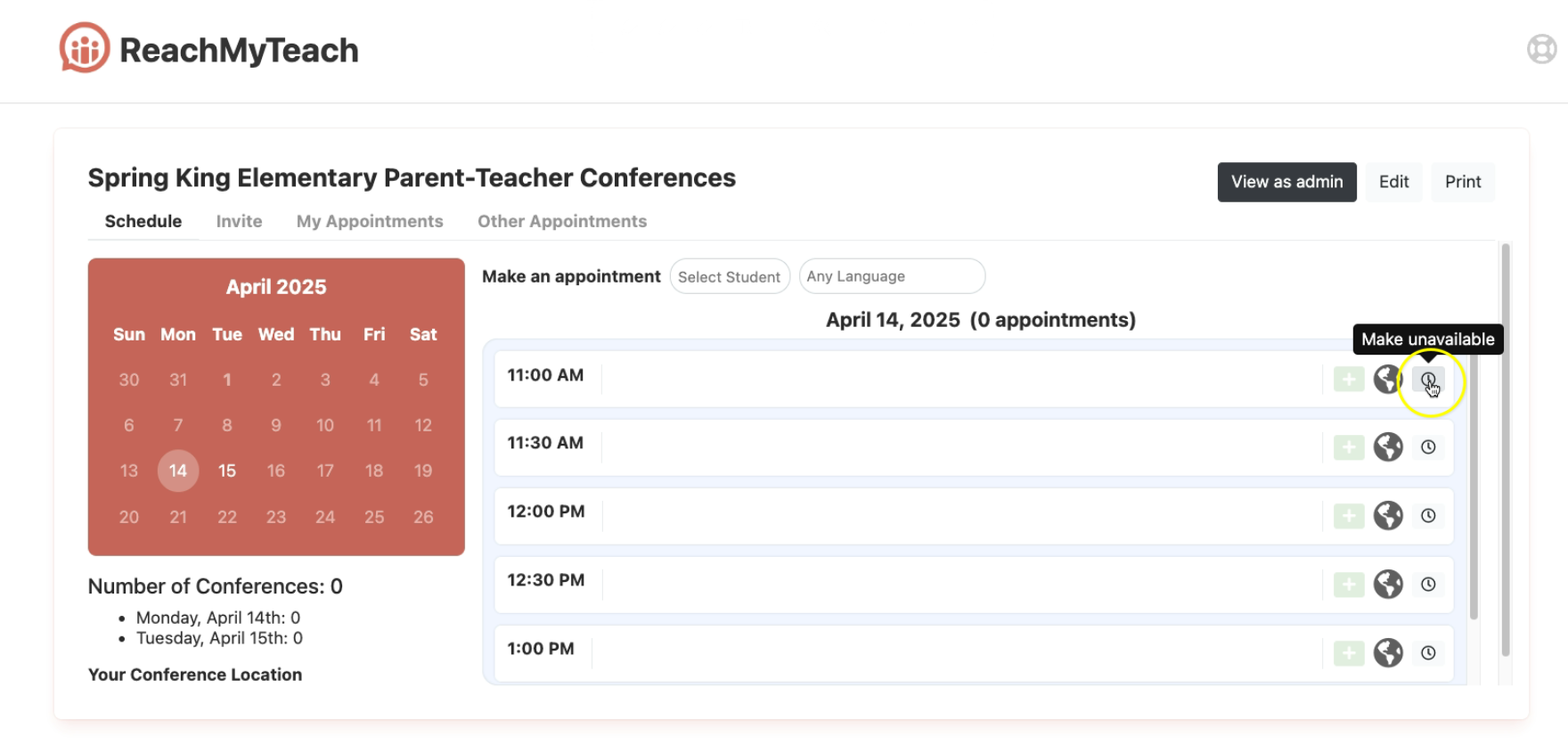
Families will not be able to book during blocked times.
Step 5: Scheduling Appointments for Families
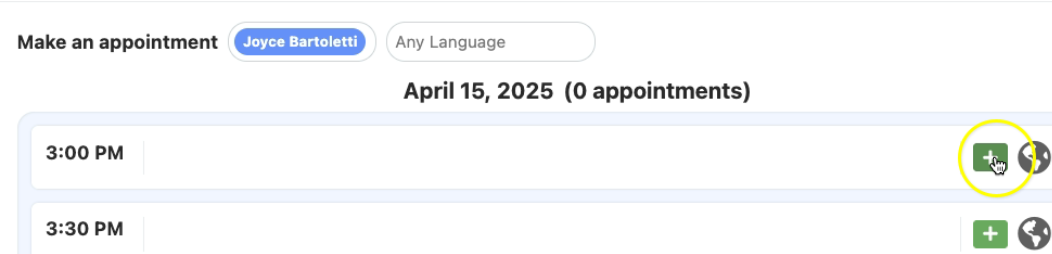
- Select Student: Choose the student from your class list.
- Set Language: Choose the family’s preferred language if not already selected.
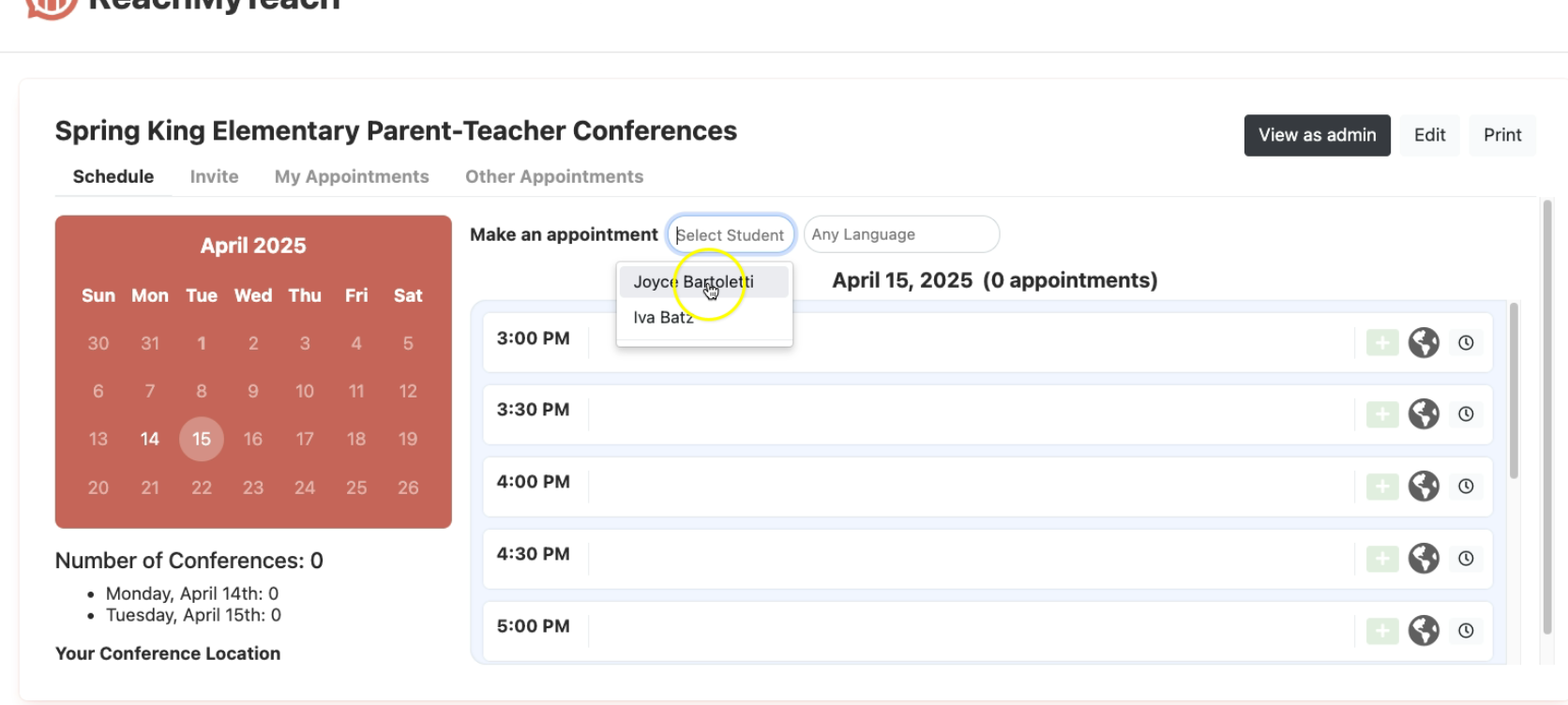
Select Time: Pick an available time that fits the family’s needs.
For schools offering virtual conferences:
- A Google Meet link will automatically be created for English-speaking families.
Step 6: Managing Multilingual Virtual Conferences
If your school supports multilingual virtual conferences:
- You may see a Google Meet link if you have on-staff interpreters.
- For Lexikeet Language Services users, a rostered interpreter and Meet link will appear in the "My Appointments" tab, ensuring interpreters are ready and links are accessible.
Step 7: Canceling Invitations
To cancel an invitation:
- Click the “X” button next to the invitation you want to cancel.
- Families will receive a notification of the cancellation.
- You can re-invite families by sending a new invitation through ReachMyTeach as needed.

Step 8: Sending Invitations to Families
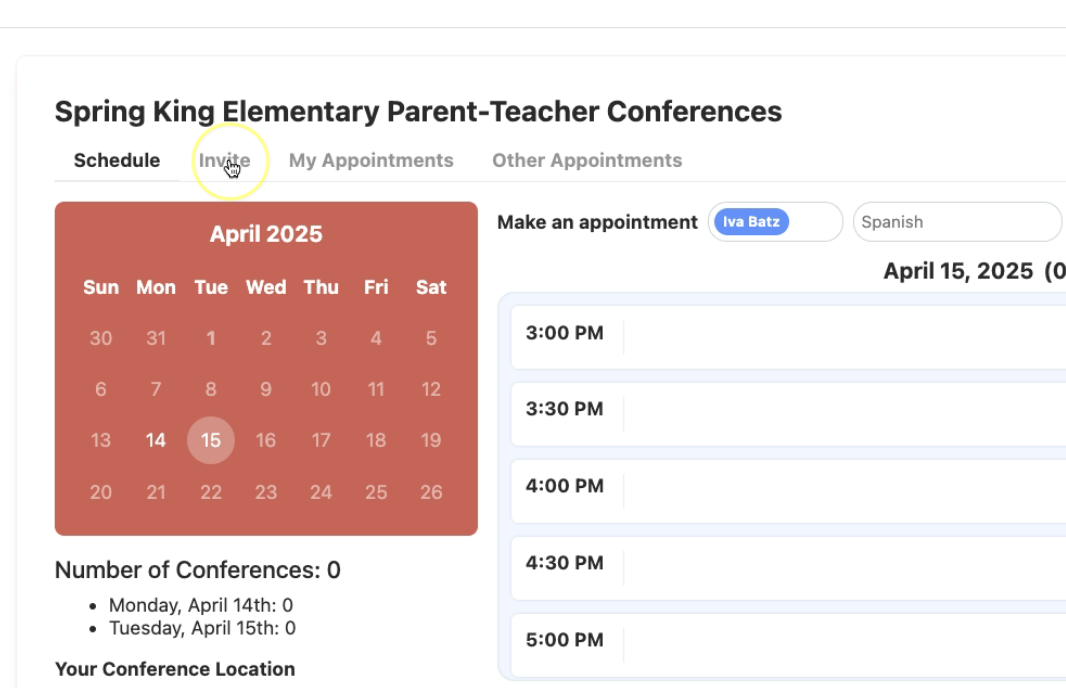
- Go to the Invite tab and select Invite Families.
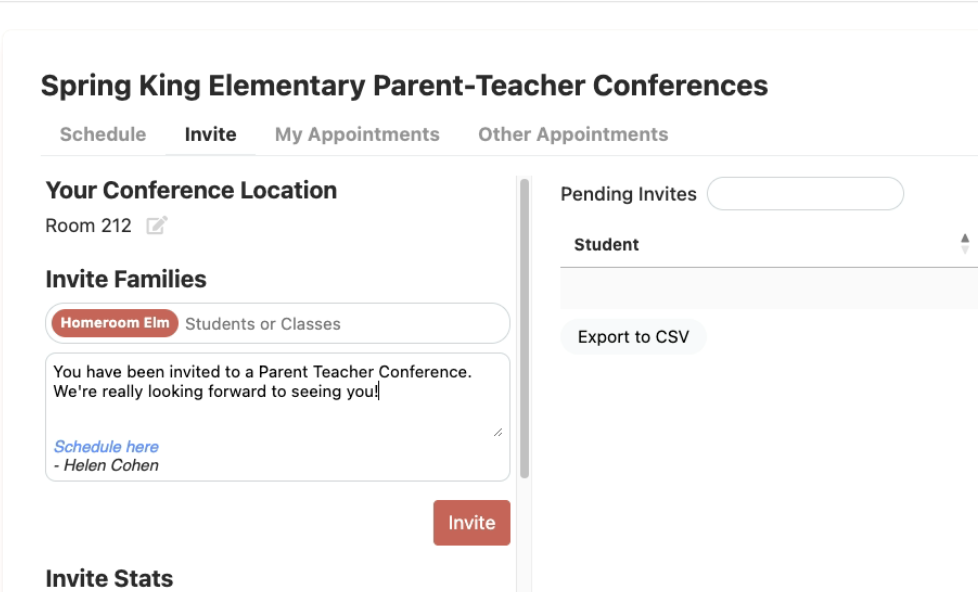
- Search for classes or individual families and write a message to them. You can use the default message or customize it.
- Click Invite to send. Parents will receive a scheduling link with your customized message (if added).
Step 9: Tracking Invitations and Resending Invites
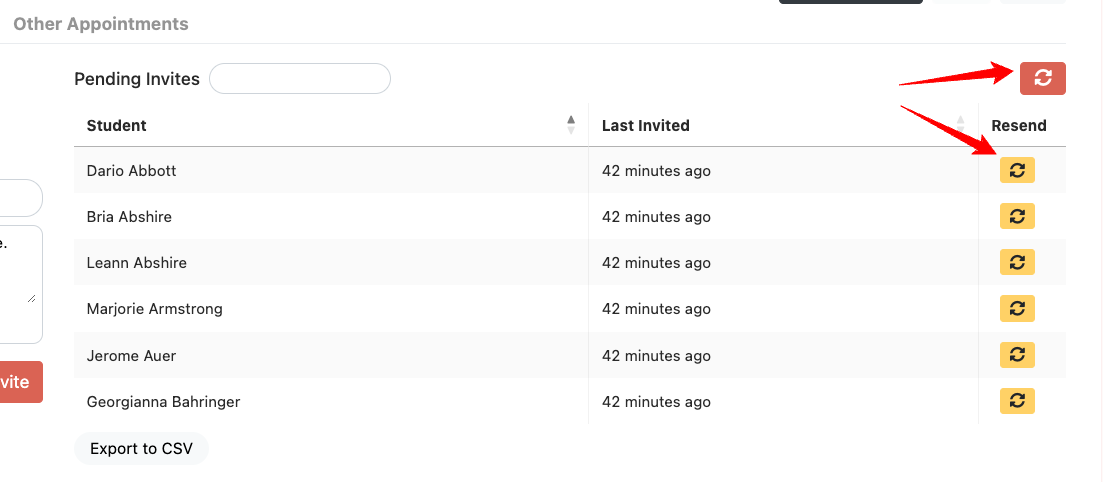
- Pending Invitations: You can view families who haven’t signed up yet under "Pending Invitations."
- Resend Options:
- Click the red circular arrow in the top right to resend invites to all pending families.
- Use the yellow icon to resend an invitation to individual families.
Step 10: Viewing and Managing Appointments
Access the following in both "Schedule" and "My Appointments" tabs.
- Adding Notes: In "Schedule," add teacher-only notes, such as specific location details.
- Marking Attendance: After each conference, mark families as attended to help track participation data.
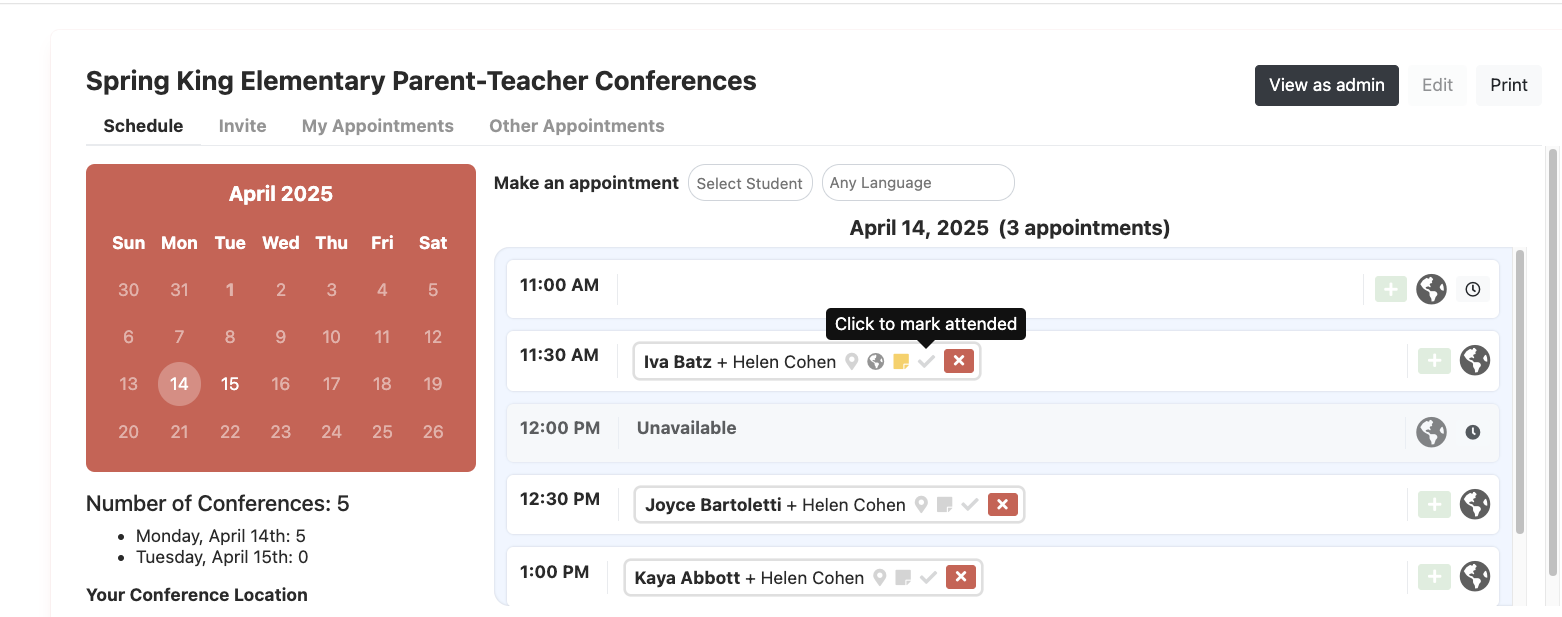
In "My Appointments":
- You can filter by conference, search for students, and access any Lexikeet links for multilingual meetings.
Step 11: Checking Other Teacher Appointments
In the "Other Appointments" tab, view appointments your students have with other teachers. This is especially helpful if you need to join an already scheduled conference for shared students.
Additional Resources
For more detailed guides and resources, including videos for families available in multiple languages, visit here.
Was this article helpful?
That’s Great!
Thank you for your feedback
Sorry! We couldn't be helpful
Thank you for your feedback
Feedback sent
We appreciate your effort and will try to fix the article