When you log in as a District Admin (Admin 2) for the first time, you'll be prompted to set your district settings. You can return to and update these settings at any time from your homepage.
As a District Admin, you have access to both Contact Settings and District Settings from the home page.
To access:
-
Click the Home button.
-
Select the gear icon.
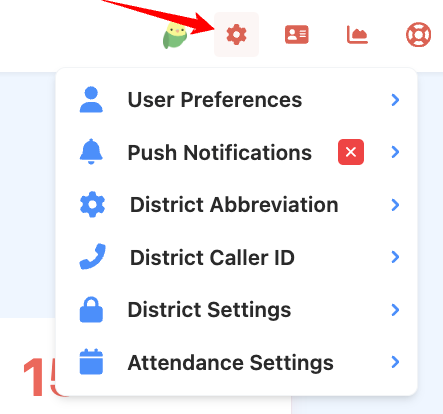
District Abbreviation
The district abbreviation is a short identifier that appears after the sender’s name in messages. It reflects the school the sender is associated with, helping families recognize the message source quickly.
For example: Ms. Patel (RMT)
Tips for choosing an abbreviation:
-
Use a recognizable but short abbreviation to ensure clarity.
-
Longer abbreviations reduce the amount of visible message content, especially in text messages.
-
If the message is too long, recipients may see a “read more” link, which could hide part of your message.
Caller ID
You can set the Caller ID phone number for each school or building. This is the number families will see when they receive a call.
If they miss the call, they’ll know exactly which school to call back—helping prevent confusion and improving response rates.
District Settings
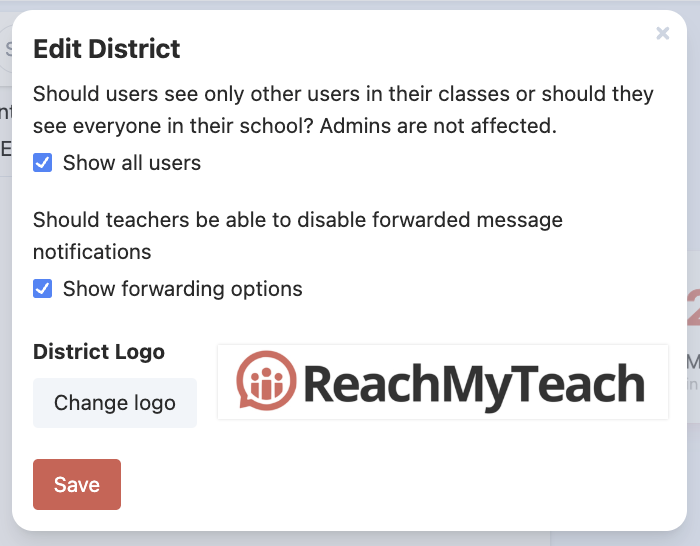
Under District Settings, you can:
-
Enable “Show all users”
This allows teachers to view students outside of their assigned classes or groups. -
Enable “Show forwarding options”
This allows teachers to choose whether messages are forwarded to their email.
If a teacher turns off email forwarding, they’ll need to log in to ReachMyTeach to read their messages. -
Add a district logo
The logo will appear in emails (not texts).
We recommend using a longer, rectangular logo that includes your school or district name next to the icon, rather than just a square image. This helps ensure it looks professional and recognizable in message headers.
Attendance Settings
Admins can also configure Attendance Settings to manage how attendance-related communication is triggered and tracked within the platform. Learn more here.
Was this article helpful?
That’s Great!
Thank you for your feedback
Sorry! We couldn't be helpful
Thank you for your feedback
Feedback sent
We appreciate your effort and will try to fix the article