Any admin can message an entire grade or multiple grades limited to 2,000 recipients, for the ability to message more recipients at once please look at our broadcasting feature.
This functionality can also be enabled for any teacher, by a system admin, who needs to send messages by school or grade level, such as guidance counselors.
Steps to Message a Grade Level or Multiple Grades:
- Go to "New Message": Start as you normally would for a text or email.
- Use the "Select Group" Dropdown: Choose specific groups by narrowing down by school (if you are at the district level), language, and grade(s)*.
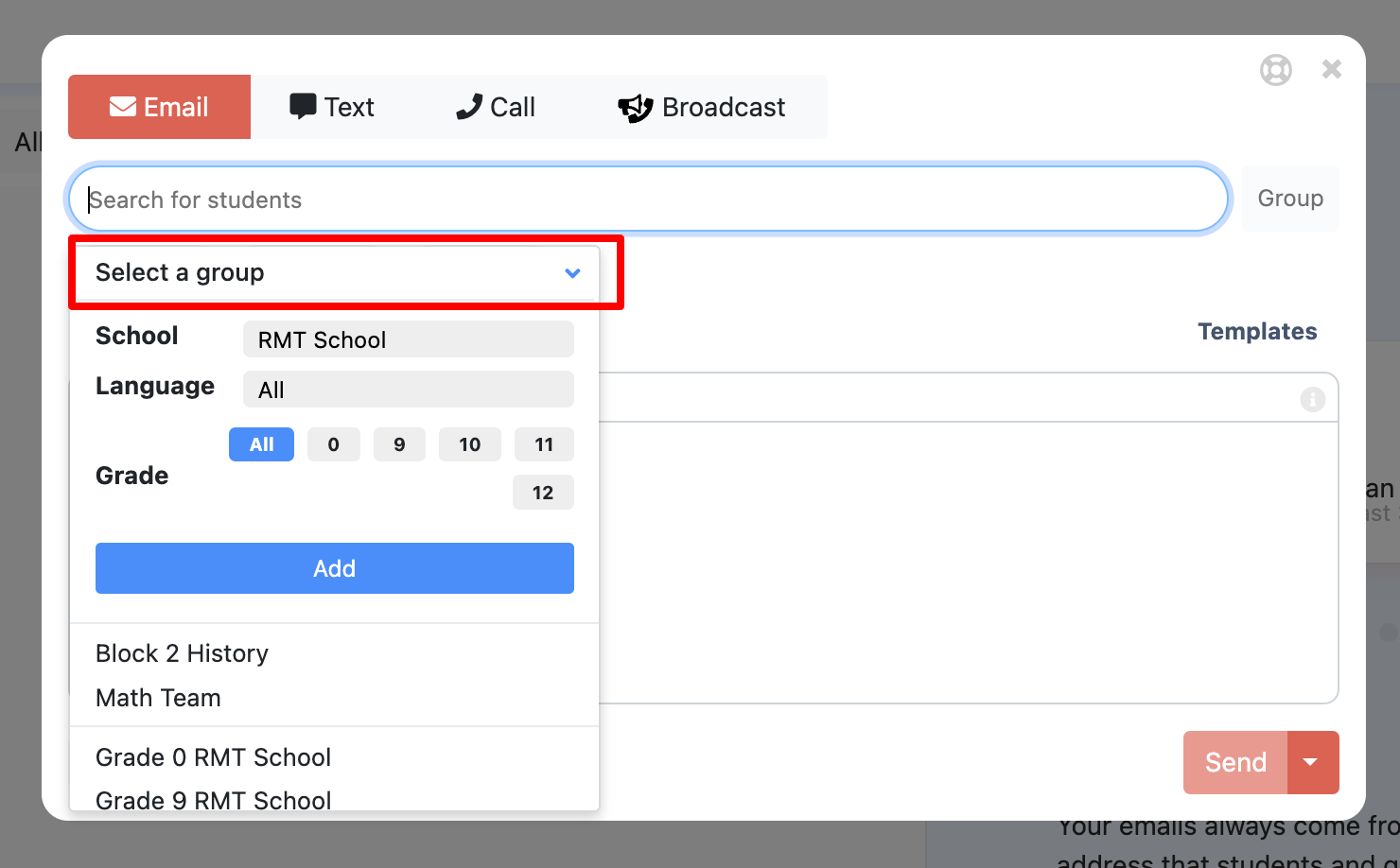
Select Add to add your recipient selection. Note that "ALL" will go to all grades or all languages. All multilingual will only go to recipients who are marked in ReachMyTeach with a language other than English:
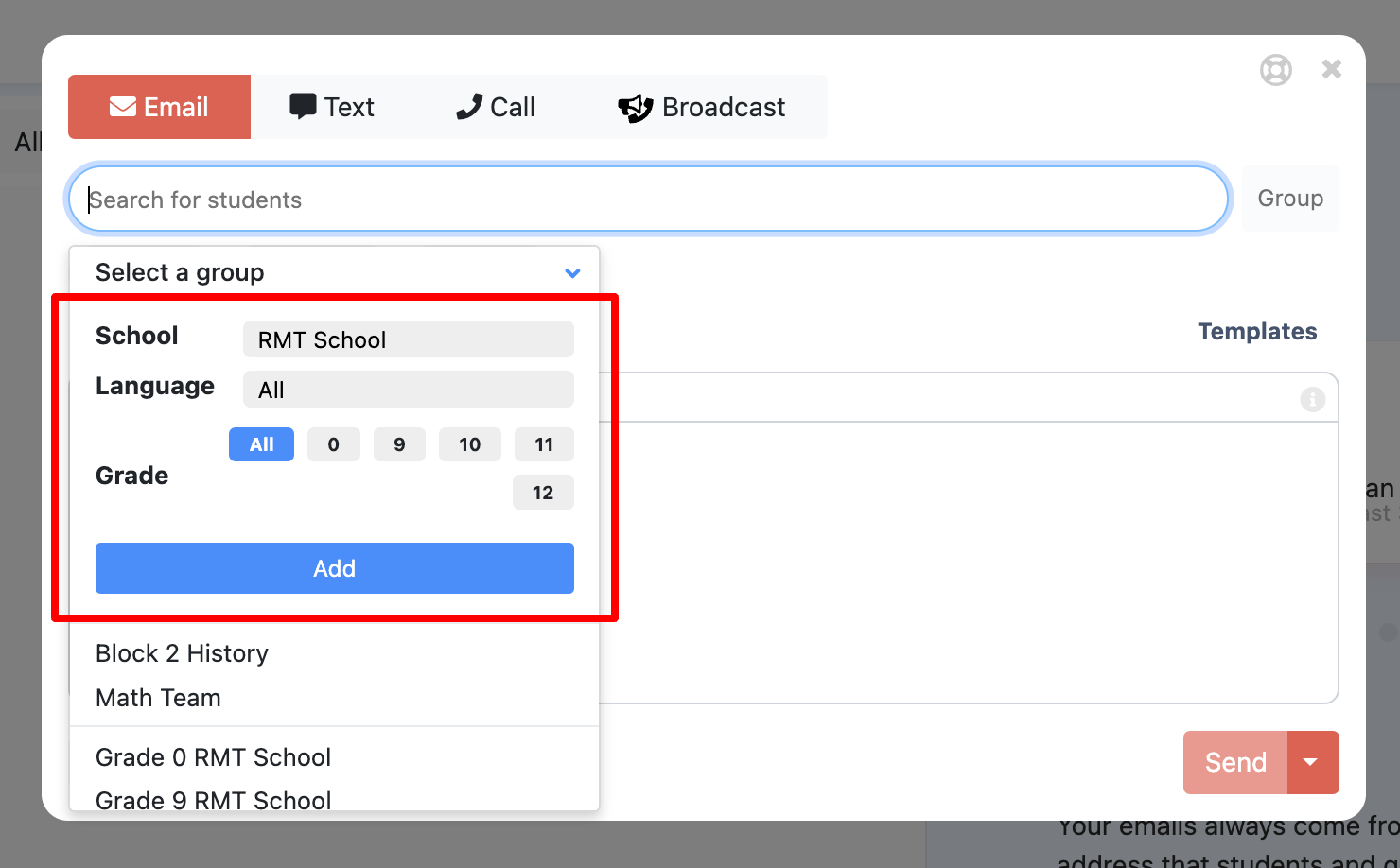
*Grade levels will also appear as a list below the "Select Group" dropdown.
*Recipients of large messages will not be able to see or communicate with other recipients, similar to BCC functionality.
Turning Off This Feature:
Admins and educators can update their preferences to turn off this feature.
Was this article helpful?
That’s Great!
Thank you for your feedback
Sorry! We couldn't be helpful
Thank you for your feedback
Feedback sent
We appreciate your effort and will try to fix the article