Merge fields let you personalize one message for many recipients by inserting student-specific values from a CSV upload.
Example:
Hello [guardian.firstname], [student.firstname] rides bus [otherData.bus_number].
At send time, each recipient sees their own value.
What merge fields are
Merge fields are custom student data points such as:
bus_numberlockercounselorgraduation_plan
They are stored per student and used in message content with this format:
[otherData.fieldname]
The fieldname must exactly match your CSV column header.
Uploading a CSV with merge fields
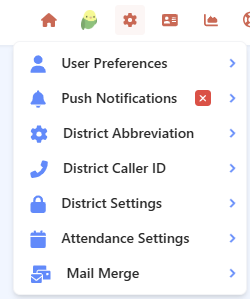
- Go to Mail Merge (in your settings gear icon)
- Click Upload CSV
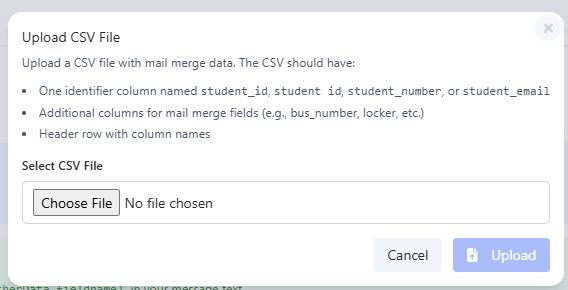
- Include one identifier column:
student_idstudent idstudent_numberstudent_email
- Add one or more additional columns for merge fields
- Upload and submit the file
Processing is queued and may take a short time.
Refresh the page after processing to view updated student data and merge fields.
CSV example
student_id,bus_number,locker,counselor
12345,17A,204B,Ms. Rivera
12346,22C,110A,Mr. Patel
Automatic group creation
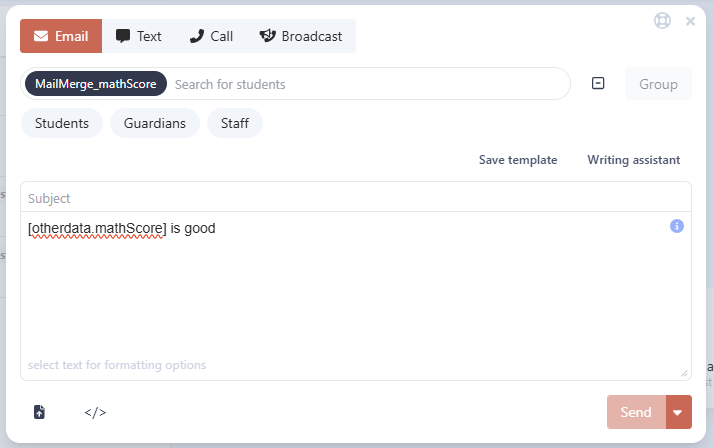
After a CSV is processed, the system automatically creates or updates a group named:
MailMerge_FIELDNAME
FIELDNAME comes from the first custom merge-field column in your CSV (the first non-identifier column).
That group contains students matched from the uploaded file, making it easy to send to the same recipients again later.
Example:
If your first merge field column is bus_number, the system creates:
MailMerge_BUS_NUMBER
Merge tag format
Use this format inside your messages:
[otherData.fieldname]
 Examples:
[otherData.bus_number]
[otherData.locker]
[otherData.counselor]
Who receives messages with merge fields
Messages containing merge fields are only sent to recipients whose student record contains a value for that field.
If a recipient does not have the required value, they are skipped automatically.
For guardians, the system checks the associated student’s merge field value.
Example:
Hello [guardian.firstname], your student’s locker is [otherData.locker].
Only guardians linked to students with a locker value will receive the message.
Was this article helpful?
That’s Great!
Thank you for your feedback
Sorry! We couldn't be helpful
Thank you for your feedback
Feedback sent
We appreciate your effort and will try to fix the article