Field Trip Forms can be updated at any time to match the needs of a specific trip.
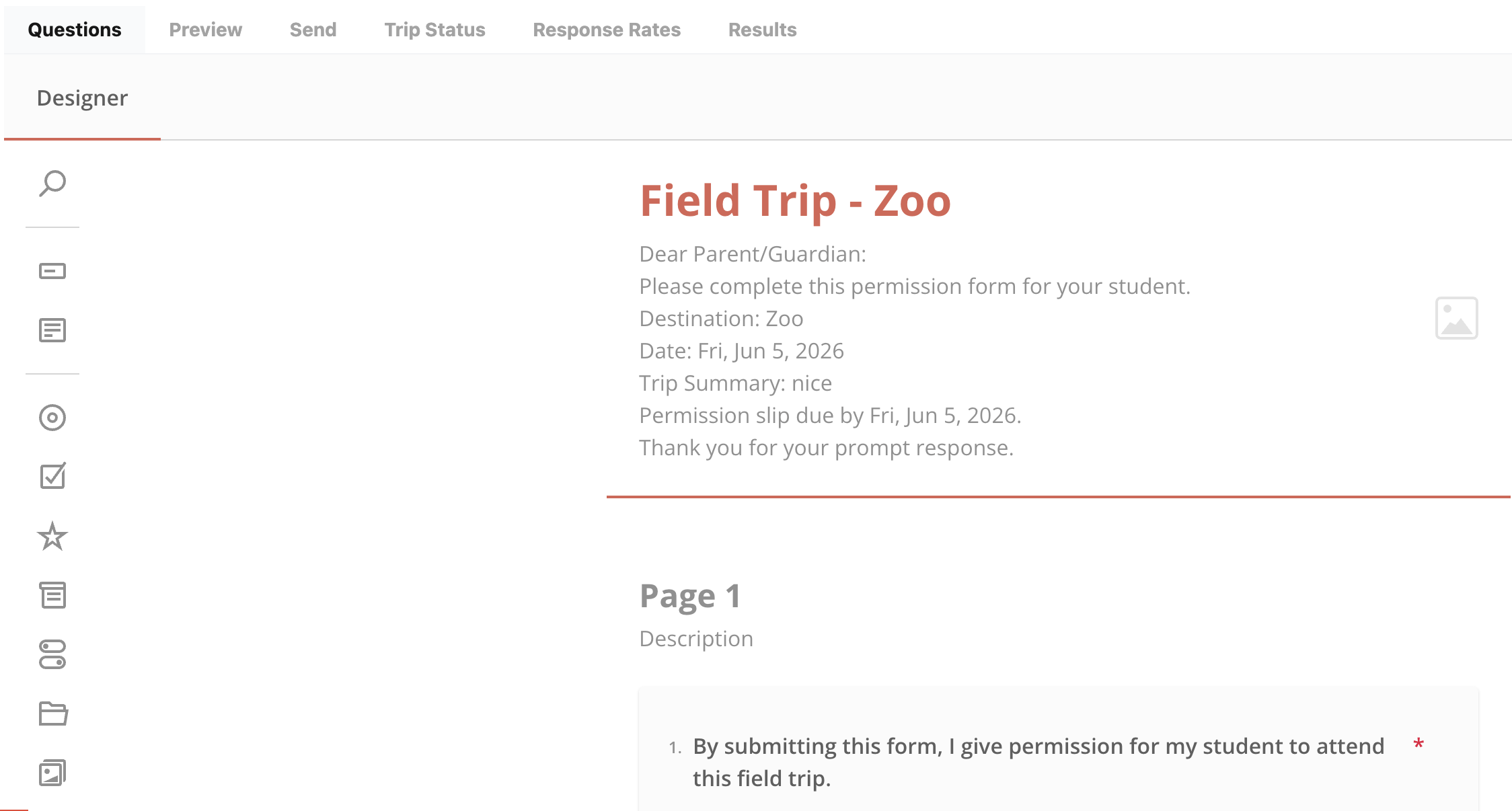
Edit Questions
To customize the form:
- Open the Field Trip form dashboard
- Open the Questions tab
- You will need to click Show Options first
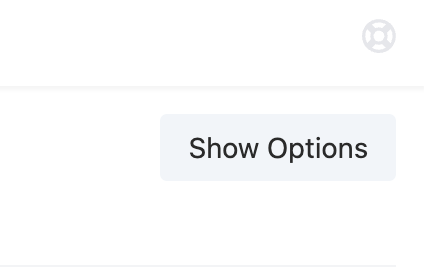
- You will need to click Show Options first
From here you can:
- Add questions
- Edit wording
- Change required fields
- Reorder questions
- Remove unnecessary fields
Changes save automatically while editing.
Common Customizations
Schools commonly add:
- Additional consent language
- Pickup/drop-off instructions
- Trip-specific safety questions
- Custom medical questions
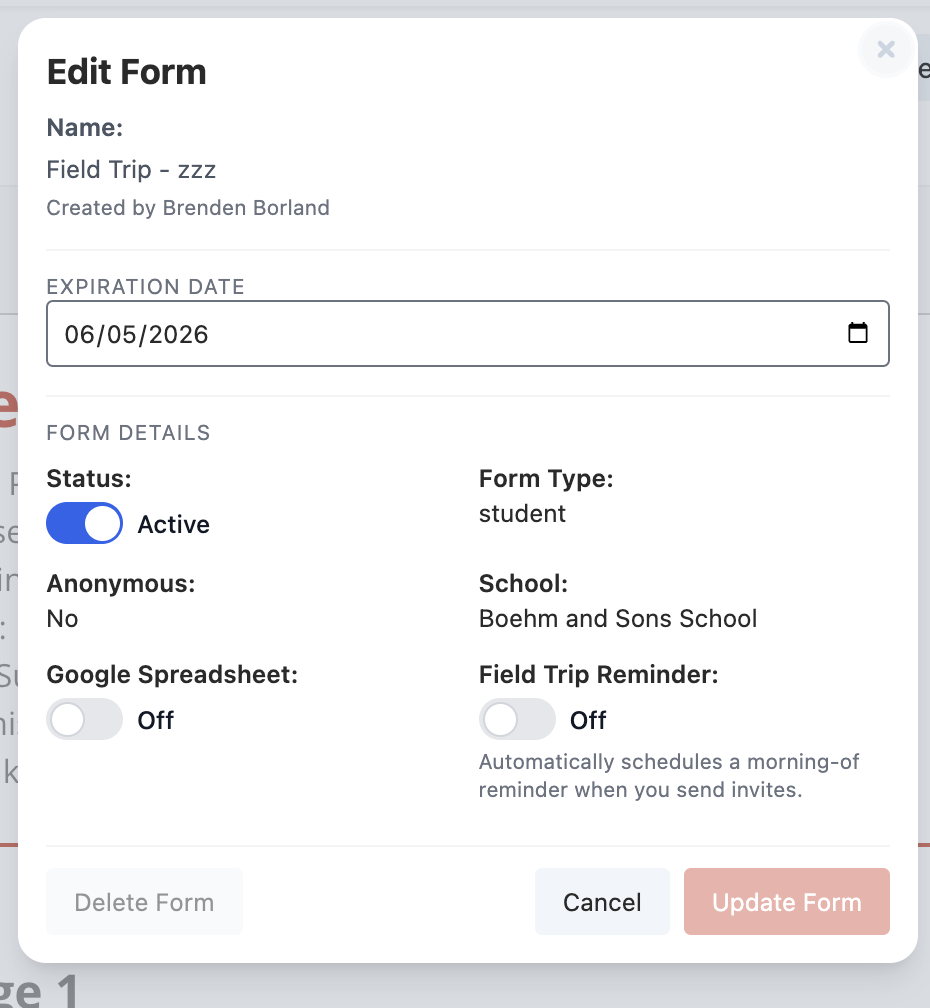
Manage Form Settings
Clicking update (one of the hidden options - you will need to click show options first)
You can update:
- Form name
- Expiration date
- Active/inactive status
- Reminder settings
- Spreadsheet connections
Responses Are Not Appearing in a Spreadsheet
Verify the spreadsheet connection is active, then run a sync or refresh.
<IMAGE>
Was this article helpful?
That’s Great!
Thank you for your feedback
Sorry! We couldn't be helpful
Thank you for your feedback
Feedback sent
We appreciate your effort and will try to fix the article