The Field Trip Form helps schools collect digital permission slips and track guardian responses for upcoming trips.
What the Field Trip Form Includes
Field Trip Forms automatically include common permission-slip fields such as:
- Permission acknowledgment
- Medical conditions and medications
- Emergency contact information
- Parent/guardian signature
Optional questions like lunch selection and chaperone interest can also be included during setup.
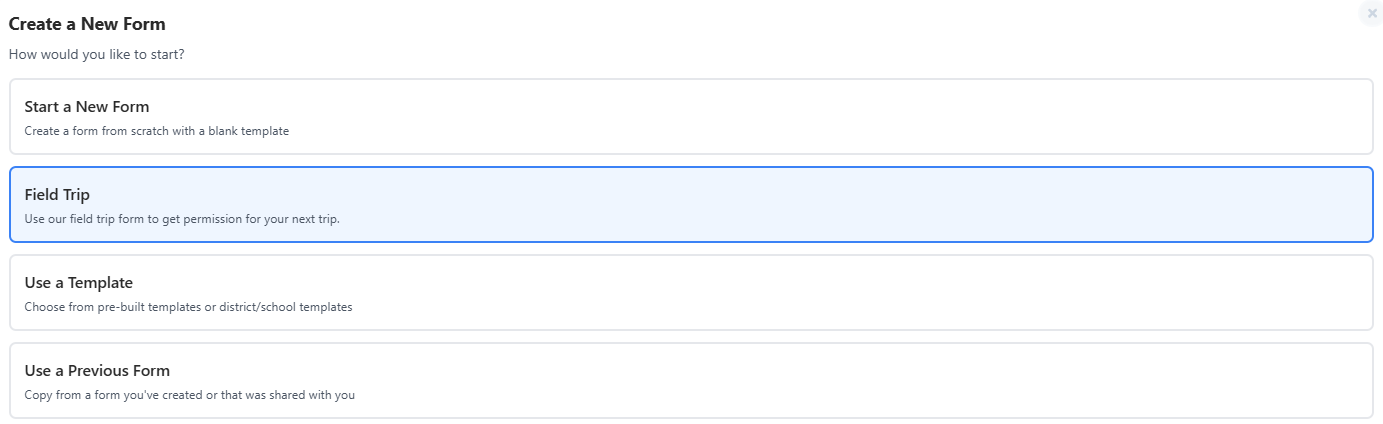
Step 1: Start a New Field Trip Form
- Go to Create a New Form
- Select Field Trip
You’ll be guided through a 3-step setup process.
Step 2: Enter Trip Details
Where
Enter:
- Trip destination
- Short description
The description is shown to families, so include important trip details and context.
Date of Trip
Enter:
- Trip date
- Optional start/end time
- Form due date
The due date becomes the form expiration date.
Optional Settings
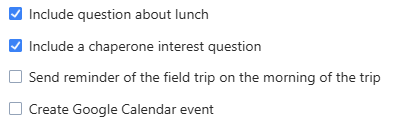
You can also enable:
- Lunch question
- Chaperone interest question
- Morning-of-trip reminder
- Google Calendar event creation
- School/district selection (if available)
Click Create Field Trip Form when finished.
Was this article helpful?
That’s Great!
Thank you for your feedback
Sorry! We couldn't be helpful
Thank you for your feedback
Feedback sent
We appreciate your effort and will try to fix the article