To ensure ReachMyTeach continues syncing correctly it is best practice to rotate your OneRoster Sync Credentials.
Step 1: Open Digital Learning Applications
In Infinite Campus, navigate to:
Instruction → Settings → Digital Learning Applications
If you use a different OneRoster-compatible student information system, navigate to the area where third-party applications, integrations, or OneRoster connections are managed. The exact location may vary by SIS.
Step 2: Select Your Current ReachMyTeach Connection
Locate and select your existing ReachMyTeach (RMT) OneRoster connection.
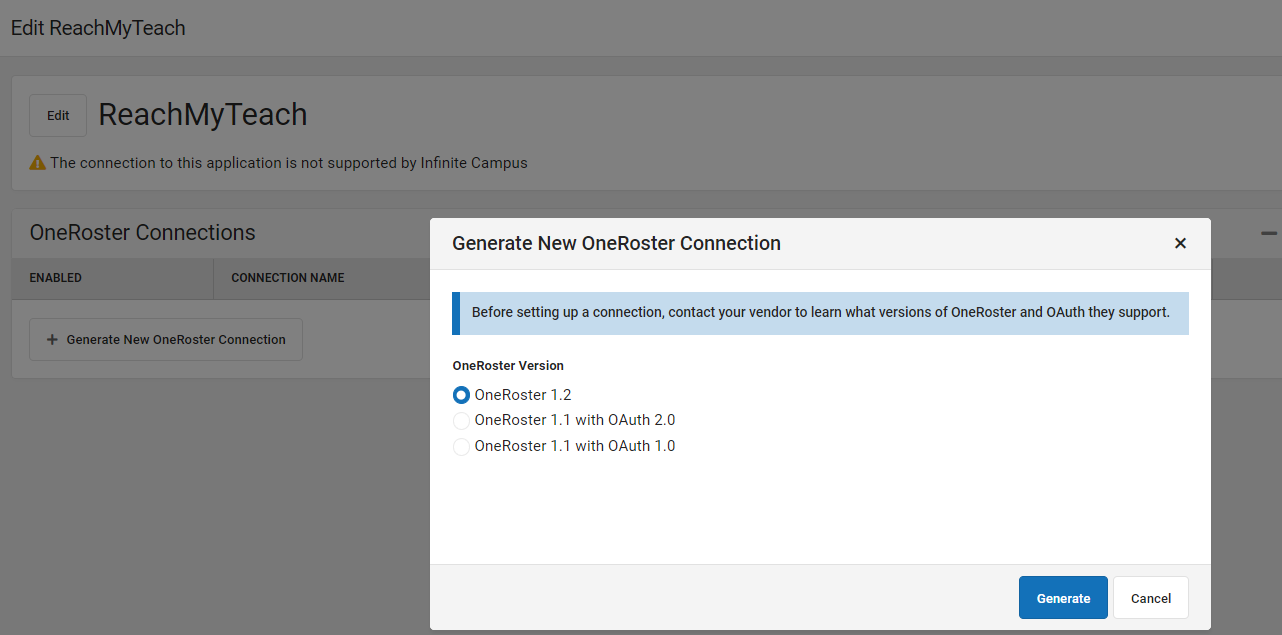
Step 3: Generate a New OneRoster Connection
Select Generate New OneRoster Connection.
When prompted, name the new connection using the following format:
RMT Month Year
Example: RMT July 2026
Step 4: Generate a New OneRoster Connection (Version 1.2)
When creating the new connection, select OneRoster Version 1.2.
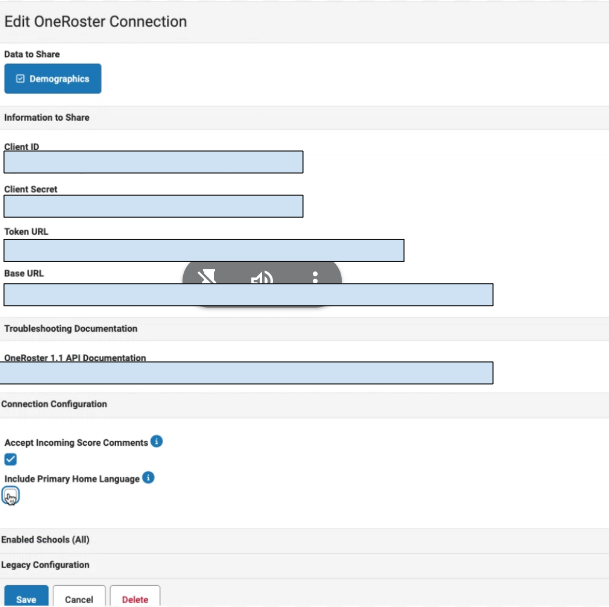
After the connection is generated, Infinite Campus will display four pieces of connection information that you will need in the next step.
If your district uses Primary Home Language, select that field under Connection Configuration as shown.
Step 5: Complete the ReachMyTeach OneRoster Form
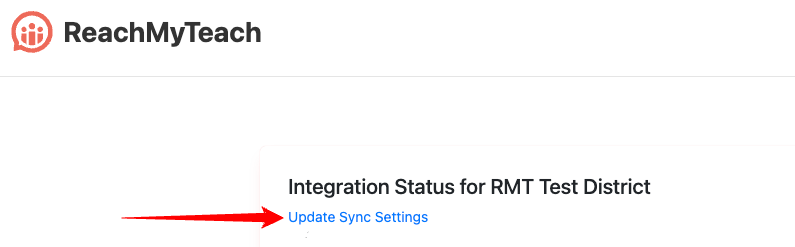
Go to the Integration Status page in your ReachMyTeach account and click Update Sync Settings. If you do not see the Integration Status page you may need a permissions adjustment, only A+ of the district will see this page, please reach out to your district administrator.
Enter the four connection values from Infinite Campus:
- Client ID
- Client Secret
- Token URL
- Base URL
Once all four values have been entered, click Submit to save your updated connection settings.
Verification
After completing the rotation, verify that your ReachMyTeach sync is functioning normally by checking the Integration Status page for successful synchronization.
Step 6: Remove the Old Connection
After ReachMyTeach has confirmed the new connection is active, return to Infinite Campus and delete the previous OneRoster connection.
Was this article helpful?
That’s Great!
Thank you for your feedback
Sorry! We couldn't be helpful
Thank you for your feedback
Feedback sent
We appreciate your effort and will try to fix the article