Here is a video on this process. This is a video for sending through ReachMyTeach - there are also instructions at the bottom for that portion).
To create a progress report or report card to send home through ReachMyTeach.
Go to
 (or search for Report Setup)
Either edit one of your reports, or create a new one
Add report detail

Setup your options
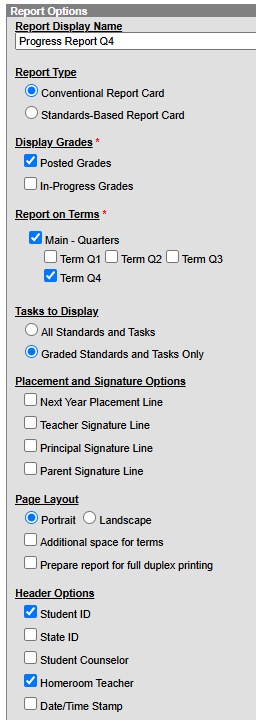
Choose Conventional, unless you want each standard to appear
If teachers are posting at this time, choose posted, otherwise in-progress
Select which terms you want on the report
Choose grades standards/tasks
You must select Student ID (that is how we will match it per kid)
For grading tasks, specify which ones you want on the report (or just select all)
Other options are optional.
Display options
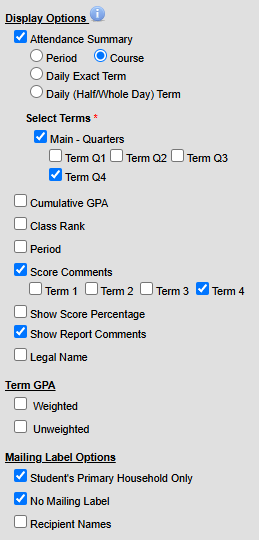
Only choose student's primary household and no mailing label
Everything else is optional - determine if you would like attendance and comments shown.
Save
Test and/or fix and send
Go to
 or search report card
Choose the report you just made and then select who (all students? 6th graders?)
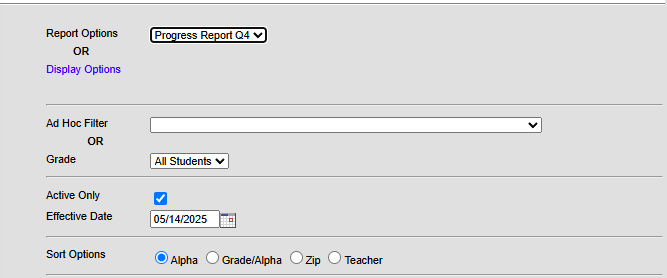
If it is not looking like you liked - go back and edit the report.
If it looks good, click the download button, then go to RMT and click Document Delivery
Was this article helpful?
That’s Great!
Thank you for your feedback
Sorry! We couldn't be helpful
Thank you for your feedback
Feedback sent
We appreciate your effort and will try to fix the article