The Newsletter Builder includes three tabs:
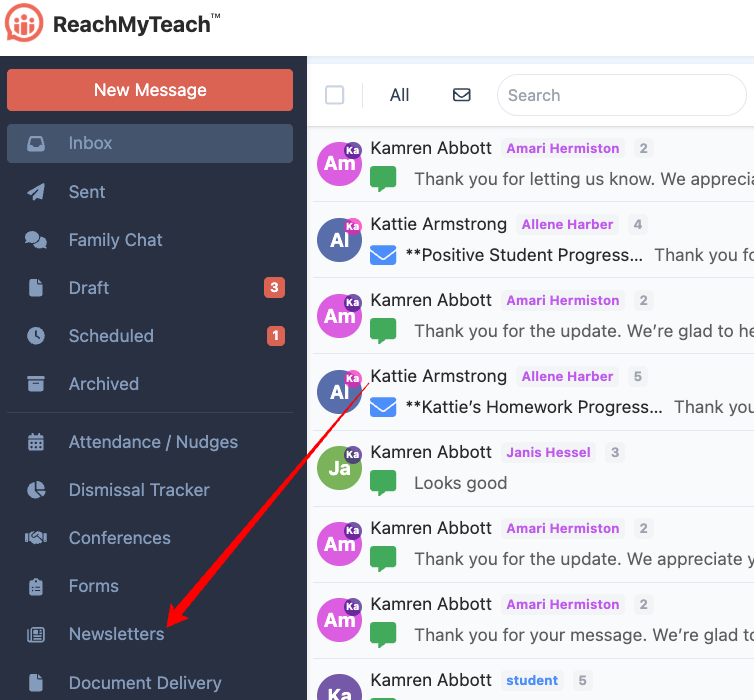
Create: Build a newsletter using the visual drag-and-drop editor.
Code: Paste or edit newsletter HTML.
Preview: Review how the finished newsletter will appear.
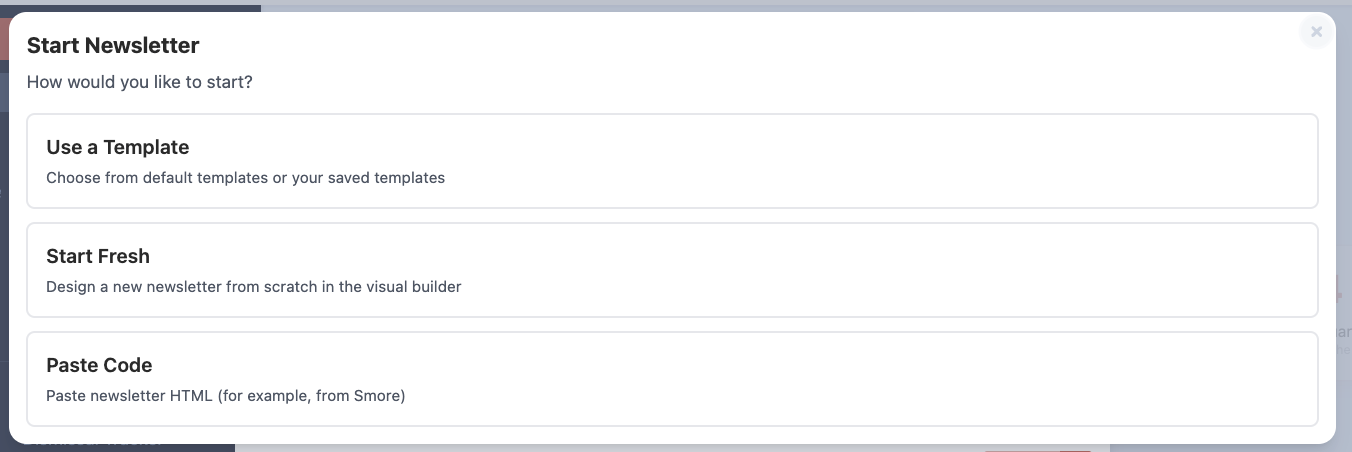
Build a Newsletter from Scratch
Open Newsletter Builder.
Select the Create tab.
Add, arrange, and format your newsletter content.
Click Preview Design.
Review the newsletter in the Preview tab.
Click Use this content to add the newsletter to your message.
Customize an Existing Template
Open Templates.
Click Customize Template.
Browse the available template categories:
Default
Personal
District
School
Select a template to preview it.
Click Use Template to use it as-is, or click Customize This Template to make changes.
Use S’more or Other HTML Code
Open Newsletter Builder.
Select the Code tab.
Paste the newsletter HTML.
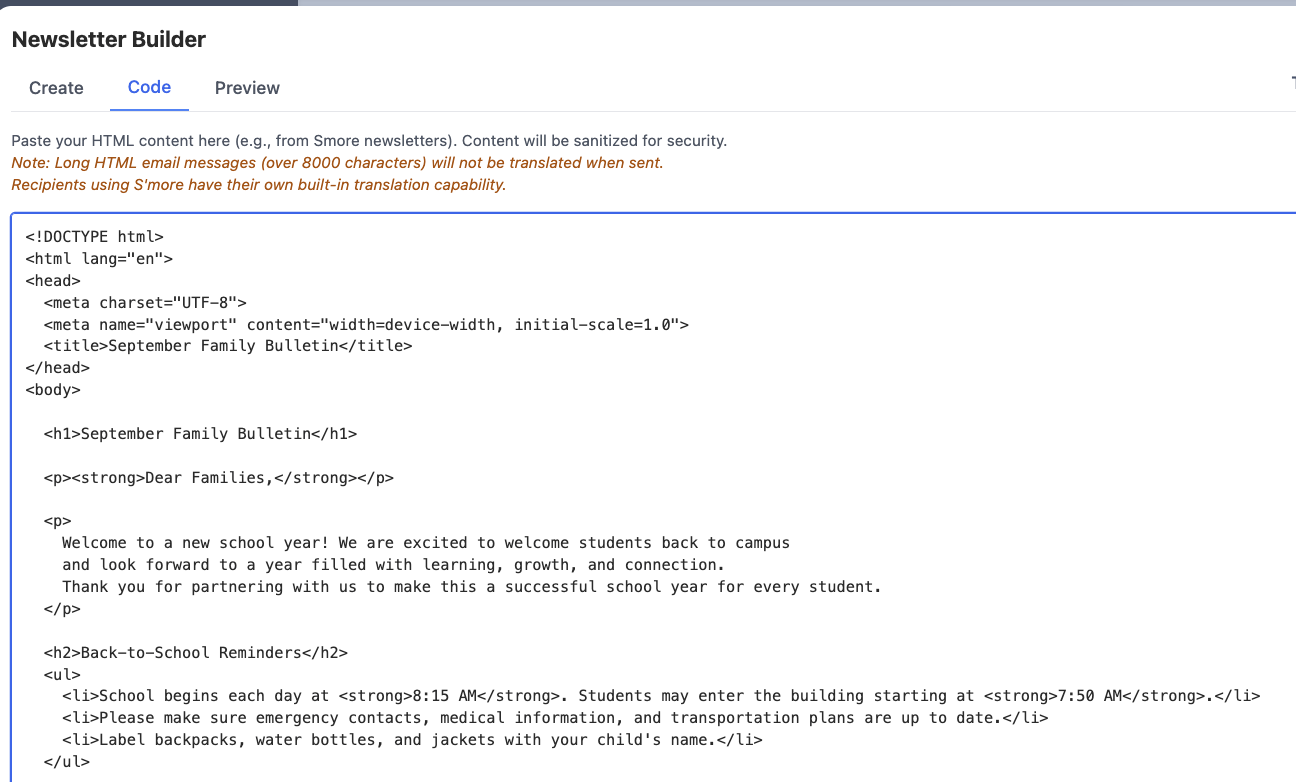
Open the Preview tab to confirm that the formatting appears correctly.
Click Use this content.
Translation note: Long HTML email messages may not be translated when sent. S’more newsletters include their own translation support.
Was this article helpful?
That’s Great!
Thank you for your feedback
Sorry! We couldn't be helpful
Thank you for your feedback
Feedback sent
We appreciate your effort and will try to fix the article