ReachMyTeach keeps you informed about your student's attendance with real-time updates and easy options to respond. You can respond to an attendance notification or proactively excuse an upcoming absence by writing to attendance.
Respond to an Attendance Notification
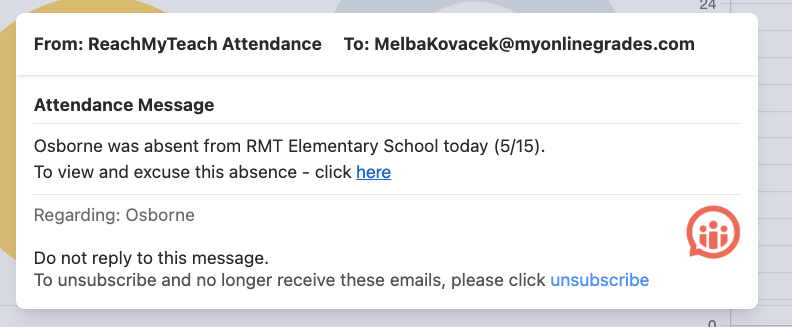
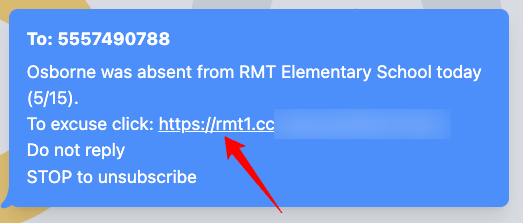
- Text or Email Alert: If your student is marked absent, you’ll receive a notification through your preferred communication method.
- Next Steps:Depending on the school’s process, you may be:
- Directed to call the school
- Sent a link to excuse the absence directly online
Excusing an Absence
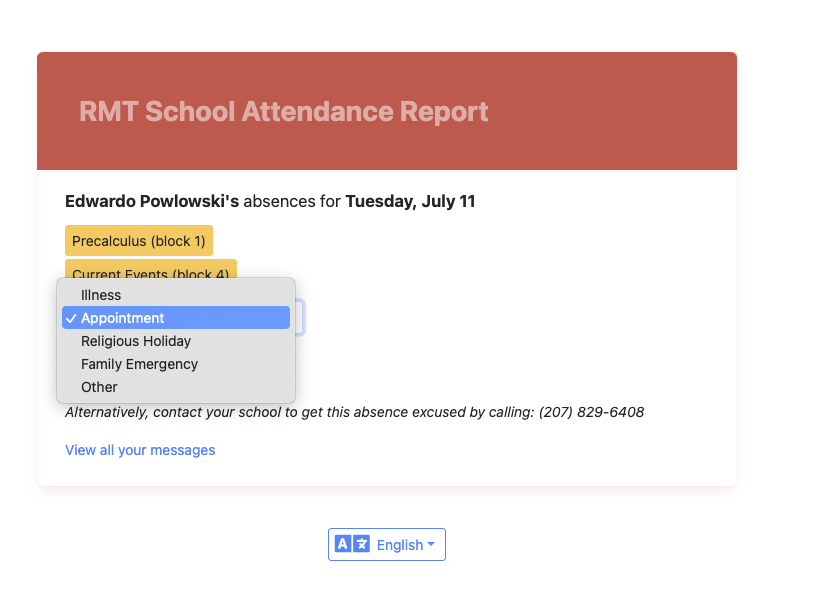
- Click the Link: In the notification message, click the provided link to go to the School Attendance Report Page.
- Select a Reason:Choose the reason for your student’s absence from the list.
- If the reason isn’t listed, select “Other” and leave a note explaining the absence.
- Submit the Form: Click Submit to send the excused absence notification directly to your school.
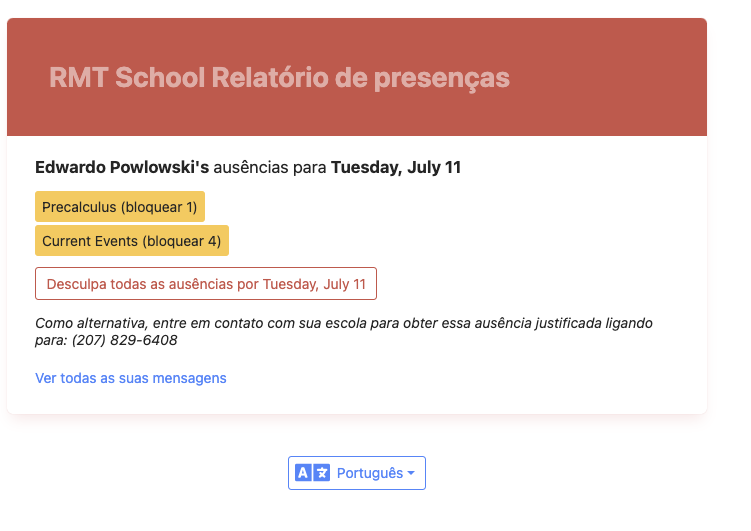
Note: Attendance notifications and the School Attendance Report Page will automatically appear in your preferred language.
Proactively Reporting an Absence
If you know your student will be absent ahead of time, you can also proactively report it:
- Start a New Message: Open ReachMyTeach, select New Message, and choose Attendance for your student. And explain the dates/times reason your student will be absent.
Was this article helpful?
That’s Great!
Thank you for your feedback
Sorry! We couldn't be helpful
Thank you for your feedback
Feedback sent
We appreciate your effort and will try to fix the article