You may occasionally need to adjust your school’s attendance settings, especially for unique schedules or days when attendance notifications should not automatically go out to families.
Important: If you turn off attendance notifications, you must manually turn them back on before automatic notifications will resume.
Open Attendance Settings
- Click the gear icon in the upper-right corner.
- Select Attendance Settings.


Adjust Attendance Settings
Choose the school you would like to update. From this page, you can:
- Turn automatic attendance notifications on or off: Deselect Enable Attendance to stop automatically scheduled attendance notifications. Select it again when you are ready for notifications to resume.
- Allow or prevent family replies: Deselect Allow Attendance Replies if you do not want families to respond to attendance alerts.
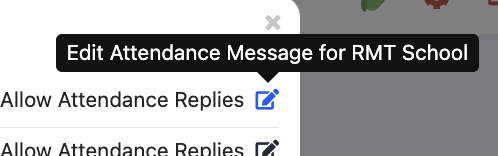
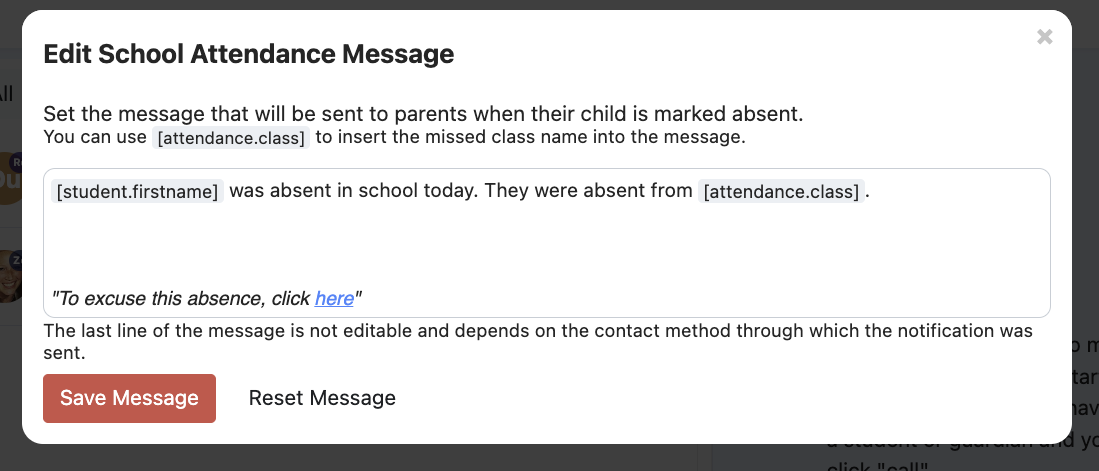
- Edit the automatic attendance message: Click the pen and paper icon to update the message families receive.
The default attendance notification is based on research about effective attendance messaging and is written to support readability, engagement, and translation. Adjusting the wording may affect these elements.

See Who Receives Attendance Messages
If attendance replies are enabled, messages that families send to Attendance are delivered to the staff members assigned to receive attendance emails.
Hover over the email icon in Attendance Settings to see which staff members currently receive these messages.

To add or remove a recipient, update the staff member’s permissions and select or deselect Attendance Emails.

Staff members with Attendance Emails enabled will also receive the end-of-day attendance report by email. Or users can adjust for themselves under attendance settings as well:
Learn more about managing attendance responses.
Was this article helpful?
That’s Great!
Thank you for your feedback
Sorry! We couldn't be helpful
Thank you for your feedback
Feedback sent
We appreciate your effort and will try to fix the article