Viewing the Attendance Message Sent to Families
ReachMyTeach automatically sends attendance messages to families when a student is marked absent, this can be turned off or on in attendance settings.
This message allows guardians to respond directly with a reason for the absence.
TABLE OF CONTENTS
- Viewing the Attendance Message Sent to Families
- Accessing Attendance Responses
- Viewing Message Data for the Attendance Data
- Using Class-Specific Attendance Notifications
- Understanding Excused Absence Details
- Marking Absences as Resolved
- Filtering Unexcused and Resolved Absences
- Real-Time Updates for Multiple Staff
Attendance Management Training Video:
Accessing Attendance Responses
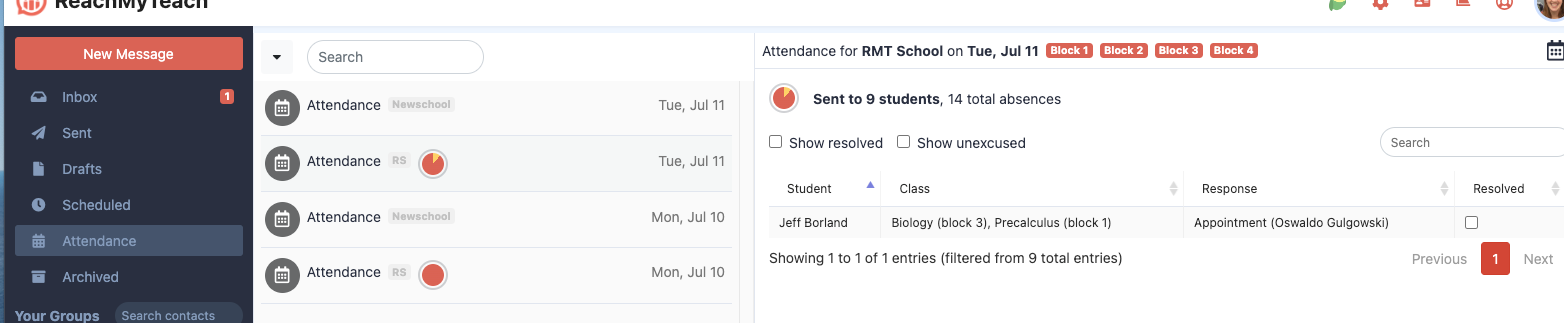
When a guardian responds to an attendance message, their response is recorded in the school or district Attendance Folder. This folder is accessible to administrators and other authorized personnel.
To access attendance responses:
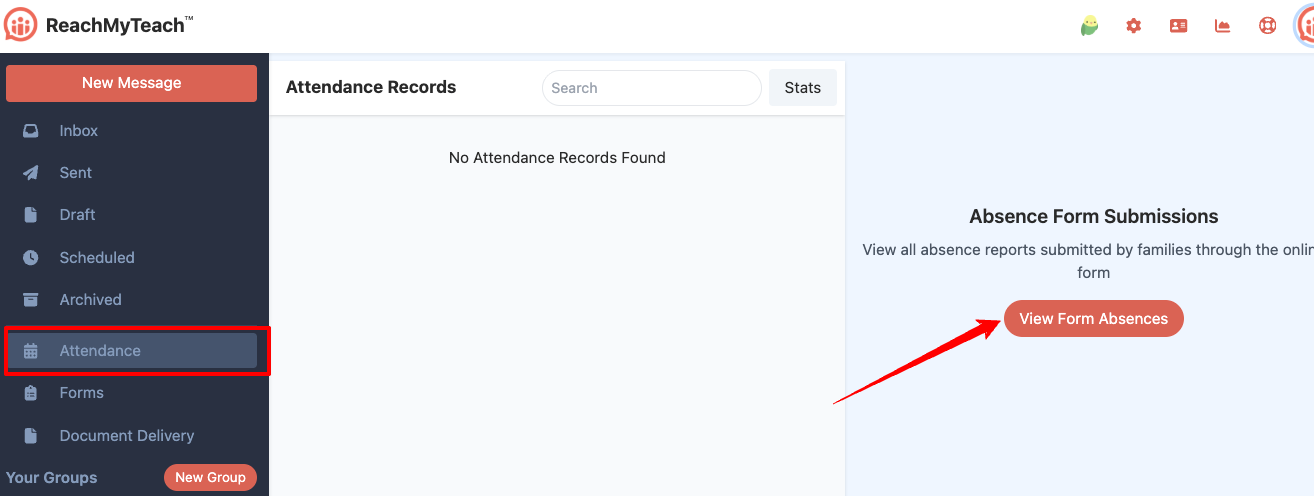
Click on the Attendance Folder.
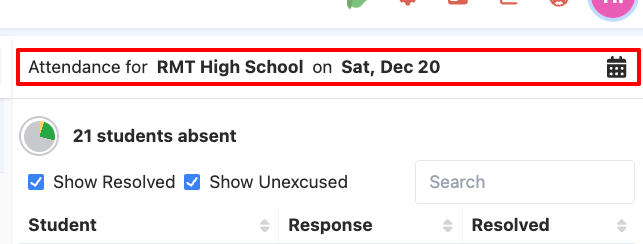
Choose the specific date you want to view.
From here you can also view the log of the shareable absence form.
Viewing Message Data for the Attendance Data
If you would like to see the message data associated with an attendance message sent on a specific date:
Hover over the date in the Attendance Folder.
Click the question mark icon (?) that appears.
This will show you details about the attendance message sent that day, including message delivery information.
Using Class-Specific Attendance Notifications
If your school uses class-specific attendance notifications:
Open the Attendance Folder.
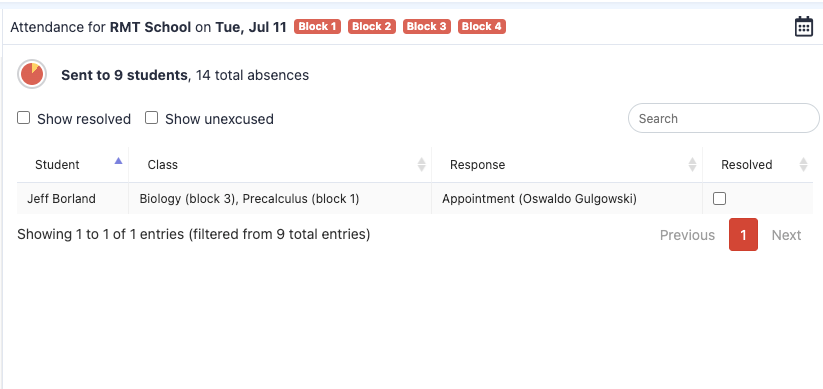
Select the red class title in the upper right corner of the attendance screen.
This allows you to filter attendance responses by class or block.
Understanding Excused Absence Details
When a guardian responds to an attendance message, excused absences will include the following information:
Student name
Class or block details
Guardian name
Reason for the absence
Marking Absences as Resolved
Once an excused absence has been entered into your Student Information System (SIS):
Check the Resolved box next to the absence.
Important note: ReachMyTeach does not automatically update your SIS. A designated attendance staff member must manually enter excused absences into the SIS.
Filtering Unexcused and Resolved Absences
To view students whose guardians received an attendance message but have not yet been excused:
Click the Show Unexcused checkbox.
Use the search feature to filter by class or block if needed.
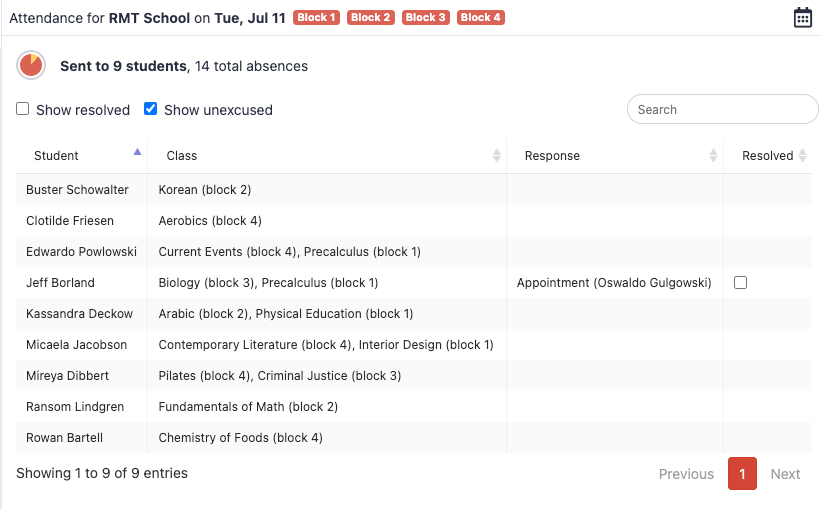
To view students whose guardians have responded and whose absences have been entered into the SIS:
Click the Show Resolved checkbox.
Real-Time Updates for Multiple Staff
The attendance list updates in real time. This allows multiple staff members to monitor and manage attendance simultaneously without duplicating work.
Was this article helpful?
That’s Great!
Thank you for your feedback
Sorry! We couldn't be helpful
Thank you for your feedback
Feedback sent
We appreciate your effort and will try to fix the article