Get a desktop or phone notification when you have a message in ReachMyTeach.
Browser Set Up
You can now receive a notification whenever you receive a new message. This notification will popup in your browser or phone and you can click to quickly see and respond to your latest message. You will need to enable notifications for every device you use. On your computer click the gear in the upper right & select user preferences.
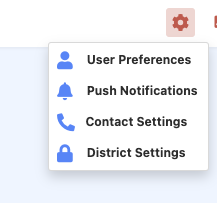 Select "Push Notifications" then enable & allow notifications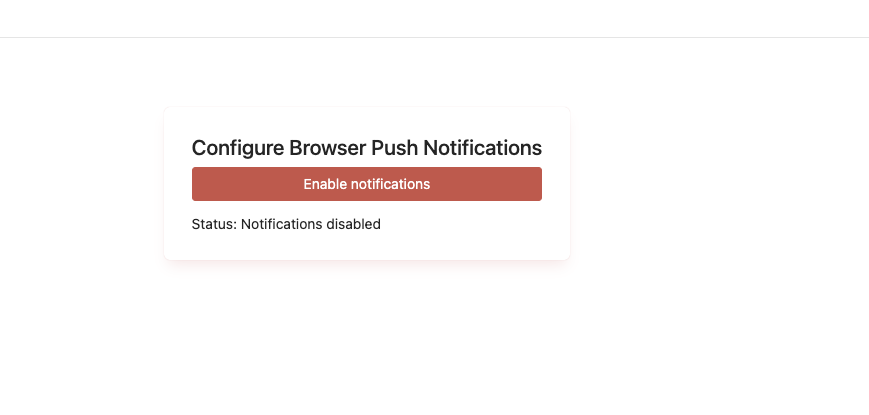
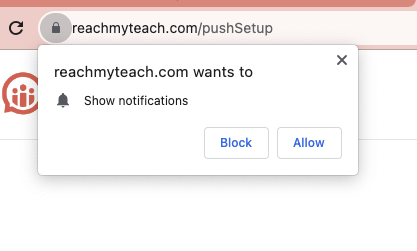
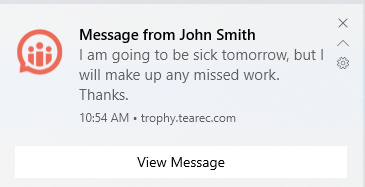
Notifications will now show up when you get a message!
Phone Setup
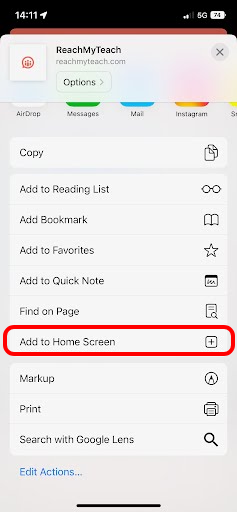
For phone, you will need to first go to reachmyteach.com and then add to home screen 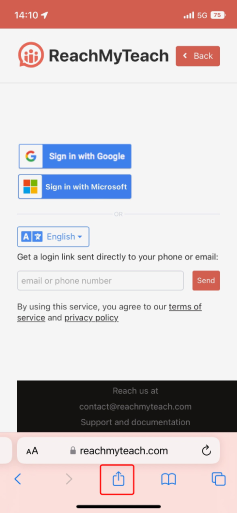 .
. 
Then you can enable notifications.
Was this article helpful?
That’s Great!
Thank you for your feedback
Sorry! We couldn't be helpful
Thank you for your feedback
Feedback sent
We appreciate your effort and will try to fix the article